Edit a case description or note alongside your teammates in real time. See who is actively viewing or editing a case note, their draft changes, and each editor's cursor position.
Real-time collaborative editing supports faster triage and review sessions within Cases — multiple editors can contribute to the same case description or note without overwriting each other's work.
How it works
When two or more users edit the case description or a case note, they see each other's drafted changes in real time.
View a case simultaneously
When you view a case at the same time as another user, a collaboration indicator appears at the top of the case. This includes the collaborator's information but does not indicate the specific case content they are viewing.
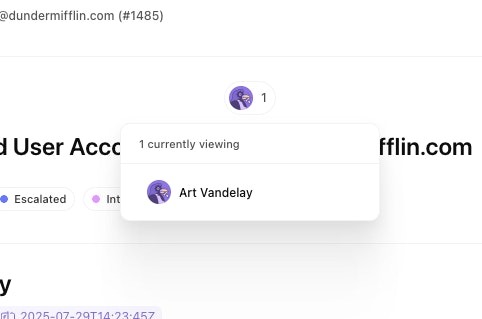
Edit case content simultaneously
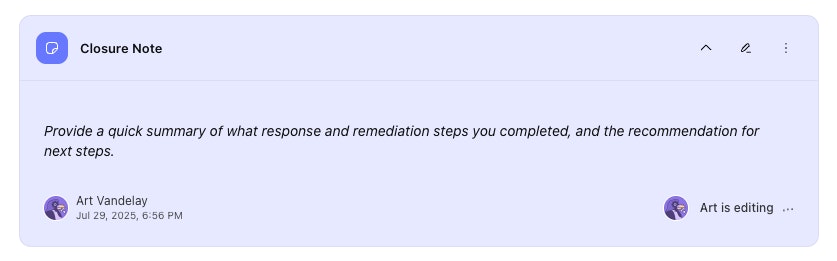
When another user is actively editing content in the case, a collaboration indicator appears at the top of the case showing:
The user who is currently editing
The tite of the content they are editing
Select the user's avatar to jump directly to the content they are editing. This automatically opens the description or note block in edit mode.
When scrolling through a case, a collaboration indicator is shown directly on any notes actively being updated. Simply edit the description or note to see their real-time changes in the draft.
Save your work
Select Done to save your changes to the case description or note.
Collaborators can continue drafting changes after a note has been saved — their updates are stored as a draft until they subsequently select Done or Cancel.
If you navigate away without saving or cancelling, the draft is preserved for other collaborators still editing.
This draft is preserved for up to 24 hours after the last change to the draft.
If you select Cancel and are the sole editor of a note, your draft is discarded immediately.
ℹ️Info
Reset to saved version
Click the Reset to saved version button to revert to the last saved content in the note. This discards all unsaved changes for every collaborator in the session.
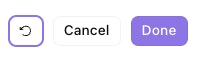
Selecting the reset button opens a confirmation dialog before changes are discarded.
Use this when the draft has diverged and you need a clean starting point.
If you're not certain you want to discard changes, copy any text you need before resetting.
Connections and session
Multiplayer uses a concept called "sessions" to facilitate the multiplayer experience. When editing a note, a new session is created. As collaborators edit the same note, each users joins the session for that note. These sessions require a consistent internet connection to display live updates.
Inactivity – if no changes occur in the editor for approximately 10 minutes, the real-time session may end and the UI displays Session expired. Begin typing again to automatically reconnect.
Drafts – When changes are made but not saved, the draft is stored as part of the note's session. When the session ends (by expired time or all users clicking cancel) those draft changes are discarded.
Permissions – you can only join a real-time session if you have edit access to that part of the case. Users with read-only permissions can't interact with the real-time editing experience.
Limitation of multiplayer
Multiplayer collaboration is only supported with the case description and note content when using the rich text editor in a case. Other case activity, comments, fields, links, metadata, status, tags, title, etc are updated synchonously.
Best practices
Save frequently. Multiplayer editing doesn't replace explicit saves — treat Done as your checkpoint.
Communicate before resetting. Resetting to the saved version affects everyone. The confirmation dialog helps prevent accidental resets, but let collaborators know before you discard the current draft.