Sensitive case fields let you restrict visibility of specific field values to authorized users — useful for protecting PII, legal data, or confidential details during an investigation.
When to use sensitive fields
Mark a case field as sensitive when its value should only be visible to a subset of users. For example, if a case tracks an HR investigation, you might mark fields containing employee names or salary data as sensitive so only authorized investigators can see them.
How it works
Sensitive case fields combine two concepts:
Assign the permission: the
View sensitive informationpermission controls who can see the values of sensitive fields.Mark a field as sensitive: any case field can be marked as sensitive by a user able to manage case fields. This flags the field for restricted visibility across the team.
When both are in place, the platform dynamically evaluates each user's access at the point they encounter a sensitive field — on the case itself, in search results, in activity logs, in exports, and in mentions. Users without the permission see that the field exists but never see its value.
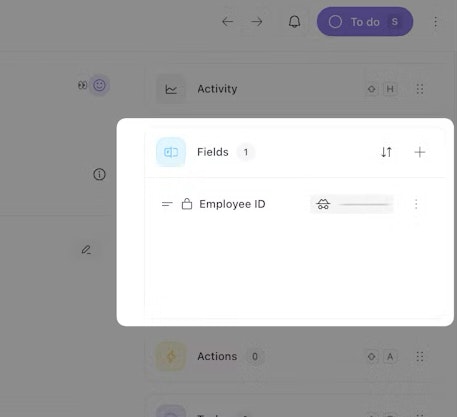
This means you can have the same field (e.g., "Employee ID") behave differently depending on who is viewing the case.
Grant access to sensitive data
Whether a user can view the contents of a sensitive field depends on whether they have the View sensitive information permission in their role.
The Team admin role is granted the permission by default.
To grant non-admin users access to sensitive fields, your tenant also needs the custom roles feature enabled which is a part of Enterprise tenant management bundle.
You can add the View sensitive information permission to any custom role.
The permission is additive — it doesn't grant the ability to read or write all case fields inherently.
Set up a sensitive field
Navigate to Cases > Settings > Fields
Select an existing field options and enable the Sensitive toggle (all field types can be marked as sensitive).
Save your changes.
🪄Tip
How sensitive fields behave
What you see
Users without the View sensitive information permission can still see:
Field names — the field appears on the case, but the value is replaced with a redacted placeholder
Activity entries —
field_updatedentries in the activity list show the field name only (e.g., "SSN: ") with no valueMentions —
@mentionsof a sensitive field within a note, description, or comment displays the field name but hides the valuePDF and CSV exports — sensitive fields show "Sensitive value not accessible" in place of the value
What you can do
Without the permission, users are blocked from:
Editing a sensitive field, even if they can edit non-sensitive fields on the same case
Adding a sensitive field to a case — sensitive fields are hidden from the Add field menu
Deleting a sensitive field value from a case
Searching by sensitive field values — the platform silently drops sensitive field filters from the case list search queries
With the permission, users can interact with sensitive case fields the same way they would with any other field.
What happens outside of cases
Workbench always exlcudes sensitive fields from context. Regardless of the user's permissions, Workbench cannot see or reference sensitive field values.
Story-triggered actions and webhooks may include raw values. When a story action or webhook fires from a case, it may include sensitive field values because it executes outside a user's permission context. Plan your downstream stories accordingly.
Dashboards display values in clear text. Sensitive fields are not redacted in dashboards. Limit dashboard access if sensitive data is included.
Things to keep in mind
Sensitive fields are not encrypted differently. Marking a field as sensitive controls who can view the value — it does not change how Tines stores the data. Values are stored the same way as non-sensitive fields.
Case note sensitivity is unrelated. Cases also support marking individual notes as sensitive, which controls whether the note is included in PDF exports. This is a separate concept from sensitive case fields and uses a different mechanism. The two do not interact.
Avoid deleting sensitive fields. Once a sensitive field is deleted, the platform can no longer identify it as sensitive. Any historical activity entries that referenced that field will display their original, unredacted values to all users.
Export and import preserve sensitivity. When you export a case template, the
sensitiveattribute is included in the field definitions. Importing the template on another tenant recreates the field with the same sensitivity setting.
Best practices
Audit your sensitive fields regularly. Review which fields are marked as sensitive to ensure the list reflects current requirements.
Pair with custom roles. Use the View sensitive information permission alongside tightly scoped custom roles so only the right people can see protected data.
Be cautious with dashboards and webhooks. Since these surfaces display raw values, avoid including sensitive fields in dashboards visible to broad audiences, and review story logic that processes sensitive data.