Case fields let you capture custom structured, data within your cases – like ticket IDs, affected systems, or investigation outcomes – beyond built-in case properties like name, status, and priority.
How case fields fit into Cases
Case fields follow a define-once, use-everywhere pattern:
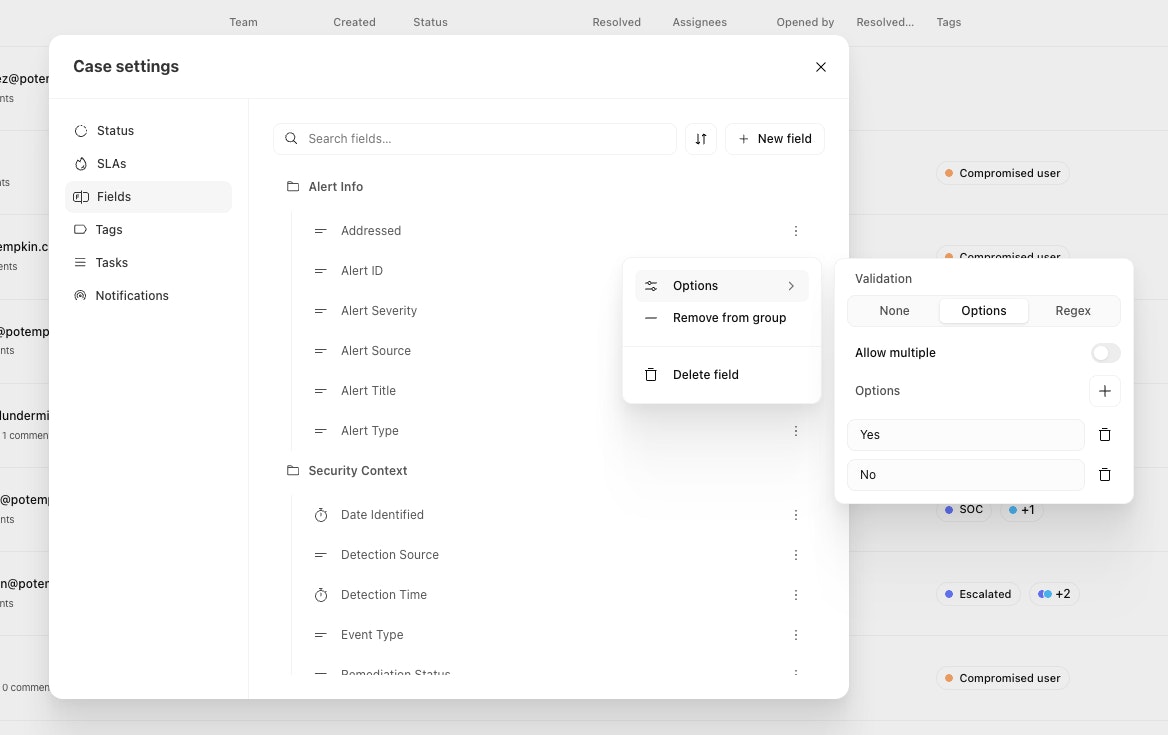
Define fields in your team's case settings – choose a type, set validation rules, and mark fields as sensitive if needed.
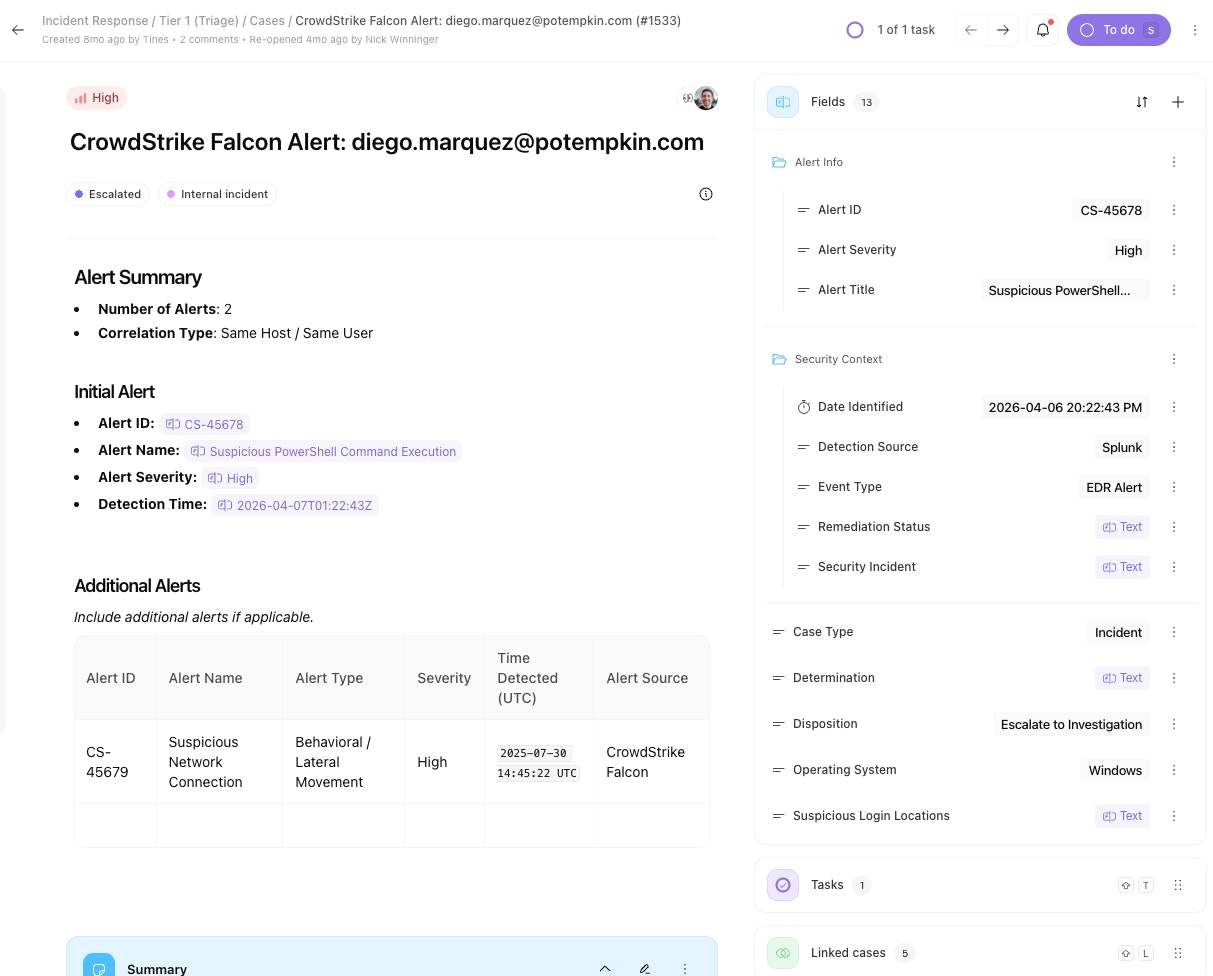
Attach fields to cases – add case fields and field groups from the sidebar within a case and case template, or automatically attach fields to cases via story actions.
Interact with field values – view and update case fields in the cases sidebar or whever they are mentioned within a case, via story automation, or dynamically within a page.
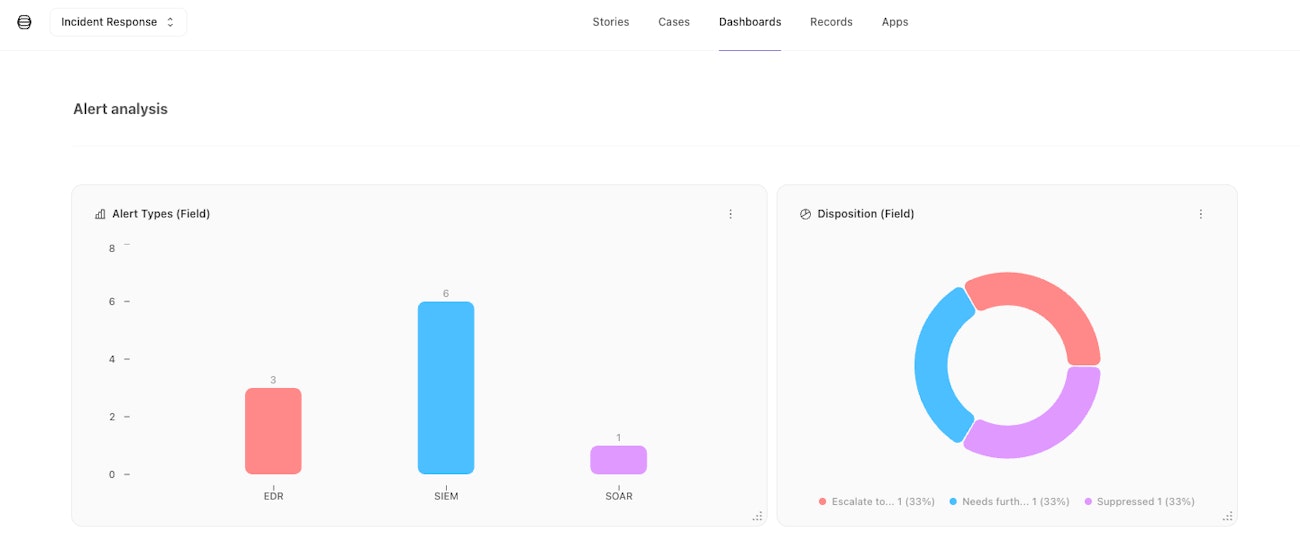
Report on field data – filter the case list and board by field values, or report on patterns by building dashboard charts.
Key concepts
Field types – every field has a type (text, number, timestamp, or boolean) chosen at creation. The type determines the input control and cannot be changed later.
Validation – text fields support optional validation: a fixed list of allowed values or a regex pattern. Other field types do not support additional validation.
Sensitive fields – fields marked as sensitive are redacted for users without the View sensitive information permission, including in the activity timeline and
@mentions.Groups – fields can be organized into named, collapsible groups (displayed as folders in the case sidebar) to keep related fields together. Groups are a convenient way to interact with a number of related fields across Tines.
@mentions – reference a field's live value directly in case descriptions and notes by typing@and selecting the field. Update the field inline to keep moving throught the case without interruption.
Define and configure fields
Fields are created and managed in your team's case settings. Fields defined within a team cannot be seen or used by other teams. From here you can:
Add, rename, and delete fields
Configure validation rules (fixed list or regex)
Mark fields as sensitive — see Sensitive case fields
Organize fields into groups
Use fields within a case
Once defined, fields can be added to individual cases or case templates to capture case-specific data. You can also reference field values inline using @ mentions.
Add, edit, and remove field values
Mention fields in descriptions, notes, and comments
Automate and report on fields
Story actions – set field values automatically when creating or updating cases from a story.
Search and filtering – filter cases by field values, combine conditions with AND/OR logic, and save filtered views.
Dashboards – use case fields as a data source in dashboard charts to visualize trends across cases. See Dashboards
Permissions
Access to case fields is controlled by your roles and permissions.
Creating, updating, and deleting field definitions requires Case field permissions on customroles, or the Manage cases permission.
Viewing sensitive field values requires the View sensitive information permission.