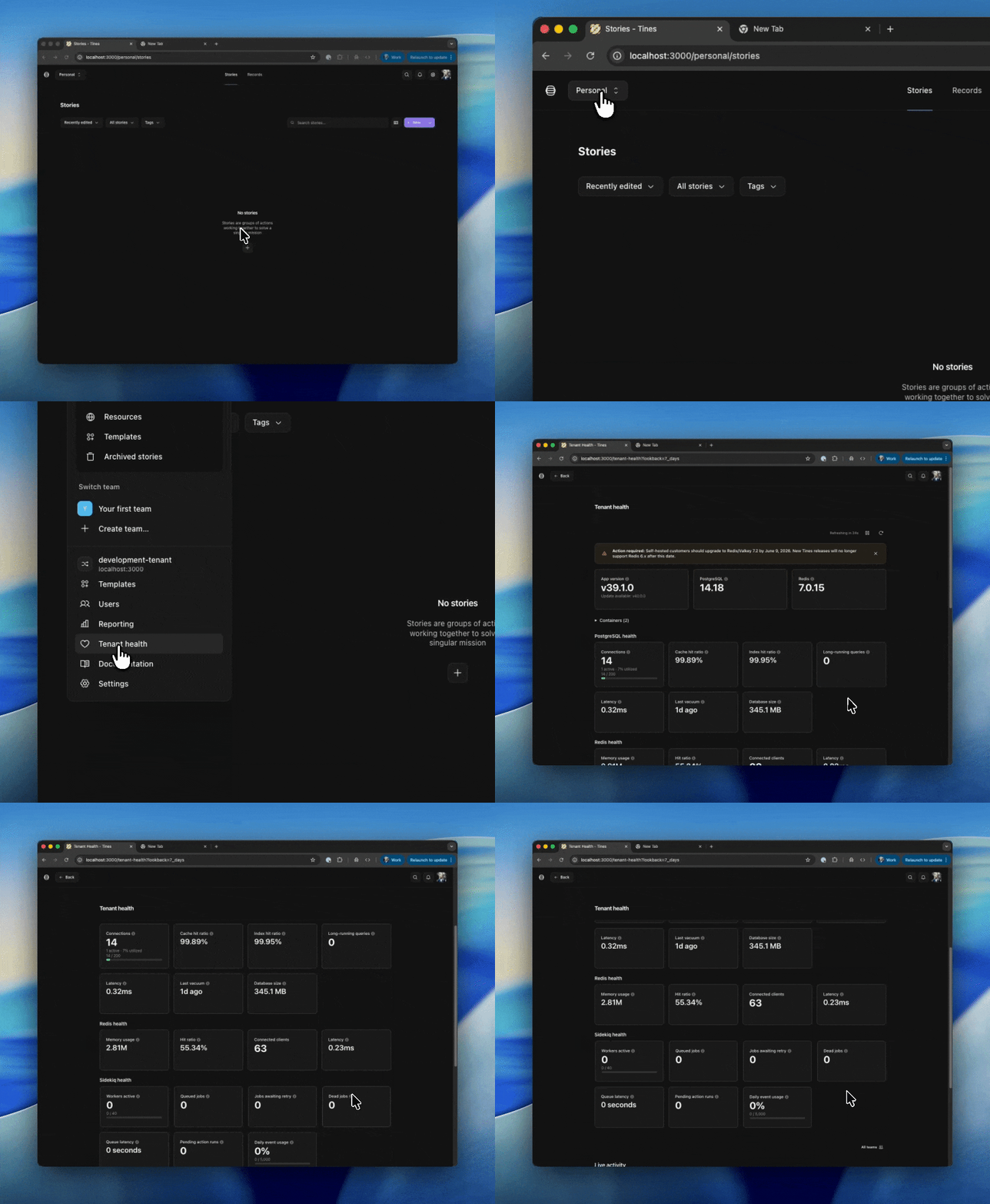
The self-hosted dashboard gives administrators a real-time overview of their Tines deployment's health. It is available at Tenant health in the main navigation and is visible to admin users on self-hosted installations.
The dashboard automatically refreshes every 25 seconds. You can pause or manually refresh using the controls in the top-right corner. Polling pauses automatically when the browser tab is in the background.
Alert banners
Banners appear at the top of the dashboard when something requires your attention:
Version mismatch -- Appears when your running containers are reporting different application versions. This typically means a deployment is still in progress or did not complete successfully.
Long-running queries -- Appears when PostgreSQL has queries running for longer than five minutes, which may indicate stuck transactions.
Version overview
Three cards display the core software versions in your deployment:
App version — the Tines application version reported by your containers. An "Update available" notice appears if a newer release exists.
PostgreSQL — PostgreSQL version.
Redis — Redis or Valkey version.
Note: Keeping all components up to date ensures access to the latest features, performance improvements, and security patches.
Containers
An expandable section lists every registered application container. Use this to verify all containers are running, on the same version, and have healthy connectivity to your database and cache.
Each row shows:
Name — the container's identifier.
Type — the service role (e.g., web, worker).
Version — the application version. Highlighted if it differs from the newest version across containers.
Revision — the git commit revision the container was built from.
PG latency — round-trip time to PostgreSQL. Highlighted above 10 ms.
Redis latency — round-trip time to Redis. Highlighted above 5 ms.
Last seen — how recently the container checked in.
Warning: If a container has not been seen recently or shows a different version from the others, it may need to be restarted or redeployed.
PostgreSQL health
Key indicators of your database's health and performance.
Connections
Total connections vs. the max_connections limit. The number of active connections and utilization percentage are displayed
Note: If utilization is consistently above 80%, consider increasing
max_connectionsor reviewing your connection pooling configuration.
Cache hit ratio
The percentage of data reads served from PostgreSQL's buffer cache rather than disk. A ratio below 99% may indicate that shared_buffers is too small for your workload.
Index hit ratio
The percentage of index lookups served from cache. Low values suggest your working set exceeds available memory.
Long-running queries
The count of queries running longer than five minutes, along with the duration of the oldest. Long-running queries can hold locks and slow down other operations.
Latency
Round-trip time for a SELECT 1 from the application to PostgreSQL. Values above 10 ms are highlighted and may indicate network or resource issues.
Last vacuum
How long since the most recent vacuum or autovacuum ran across all tables.
Warning: Vacuums should run at least once every 24 hours. Without regular vacuuming, tables become bloated and performance degrades over time.
Database size
Total size of the database on disk. Useful for capacity planning and tracking growth.
Redis health
Status indicators for your Redis or Valkey instance.
Memory usage
Current memory consumed by Redis. Monitor for unexpected growth that could indicate a need to scale up.
Hit ratio
The percentage of key lookups served from cache. A low hit ratio may indicate excessive cache evictions or an undersized instance.
Connected clients
The number of active client connections to Redis.
Latency
Round-trip time for a PING from the application to Redis. Values above 5 ms are highlighted and may indicate network or resource issues.
Sidekiq health
Visibility into background job processing.
Workers active
The number of background workers currently processing jobs, shown against the total available. Click to view in-progress jobs.
Queued jobs
Jobs waiting to be picked up by a worker. Click to view the queue.
Jobs awaiting retry
Jobs that failed and are scheduled to be automatically retried. Click to view retries.
Dead jobs
Jobs that permanently failed after exhausting all retry attempts. Click to review dead jobs.
Note: Dead jobs are not retried automatically.
Queue latency
The time between a job being enqueued and a worker beginning to process it. High latency means workers are not keeping up with demand — consider scaling your worker containers.
Pending action runs
The number of action runs waiting to execute.