Case roles
All users assigned to a default role in a team will be able to view cases. To restrict this further, explore custom roles.
Case manager role
This role is designed for users who work with cases and do not need access to many other aspects of the system. This role gives the user read-write permissions to cases, while restricting access to other objects on the team (stories, resources, credentials, events, etc.).
Custom roles
To define custom permissions for users such as a case viewer, create a custom role.
ℹ️Info
Closure requirements
If you need to ensure certain actions or steps are taken before a case can be closed you can add a closure requirement to the case.
Closure requirements are set at case creation time, they take the form of a Formula that must evaluate to true for the given case to close. They can be set via the API or the Case creation tile.
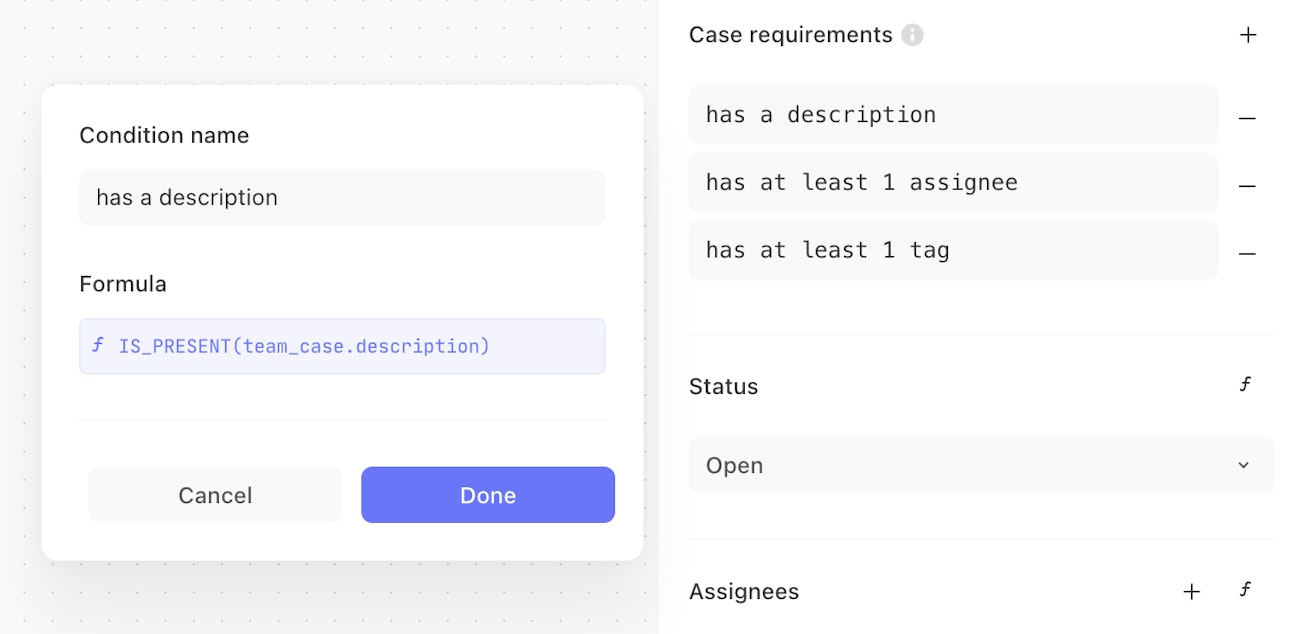
We support referencing the attributes of the case itself using the Tines Formula language, so you can access the case description using team_case.description
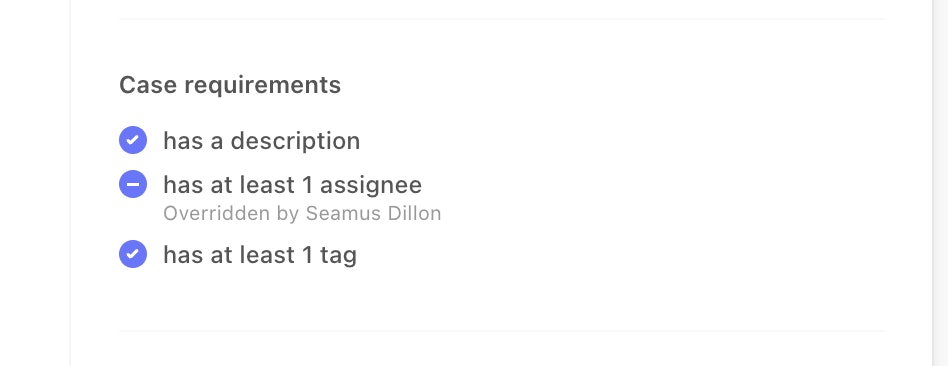
Case admins can choose to override a closure requirement but it is logged that the admin overrode the requirement.
Subscribe to cases
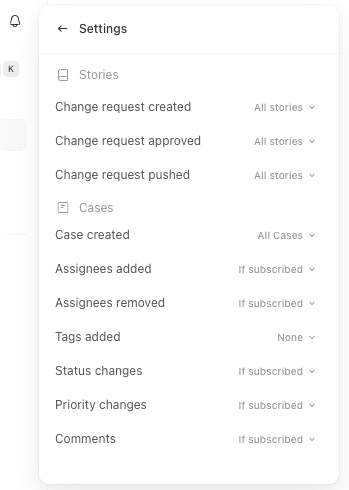
Specify case subscription settings via the case settings notifications menu.
Users can subscribe and unsubscribe to individual cases via the kebab menu at the top right of a case screen. If you comment on a case, you will be automatically subscribed. View all case subscribers by selecting the orange eye icon next to assignees.

Notifications within Tines
Subscribers will be notified of changes within Tines via the notifications menu. Specify your preferred notification settings via notification settings.
Notifications outside of Tines
Case subscribers are recorded within case information via API. If you would like to notify subscribers outside of Tines of changes, via Slack for example, you can build a custom notification using your case webhook. See here for an example.
Exporting case data
Export as a pdf
Export individual case details as a pdf via the kebab menu on the top right of a case. The export will be emailed to you as a pdf with all relevant case details included.

Export as a csv
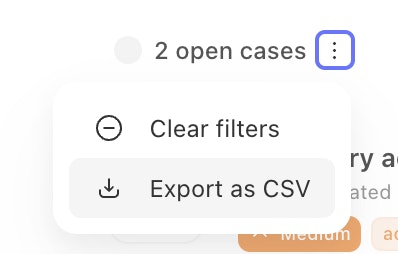
Export filtered lists of cases as csvs from the Cases home page. After applying your desired filters, select the kebab menu next to the number of cases and select Export as CSV. The export details will be emailed to you with the following case attributes: case ID, name, status, severity, tags, team, opened at, resolved at, opened by, metadata, and assignees.
Case statuses
A case's status may be updated either from the case list, case view, or API.
By default, Tines provides four default statuses: To do, In progress, Done, and Cancelled
You may also create your own custom statuses via the Manage statuses option in the status dropdown:
Case SLAs
Cases can be assigned time to resolve SLAs per priority level. These can be found by clicking the settings button on the case list page.
Timeline actions will be created when a case has passed 75% of its deadline and also when exceeding it.

Reporting is possible by filtering cases by Warning or Exceeded.
Case groups
Case groups provide a way to segment cases, case views, and dashboards within a team. Teams can use them to create specialized groups that respond to different types of cases, such as those in an IT help desk or a security incident response team.
Case fields
With case fields, you can define custom variables at the team level, each with a specified type— text, number, timestamp, or boolean. You can define up to 100 case fields per team.
You can define a new case field and validations from the case settings modal.
Once defined, these variables can be assigned values within individual cases. You can easily reference these values in case descriptions or comments by typing "@" followed by the name of the desired case field.
To edit a field’s value for a specific case, use the new “Fields” menu located in the right-hand side panel, or simply click on the reference within the case description.
We also offer an API for case fields. You can find the documentation here.
Case actions
Case actions let you add interactive automation hooks into your case. These hooks appear in the form of buttons added to the case.
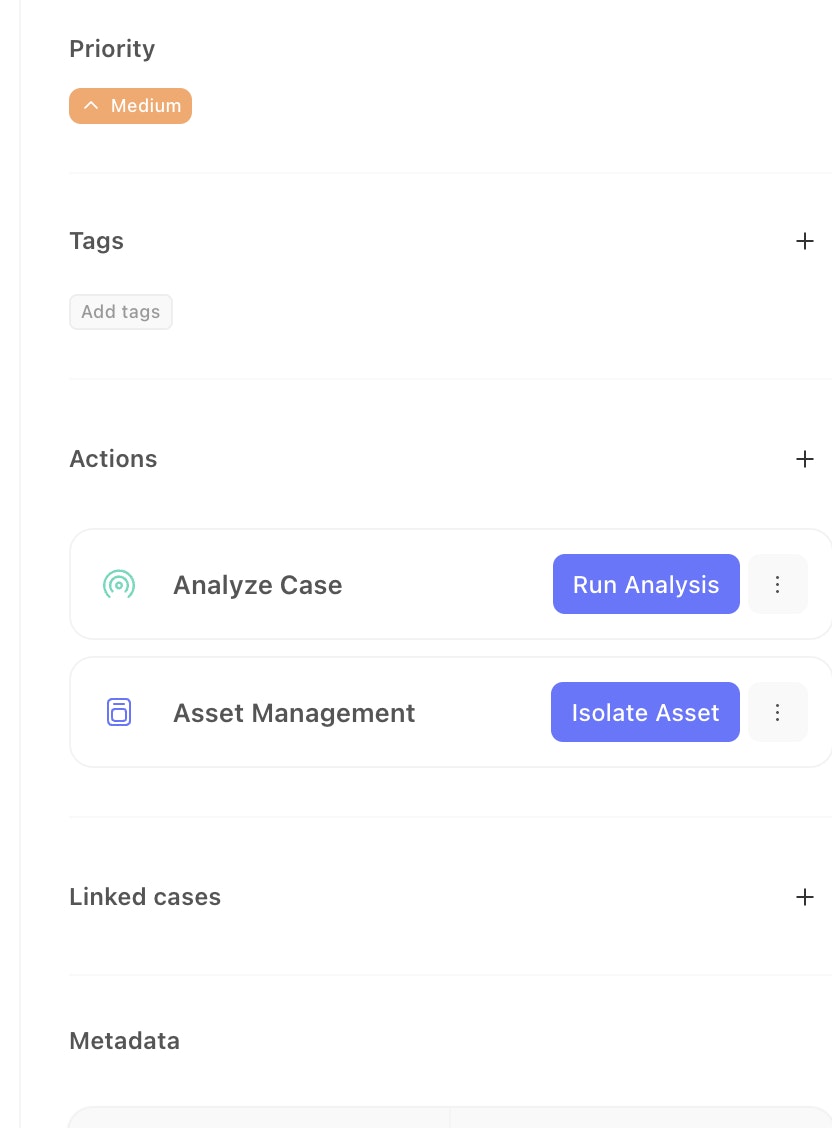
We support two types of actions:
Webhook: This action type will trigger a call to the designated webhook, passing the case details to the given URL in the background and is useful for async processes
Page: This is used for interactions where the user may need to fill in details, it will open the designated page in a new tab
For all types, you can edit the label and button text to make it clear the exact call to action expected of users.