Change Control
Change control settings
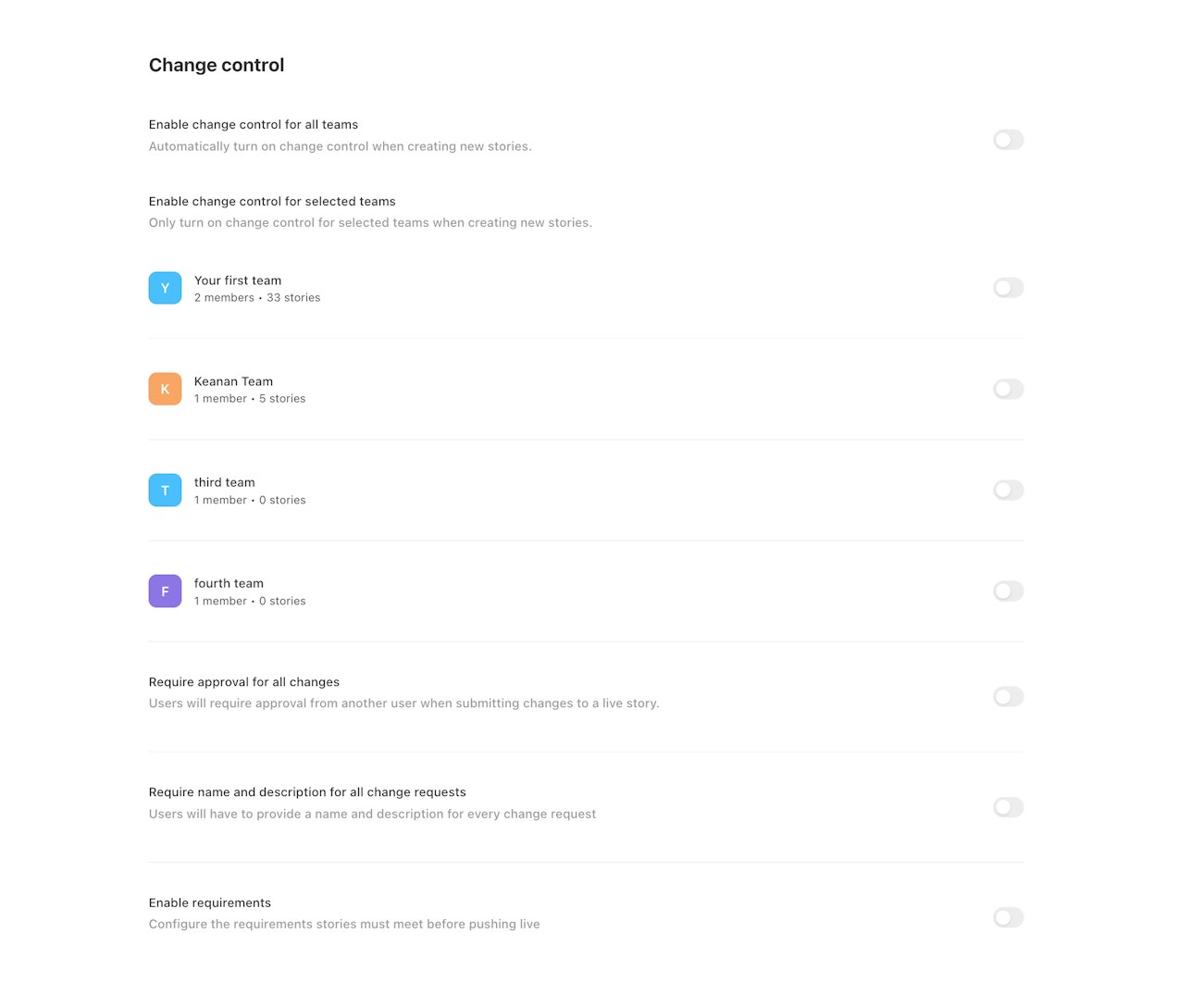
Tenant owners can configure the following settings related to change control. Navigate to this section by selecting the left hand menu, and clicking Settings. Within the settings center, select Change control under the Configurations sub-menu.
Enable change control for all teams: change control is automatically turned on when a story is created throughout the tenant.
Enable change control for selected teams: change control is automatically turned on when a story is created within the specified teams.
Require approval for all changes: this requires the user approving the change to be different than the user who requested the change. Users with Team Admin permissions can bypass this requirement for emergency circumstances. If bypassed, a notification is sent to the change control webhook. NOTE: users with custom permissions
change control: manageorchange control: reviewdo not have the ability to bypass changes.Require name and description for all change requests: a change cannot be requested for review if the name or description field is blank.
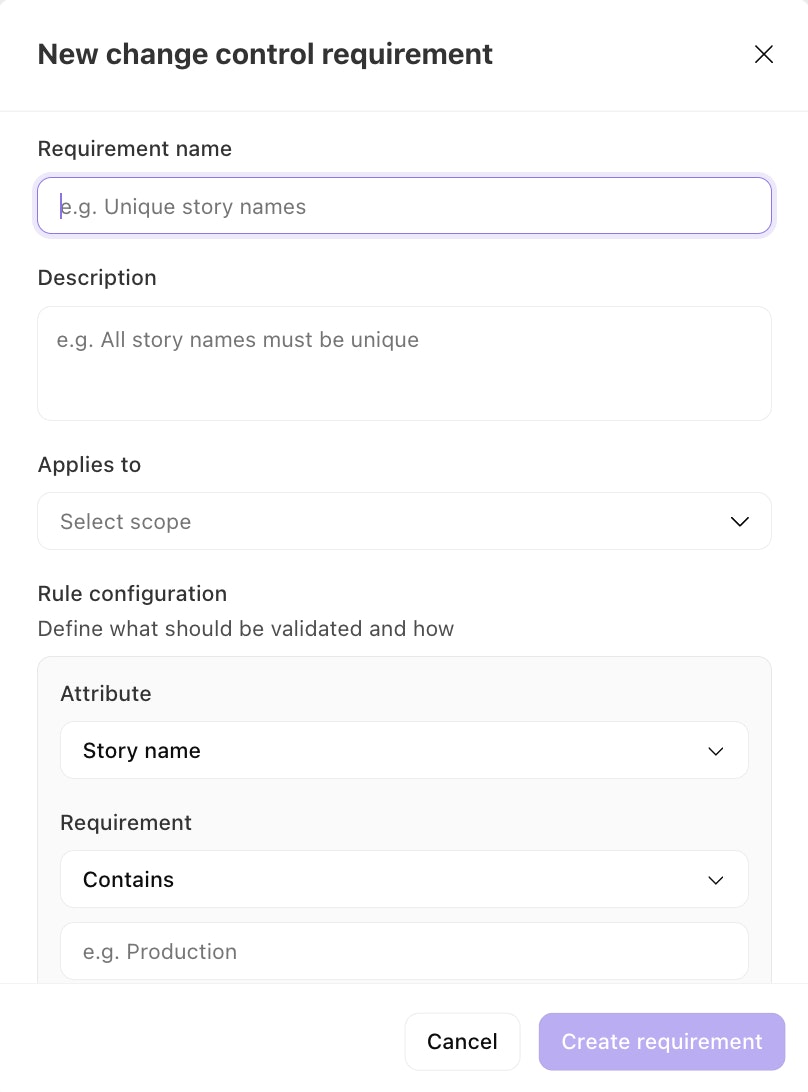
Enable requirements: configure the conditions stories must meet before they can be submitted for review. When enabled, a requirements table appears alongside an Add requirement button.
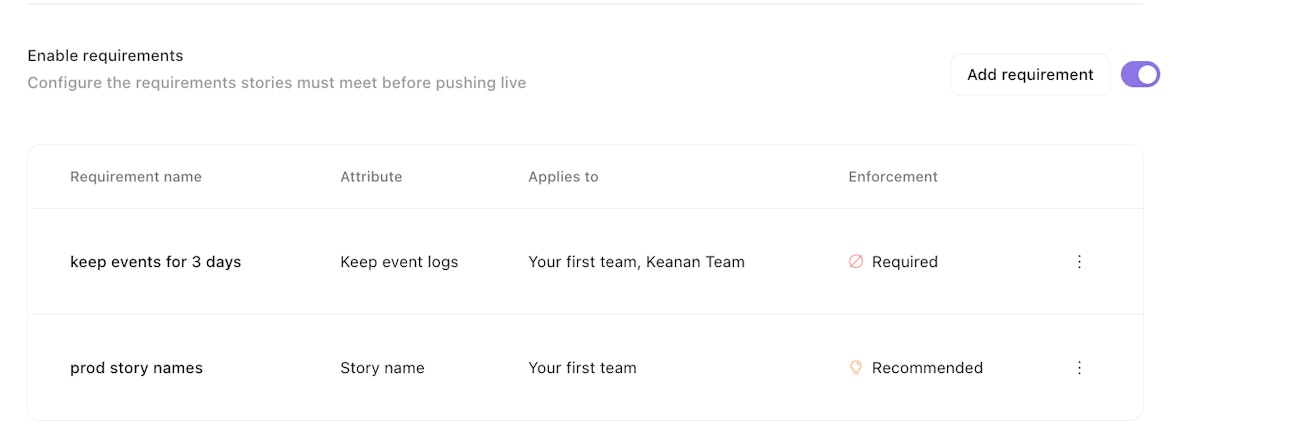
Each requirement targets a specific story attribute — name, description, owners, tags, monitoring, or event retention — and defines a comparison condition and optional value. Requirements have two enforcement levels:
Required — the story cannot be submitted for review until the condition is met.
Recommended — the condition is surfaced as guidance but does not block requesting review.
Individual requirements can be disabled (greyed out in the table) without being deleted, which is useful for temporarily suspending a condition without losing its configuration.