When your App is ready to share, publishing is how you make it real. A published version is the version of your App that is live and visible to your end users.
You'll find the Publish button in the upper-right-hand corner of your builder window. Click it, and that version of your App becomes the one your users access. One detail worth knowing: publishing captures your App's front end and configuration. It does not include changes to the underlying stories or workflows, which you manage separately

The App builder toolbar, highlighting the Publish button used to make the current version live for end users.
Share your App with a custom URL
Once your App is published, you'll want people to find and open it easily. By default, Tines Stories serves your App at your tenant's dedicated Apps address using a unique identifier. To make it easier to recognize and share, you can set a custom URL from the share panel, giving your App a clean, memorable address. Best of all, any existing links that use the original identifier will keep working and automatically redirect to your new custom URL, so you can set or change it without disruption.
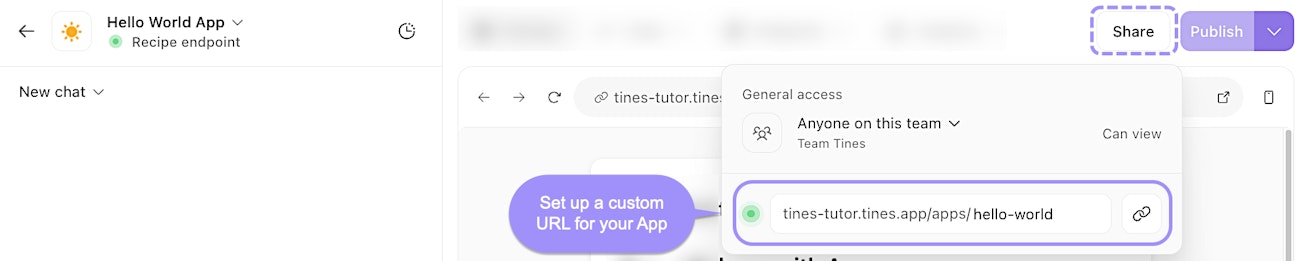
The Share dialog, showing access controls and a custom URL for a published App.
Control access to your published App
You can control who can open your published App. Select Share from the builder, then choose:
Anyone on this team (default): only signed-in members of the team the App belongs to can open it.
Anyone in this tenant: anyone signed in to your Tines tenant can open it, even if they are not a member of the App's team.
Only specific people: only the people you add to the App can open it. Choose this option, then search for and select the users who should have access.
Via SSO authentication: anyone in your organization granted access through your SSO provider can open it. This is useful when you want to share an App broadly but still restrict access to authenticated users in your organization.
To narrow it further, turn on Restrict to specific SSO groups and add the SSO group names that should have access. Visitors outside those groups can't open your App.
Tenant owners can always open every App on the tenant. Access settings are managed from the share panel alongside your custom URL.
Unpublish an App
Sometimes you need to take your App entirely out of your users' hands. If you spot a significant issue, you can unpublish your App to move it back to a draft state, rather than leaving a broken experience live. It's the natural counterpart to publishing: one puts your App out into the world, the other pulls it back so you can work on it privately again.
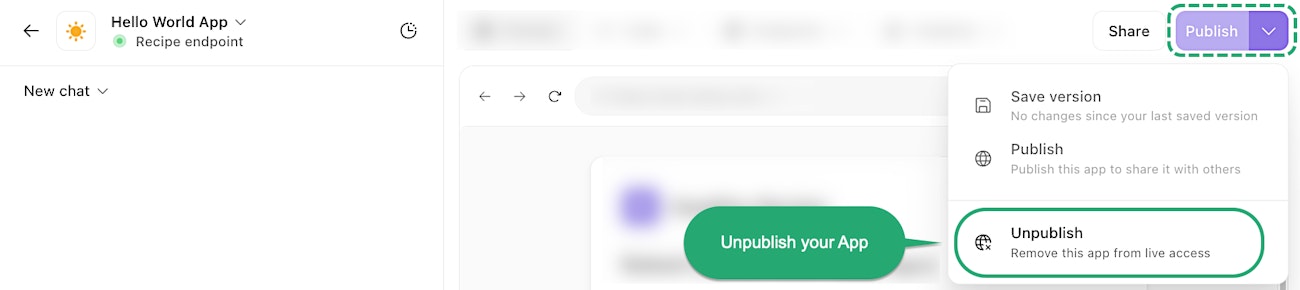
The Publish dropdown menu, showing the option to unpublish an App and remove live access.