Apps have their own dedicated space in Tines Stories, launched from the main navigation we covered earlier.
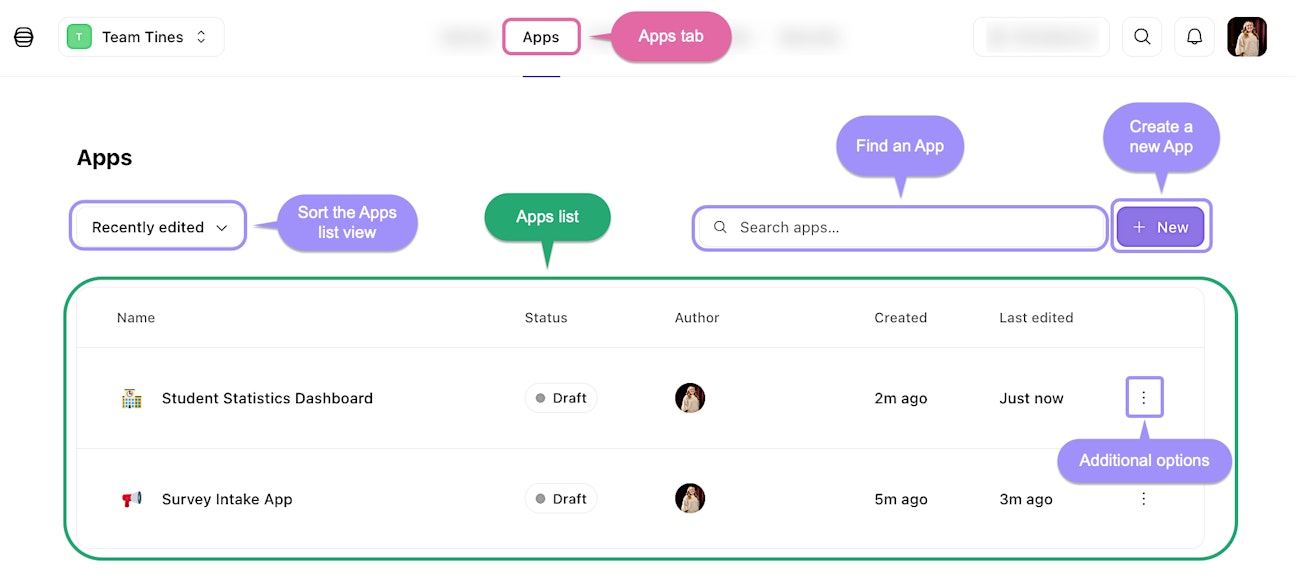
The Apps tab, showing the list of Apps that can be sorted, searched, and managed.
When you're ready to begin, click the New button to create a new App. That's it! You're now in the App builder, where everything happens.
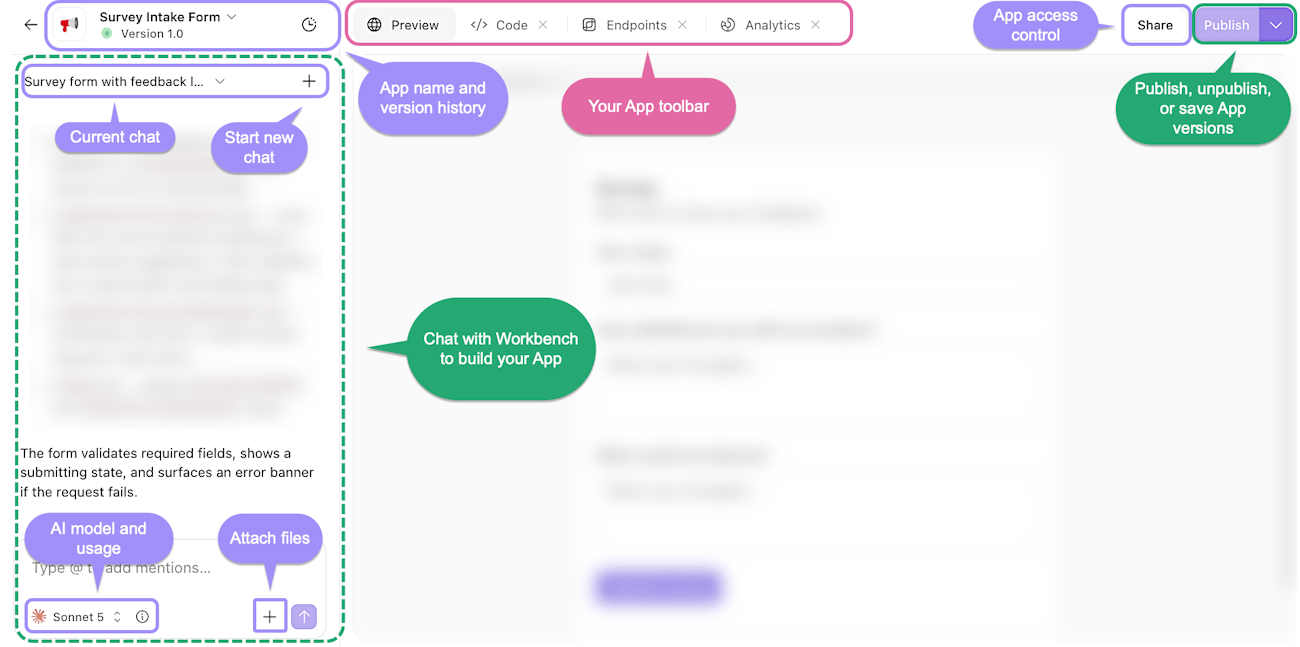
The App builder, where Apps are built and refined by chatting with Workbench.
The App builder gives you a few main views to work with:
Preview. See the visual output of your App and interact with it in real time, exactly as a user would.
Code. Browse the files, search the codebase, and edit the React code directly.
Endpoints. Connect your App to your Tines Stories data and workflows.
Analytics. Once your App is published, monitor how it's being used, including viewers and success rates.
Take a moment to get oriented. The build process takes place in the conversation panel on the left-hand side. This is where you'll "talk" to the builder, describing what you want and refining it over time. The rest of the screen is where your App takes shape, organized into a few different views that we'll explore as we go.