Case SLA's
Case SLAs let you set target durations for how quickly cases should be assigned and resolved, based on their priority. You configure them per team in Case settings.
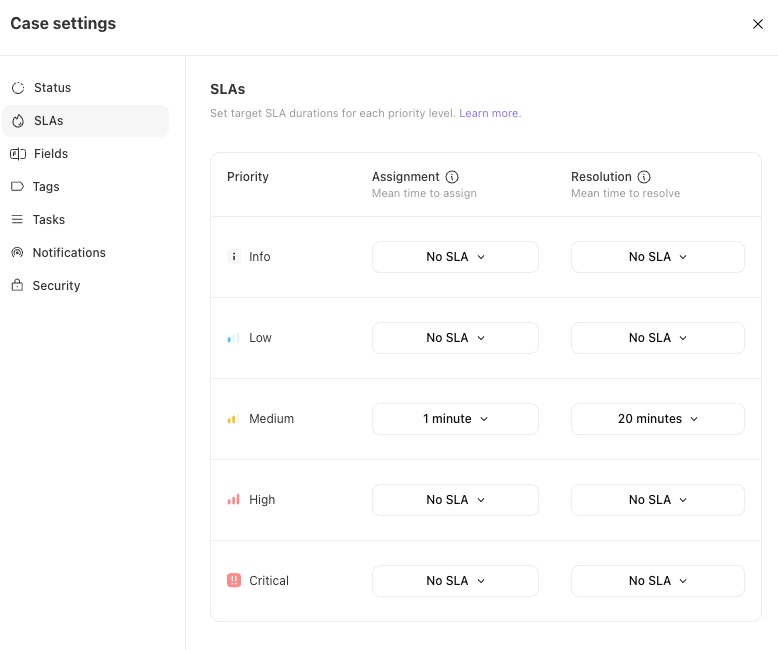
When to use case SLAs
Set SLAs when your team needs to hold cases to time-based targets — for example, ensuring critical cases are picked up within minutes and resolved within hours. Because targets are set per priority, higher-priority cases can carry tighter SLAs than lower-priority ones.
How it works
Open Case settings for the team.
Go to the SLAs section.
Each row represents a priority level: Info, Low, Medium, High, and Critical.
For each priority, set a target for one or both SLA types using the dropdowns:
Assignment – mean time to assign, measured from when a case is opened until it's first assigned to someone.
Resolution – mean time to resolve, measured from when a case is opened until it's set to a closed status.
Choose a preset duration, enter a custom duration, or leave it as No SLA to leave that target untracked.
Configuration options
Best practices
Match tighter targets to higher priorities. Reserve short assignment and resolution windows for High and Critical cases.
Start with Resolution before Assignment. Resolution targets are usually easier to align with existing team expectations.
Leave targets as No SLA when you don't measure them, rather than setting an arbitrary value that skews reporting.
Related pages
Dashboards↗ — Assignment and Resolution targets feed the mean time to assign (MTTA) and mean time to resolve (MTTR) metrics in dashboards.