Why set team limits?
As your Tines Stories tenant grows, you'll want to manage how components are distributed across teams. Team limits help you:
Prevent any single team from consuming too many events or AI credits.
Plan capacity and understand usage patterns.
Ensure fair distribution of automation capacity across your organization.
Maintain the performance and stability of your tenant.
Think of team limits like departmental budgets. Just as you might allocate a budget to different departments, you can allocate capacity to different teams.
Team story allocation
Story allocation limits control how many licensed flows a team can use. This is useful when you want to ensure teams don't consume more than their share of your tenant's total flow capacity.
To set story allocation limits:
Navigate to Settings → Access & security.
Select Story allocation.
In the Team allocation panel, check the box next to the team(s) you want to limit.
Set the maximum number of flows for each team.
Click Save.
For example, you might give your IT Operations team a limit of 100 stories, while smaller teams like Marketing might have a limit of 25 stories. You can always adjust these limits as teams' needs change.
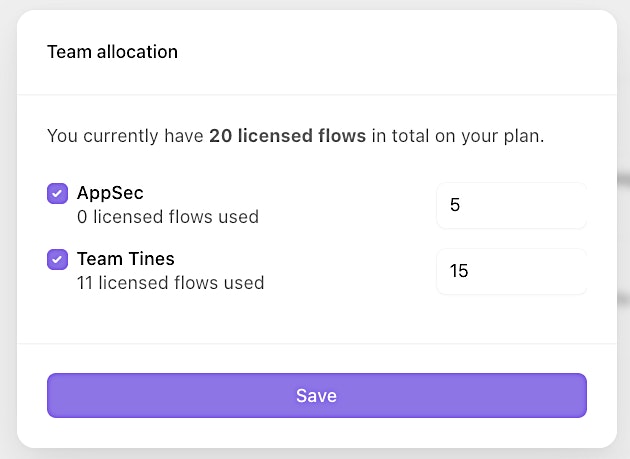
The Team allocation panel, showing how licensed flows are distributed across teams on the tenant.
💡Note
Event limits and notifications
Event limits control how many events can be processed across your tenant. The Event limits and alerts page in your tenant settings provides three levels of control:
Tenant wide daily event limit: The total number of daily events allowed across all stories in your tenant. This limit is set by your plan and can't be changed.
Global story daily event limit: The maximum number of daily events any single story can create. When a story reaches this limit, it stops creating events. This limit is also set by your plan.
Team daily event limits: Set a daily event limit per team. When the limit is reached, stories in that team stop creating events.
Setting event limits helps you:
Prevent runaway workflows from consuming excessive resources.
Identify workflows that might need optimization.
Plan capacity for growing orchestration and automation needs.
To manage event limits and notifications:
Navigate to your tenant Settings.
Navigate to the Event limits and alerts tab.
For each limit type, click the cog icon (⚙️) to configure notification thresholds. For team daily event limits, you can also set each team's daily limit here.
Use the Notification recipients section to assign who receives alerts for each limit type: tenant limits, global story limits, and team limits.
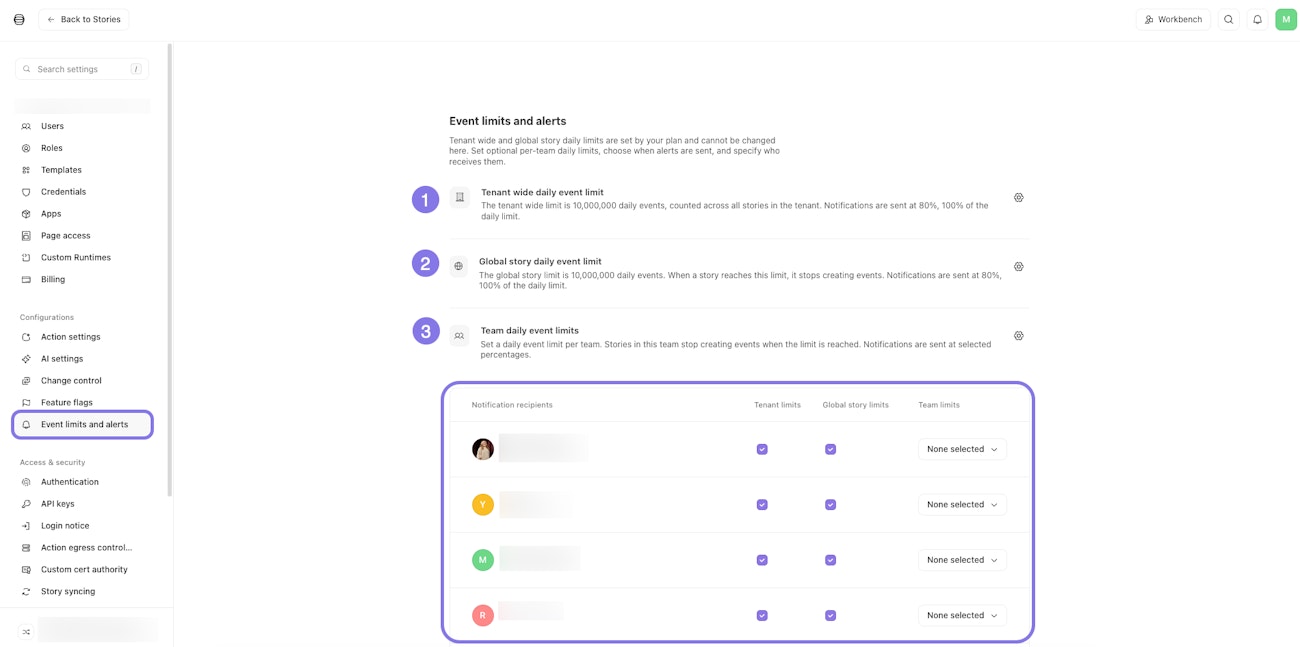
The Event limits and alerts page, showing the three daily event limit types and the notification recipients configuration.
AI credit allocation
If your tenant uses AI features in Tines Stories (such as the AI Agent action or Workbench), you'll need to allocate AI credits to teams. There are two AI features in Tines Stories that consume AI credits:
AI Agent action: Uses credits each time the action runs, based on the amount of data processed and the complexity of the task.
Workbench: Workbench consumes AI credits for each message sent and each time it calls a tool to perform a task.
Workbench for Storyboard: Consumes credits when assisting with story building and editing on the storyboard.
All Tines Stories plans include a monthly allocation of AI credits. These credits reset on the first of each month and do not roll over. Tines Stories will provide warnings when teams are nearing their credit limits. If you need additional credits, you can purchase AI credit add-ons through your Tines Customer Success Manager or directly from the Billing tab in the tenant owner settings.
To allocate AI credits to teams:
Navigate to your tenant Settings.
Navigate to the AI settings tab.
Under AI credit allocations & limits, click Manage.
In the Team allocations tab, distribute your available credits across teams based on their AI usage needs. Teams without an explicit allocation draw from the shared pool.
Use the Workbench for Storyboard limits tab to configure limits for Workbench for Storyboard usage.
Click Save to apply your changes.
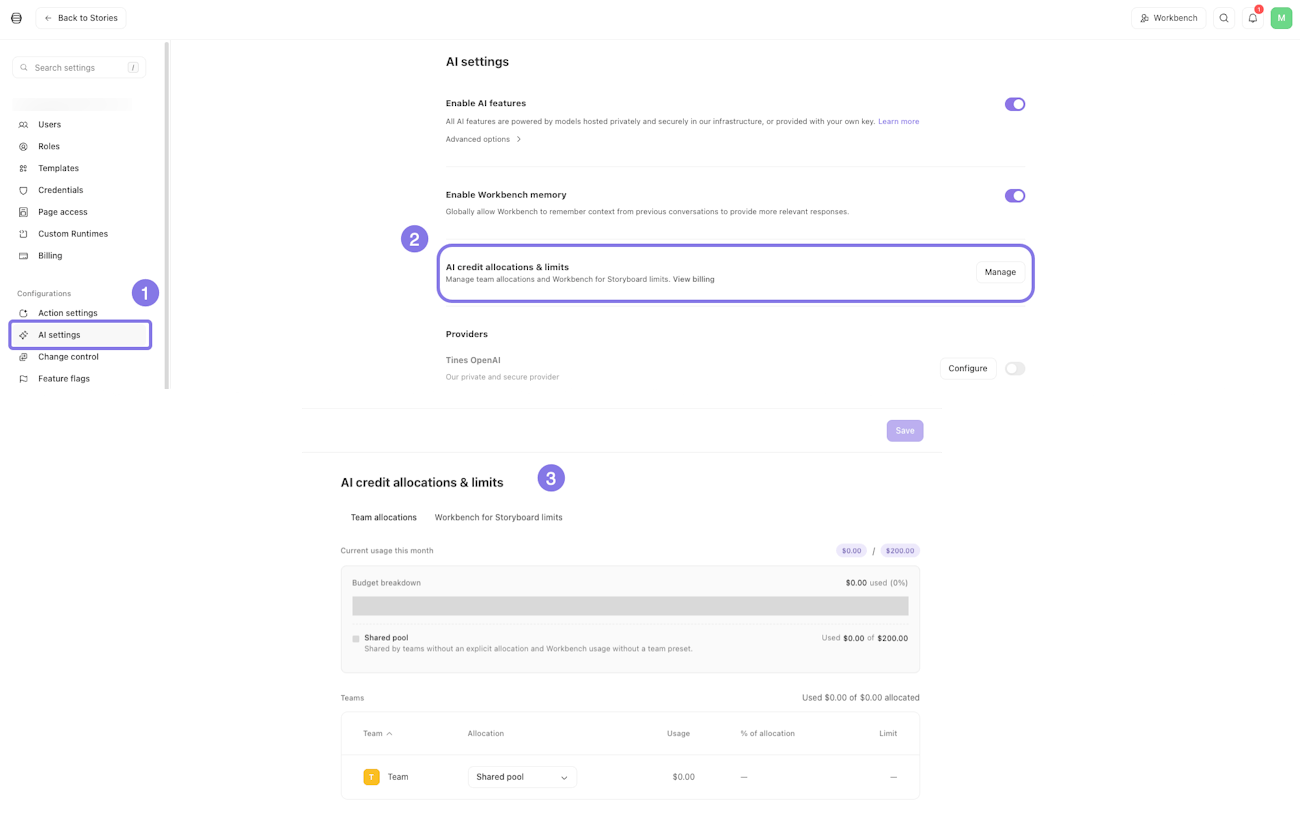
The AI settings page, showing options for managing AI credit allocations across teams.
When allocating AI credits, consider:
Which teams are actively using AI features in their workflows.
The complexity of AI tasks each team is performing (more complex tasks consume more credits).
Whether teams are using Workbench with presets (which use the team's allocated credits) or without presets (which use unallocated tenant credits).