Not every workflow follows a straight line. Sometimes you need to add logic, make decisions, or route events down different paths based on specific conditions. The action below helps you control how data flows through your story.
Condition action
The Condition action decides whether or not the next step in a story should run, based on conditions you define.
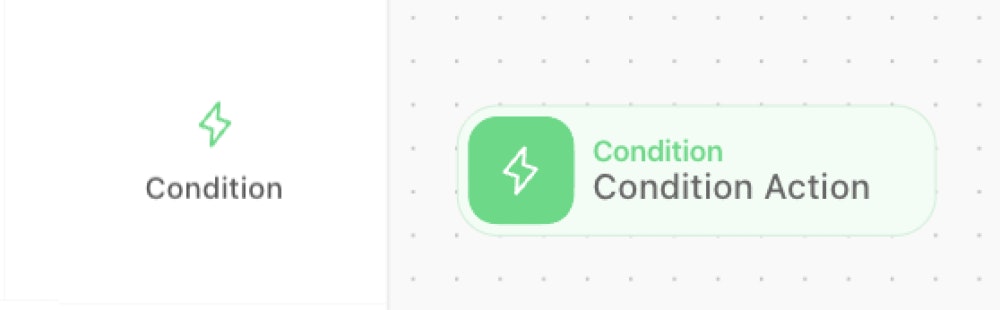
The Condition action, identifiable as a green tile on the storyboard.
What it does: Creates branches in your workflow based on conditions.
When to use it: When you need different things to happen based on specific criteria.
How it works: Evaluates an incoming event and checks whether a condition you've defined is met or not met. If the condition is met, the event passes through and the next action runs. If it isn't, the event stops at that Condition and nothing downstream from it executes.
This is how branching works in Tines Stories. If you connect multiple Condition actions to the same upstream action, each one evaluates the same event independently. The event passes through whichever Conditions are met, and those branches continue while the others don't.
Conditions can check things like whether a field equals a specific value, whether a number is above a threshold, or whether a piece of text contains a certain string. You'll build and configure conditions in detail in the Builder: Core learning path.
💡 Real-world example: Route high-severity alerts to the security team for immediate action, and log lower-priority ones for later review.