Understand audit logs
Every time someone makes a change in your Tines Stories tenant (creating a credential, modifying a story, inviting a user), Tines Stories automatically captures that activity in an audit log. Think of audit logs as your tenant's security camera system. They record who did what, when they did it, and from where.
Audit logs are available to tenant owners and users with the AUDIT_LOG_READ permission. You can access them through both the Tines Stories UI and the Tines Stories API, giving you flexibility in how you review and analyze tenant activity.
ℹ️Info
What gets logged
Tines Stories audit logs capture a wide range of operations, including:
User management activities (invitations, role changes, removals)
Credential and resource creation, updates, and deletions
Story modifications and version changes
Team configuration changes
Authentication and access control updates
Page and app publishing activities
Each log entry includes metadata like the timestamp, the user who performed the action, their IP address, and the specific operation that occurred.
Access audit logs via the UI
To access the audit logs via the UI:
Navigate to the tenant Settings via the team menu.
Navigate to the Audit logs tab.
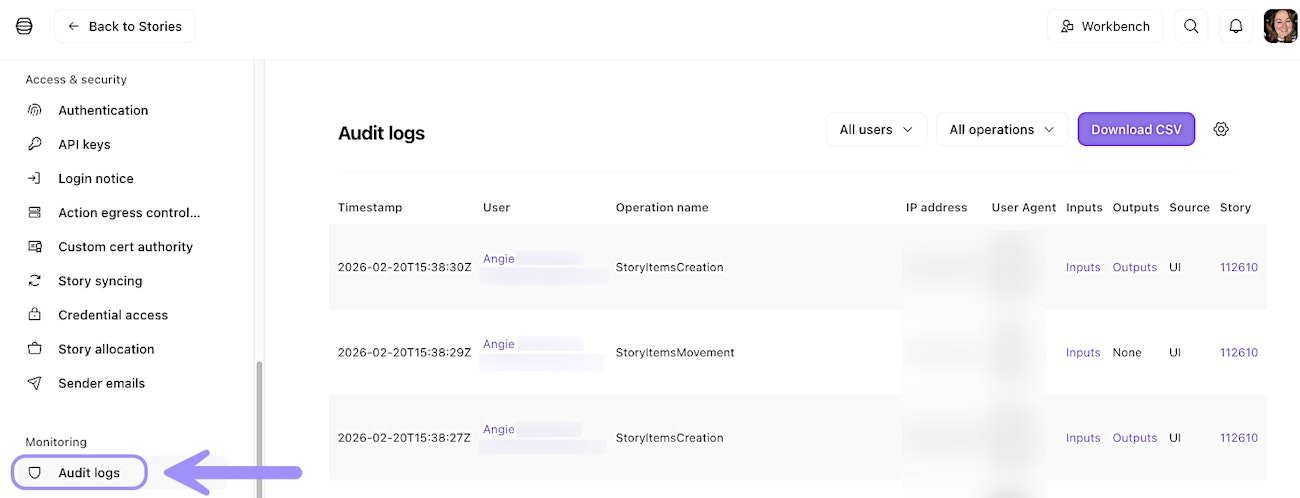
The Audit logs page, showing a log of user activity with timestamps, operations, and related details.
Access audit logs via the API
While you can view audit logs in the Tines Stories UI, the real power lies in accessing them programmatically via the Tines Stories API. This allows you to build automated monitoring, send logs to your SIEM, or create custom compliance reports.
The audit logs API endpoint provides filtering options so you can search for specific users, time ranges, or operation types. For example, you might query all credential deletions in the past 30 days or track all changes made by a specific user.
🪄Tip
Export audit logs
For long-term retention and compliance requirements, Tines Stories supports scheduled exports of audit logs to Amazon S3 buckets. This export runs automatically every 15 minutes, ensuring your logs are continuously backed up to your own storage.
To set this up, you'll need to configure AWS credentials using assumed roles. The IAM role must include the s3:PutObject permission to allow Tines Stories to write log files to your bucket. You can apply your S3 configuration for audit log export via Audit logs → Export settings (⚙️ icon).
❗️Important

The Audit logs page, highlighting the settings icon used to configure audit log export settings.