Files
Files stores files for a team. Upload them yourself, or let a File action store them from a story. Later stories reuse a stored file by its GUID, so the file contents stay in Files instead of moving through every event.
Open the team menu and choose Files.
Files are available on a team.
A personal team does not include Files.
Find a file
Searching files performs a partial-match to the file names. The list loads in batches. Scroll to the bottom to load more. The footer shows "Loading more files" while the next batch arrives.
Hover a row to use its actions.
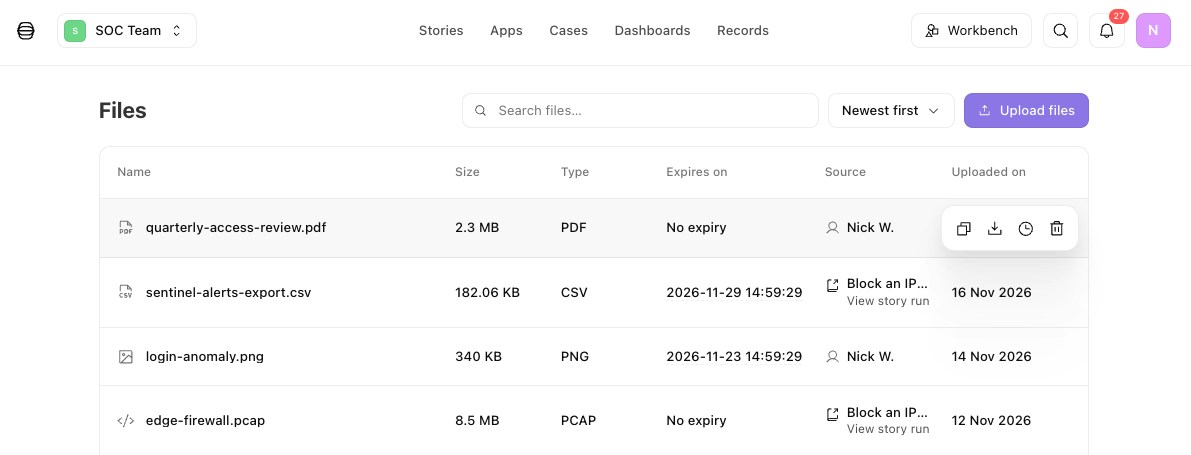
Upload files
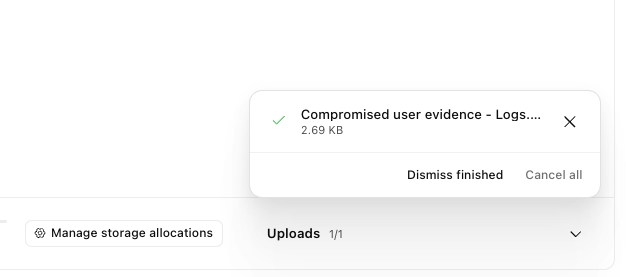
Choose "Upload files", or drop files anywhere on the page. You can upload more than one file at a time. On Tines cloud, each file can be up to 250 MB, and the file must not be empty.
Uploads appear in the "Uploads" queue at the bottom of the page, with a count of how many have finished. Open it to see:
A queued file waits until an upload slot is free.
An upload in progress shows how much has transferred.
After the bytes are sent, Tines verifies the file before it joins the list.
A failed upload can be retried. “Cancel” stops one upload. “Cancel all” stops the uploads still in progress. “Dismiss finished” clears completed, failed, and canceled rows.
A file you upload has no expiry until you set one. Source shows your name.
Use a file in a story
Hover the file and choose Copy GUID.
In a File action set to Inspect file, Upload file to URL or Delete file, paste the GUID into File reference.
The file must belong to the same team as the story. Use List files to find stored files from a story. See the File action for fetch, capture, inspect, list, upload, and delete.
Change when a file expires
Hover the file and choose Edit expiry.
Set Expiry to No expiry or Expires on.
For Expires on, set Expires on to a future date and time. The dialog shows the timezone used for that time. In one week, In two weeks, and In one month fill the date for you.
Choose Save.
The list then shows No expiry or that date. After the date passes, the row shows Pending deletion until the file is removed. A file pending deletion can no longer be downloaded.
Files already stored keep the expiry they were given. Changing a story's event retention does not change them.
Delete a file
Hover the file and choose Delete. Confirm Delete. The dialog says the file will be removed and its storage freed. The file leaves the list immediately. Contact support within seven days if you need it restored.
Deleting a file here is the same result as a File action in Delete file mode. Testing that action does not delete the file.
Work with several files
When you can download or manage files, each row has a checkbox. Select up to 100 files that are loaded in the current list. The header checkbox selects up to 100 loaded files. A bar shows how many are selected, and Clear selection resets it. Changing the search or sort starts a new selection.
Team storage
The bottom of the page shows how much of the team's capacity is in use.
Shared capacity means the team draws from storage that teams without their own allocation share.
Allocated capacity means an admin has reserved a fixed amount for this team.
Manage storage allocations is available to tenant admins. It opens File storage in settings.
Allocate storage
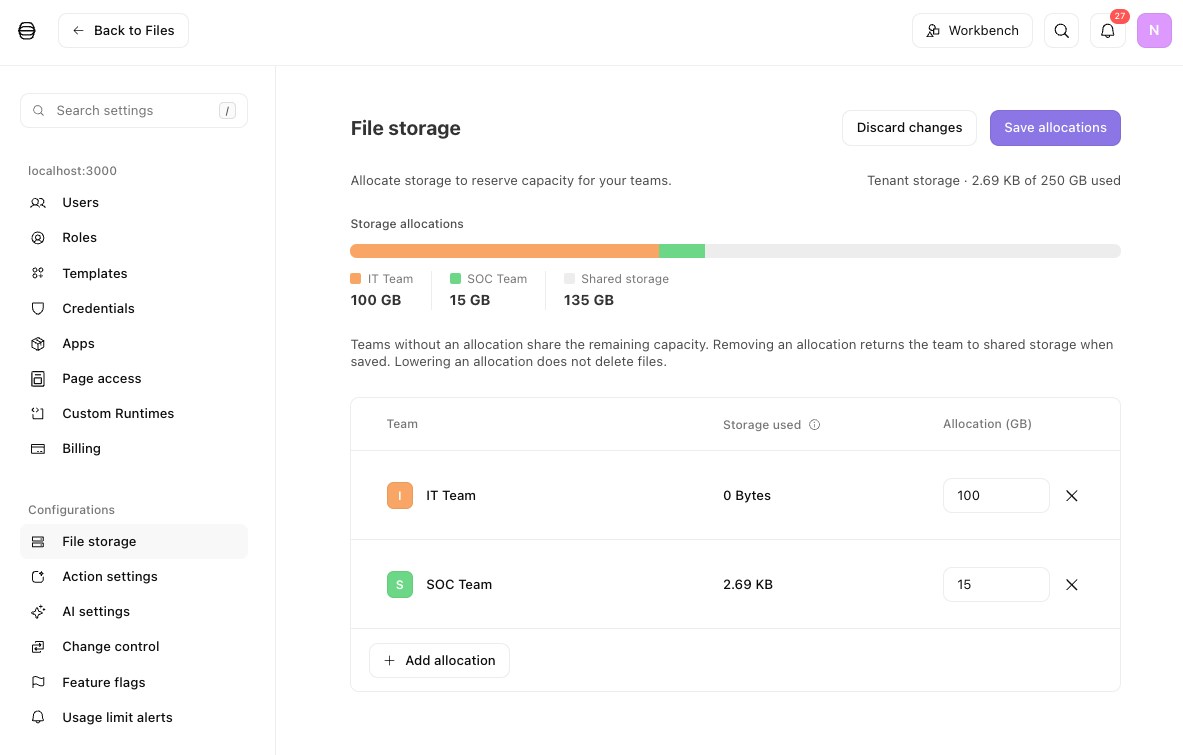
File storage is under Configurations in tenant settings. It shows Tenant storage and how much of that capacity is already used. On Tines cloud the tenant capacity is 250 GB.
Allocate storage to reserve capacity for your teams.
Teams without an allocation share the remaining capacity.
Choose Add allocation, pick a team, and enter Allocation (GB).
Storage used is what that team is storing now.
Removing an allocation returns the team to shared storage when you save.
Lowering an allocation does not delete files.
Save allocations keeps the change. Discard changes drops unsaved edits.
The chart labels reserved amounts and the remainder as Shared storage. Allocations cannot add up to more than the tenant capacity.
Who can do what
A tenant admin can upload, download, change expiry, delete, and manage allocations. Everyone else needs permissions on the team:
View files – Open Files, search, sort, and copy a GUID.
Download files – Download a file and copy a download link. You also need View or Manage files.
Manage files – Upload, change expiry, and delete.
Common issues
Related pages
File action — fetch a file from a URL, capture a file from an event or resource, inspect or list stored files, upload a stored file to a URL, or delete one from a story.