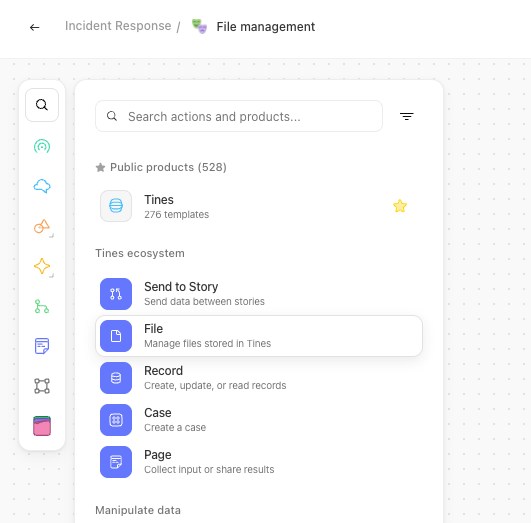
File
Use the File action to download a file into Files, store a file that is already in an event or resource, inspect a stored file, list files, send a stored file to another system, or delete a stored file. It is the building block for any story that needs to work with stored files or move them between systems.
Fetch and Capture store a file and pass it on by GUID. Each later event carries the file's identifier and metadata, so other actions can reuse the same file without carrying its contents through the story run.
When to use the File action
Reach for the File action whenever a story needs to handle a real file rather than text or JSON. Common cases:
Fetch — pull a report, export, or attachment from a URL and store it.
Capture — store a file that an earlier action or a resource already returned, such as an HTTP response parsed as a file, an email attachment, or a file resource.
Inspect file — retrieve a stored file’s metadata, optionally including its contents as Base64.
List files — find files on the story’s team by filename, sort the results, and retrieve additional pages.
Upload file to URL — forward a stored file to a ticketing system, storage bucket, or analysis tool.
Delete file — clean up a stored file once a story no longer needs it.
Open Files in the team menu to see files created by this action, along with files uploaded in the app. Select a file and choose Copy GUID to reference it in a story. When you can download the file, the copy menu also includes Copy download link. Recipients of that link need to sign in and have permission to download the file.
The story must belong to a team. Fetch and Capture are unavailable on a personal team. Inspect file, List files, Upload file to URL and Delete file can use only files that belong to the same team as the story.
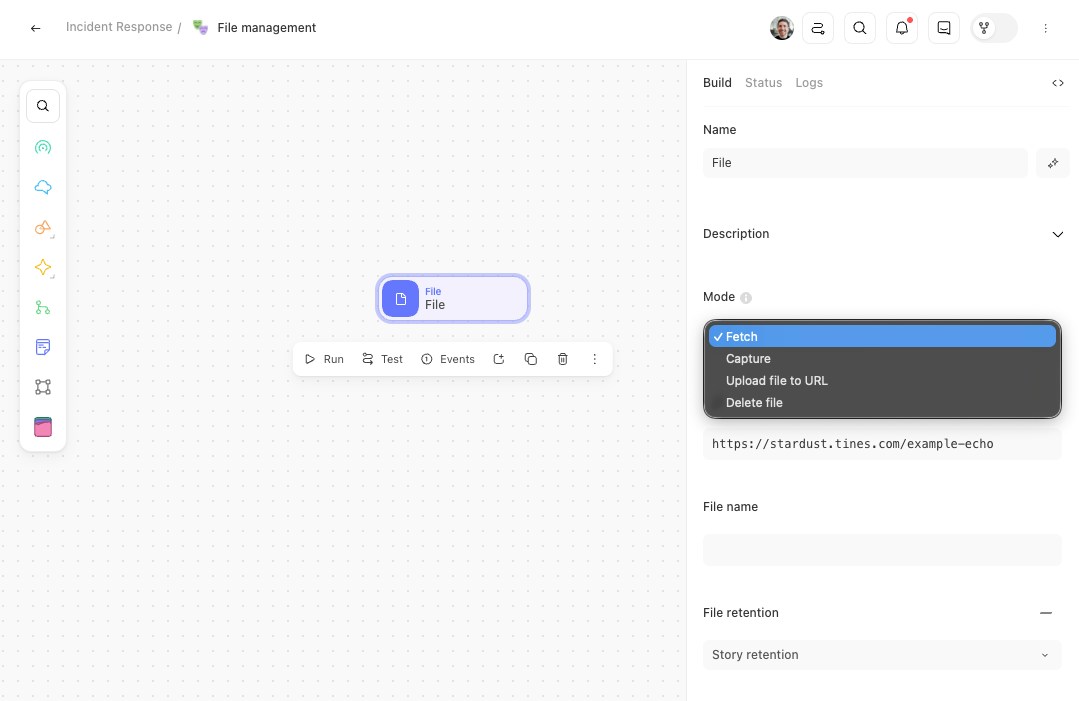
Choose a mode
Fetch a file
Fetch sends a GET request to URL and stores the response in Files. Fetch always uses GET. Method is not shown in this mode.
Add a File action and set Mode to Fetch.
Set URL to the file address. Use a formula when an earlier action supplies the address, such as
<<get_report.body.download_url>>.Add Headers, Basic auth, Query params, or Timeout when the download requires them. Timeout is in seconds and defaults to 30.
Leave File name blank to use the name from the response, then the name from the URL. Enter a name to override it. If you omit the extension, Tines adds one when it can determine the file type from the bytes. A name that already includes an extension is kept as entered.
Set File retention:
Story retention — keeps the file for the story's event-retention period, calculated when the file is created.
Unlimited — keeps the file until someone deletes it.
Custom — keeps the file for the number of days in Retention period (days). Choosing Custom starts that value at seven.
A successful run emits an event like an HTTP request event. status is the download response, and body identifies the stored file:
{
  "status": 200,
  "headers": {},
  "body": {
    "guid": "8ba6c462-251b-4757-9b40-d58927e52f02",
    "filename": "report.pdf",
    "content_type": "application/pdf",
    "byte_size": 2048,
    "sha256": "…",
    "story_run_guid": "…",
    "download_url": "https://your-tenant.tines.com/files/8ba6c462-251b-4757-9b40-d58927e52f02"
  }
}
Tines sets content_type and sha256 from the stored bytes. The file then appears in Files for that team. If you later change the story's event retention, files already created keep the retention they were given.
A response that is not successful, such as a 404, does not store a file. Emit failure event defaults to Never, so the action logs the failure and the story run stops. Set it to Always when the story should continue with the error response.
Capture a file
Capture stores a file that is already present as an object. It does not call a URL. Use it when an earlier action put the file in the event, or when the file lives in a resource, and you want that file in Files so later actions can pass it by GUID.
Set Mode to Capture.
Set File reference to the whole file object. The default is
=http_request.body. For a file resource, use=RESOURCE.my_file. Include the object, not only its contents.The object must contain the bytes in
base64encodedcontentsorcontents, as Base64. Tines reads the name fromfilenameorname. An HTTP request parsed as a file, an email attachment, and a file resource all use this shape. A GUID, content type, or checksum already on that object is not reused. Capture assigns a new GUID and derives the type and checksum from the decoded bytes.Leave File name blank to keep the source name, or enter a name to override it. The same extension rules as Fetch apply. If the object has no name, Tines uses
file.Set File retention the same way as for Fetch. Story retention, Unlimited, and Custom are available here too.
A successful run emits the stored file, without an HTTP status:
{
  "body": {
    "guid": "8ba6c462-251b-4757-9b40-d58927e52f02",
    "filename": "report.pdf",
    "content_type": "application/pdf",
    "byte_size": 2048,
    "sha256": "…",
    "story_run_guid": "…",
    "download_url": "https://your-tenant.tines.com/files/8ba6c462-251b-4757-9b40-d58927e52f02"
  }
}
If the value is not a file object, the bytes are not valid Base64, or the file is empty, Capture stores nothing.
Inspect a file
Inspect returns information about a file that is already in Files. It does not create a new file.
Set Mode to Inspect file.
Set File reference to the file’s GUID, for example
<<get_file.body.guid>>.Leave Include bytes off to return metadata only. Turn it on to include the file’s contents as a Base64-encoded string in
base64encodedcontents.
A successful run emits:
{
  "body": {
    "guid": "8ba6c462-251b-4757-9b40-d58927e52f02",
    "filename": "report.pdf",
    "content_type": "application/pdf",
    "byte_size": 2048,
    "sha256": "…",
    "story_run_guid": "…",
    "download_url": "https://your-tenant.tines.com/files/8ba6c462-251b-4757-9b40-d58927e52f02"
  }
}
story_run_guid is null for files uploaded directly through the app. Recipients of download_url must sign in and have permission to download the file.
Include bytes supports files up to 75 MB. The resulting event, including the Base64-encoded contents and metadata, must also fit within the event payload limit. Metadata-only inspection does not have the 75 MB restriction. Use Upload file to URL to send larger files.
List files
List returns files belonging to the story’s team, including files uploaded through the app and files created by other stories on that team. Deleted and expired files are excluded.
Set Mode to List files.
Optionally set File name to part of a filename. Matching is case-insensitive.
Choose *Sort by: Newest first, Oldest first, Name, Size, or Expiring soonest. The default is Newest first.
Set Page size to the number of files to return, from one to 1,000. The default is 100.
Leave Page token blank for the first page.
A successful run emits an object containing:
body.files— an array of file metadata objects. Each object includes the same fields as Inspect, pluscreated_atandexpires_at. Files with unlimited retention haveexpires_atset tonull.body.meta.next_page_token— the token for the next page, ornullwhen there are no more results.
To retrieve another page, use the previous result’s body.meta.next_page_token as Page token, keeping the same team, filename filter, and sort order. Stop when the token is null; a blank token starts again from the first page.
Upload a file to a URL
Upload reads a file that is already in Files and sends it to URL. The default method is POST. Change Method when the destination expects GET, PUT, PATCH, or DELETE.
Set Mode to Upload file to URL.
Set File reference to a GUID. To use a file from an earlier File action named "Get file", use
<<get_file.body.guid>>. To use a file already in Files, paste the GUID from Copy GUID.Set URL to the upload address. Add Headers, Basic auth, Query params, or Timeout when the destination requires them.
Choose Upload type:
Raw file — sends the file as the request body, using the stored file's content type.
Multipart — sends the file as form data. Set File field name to the field the API expects. The default is
file. Put any other form fields in Additional data.
The event is the destination's response, with status, headers, and body. It does not contain a new file GUID.
Multipart uploads cannot use GET. With Multipart selected, Method offers POST, PUT, PATCH, and DELETE. If Additional data already contains the file field name, rename File field name or remove that field from the additional data.
Delete a file
Delete removes a file from Files. It does not call a URL.
Set Mode to Delete file.
Set File reference to the GUID, for example
<<get_file.body.guid>>.
A successful run emits:
{
  "guid": "8ba6c462-251b-4757-9b40-d58927e52f02",
  "filename": "report.pdf",
  "deleted": true
}
The file disappears from Files immediately. Contact support within seven days if you need it restored.
Testing the action does not delete the file. The test log says the deletion was simulated, and the event still reports "deleted": true.
Pass a file through a story
Download a file, then upload it somewhere else
Add a File action named "Get file" in Fetch mode. Set URL to the download address.
Add a second File action in Upload file to URL mode.
Set File reference to
<<get_file.body.guid>>.Set URL to the upload address, and choose Raw file or Multipart to match that API.
Store a file that is already in the event
Add a File action in Capture mode.
Set File reference to the upstream file object, such as
=http_request.bodyor=receive_email.attachments[0].Use
<<capture_file.body.guid>>in a later upload or delete action.
Use a file that is already in Files
In Files, select the file and choose Copy GUID.
Paste the GUID into File reference on an upload or delete action. A formula can supply the GUID too, as long as it resolves to the identifier for a file on this team.
Best practices
Set retention deliberately. Use Story retention for transient files and Custom or Unlimited only when a file must outlive the story run.
Capture a file that is already in the event instead of fetching it again. Fetch is for a URL. Capture is for an object you already have.
Prefer Raw file uploads unless the destination API requires form data, then use Multipart.
Reference stored files by GUID through formulas rather than copying their contents, so the story run stays lightweight.
Limits
Each file can be up to 250 MB. The file must not be empty. Fetch and Capture store the bytes as they are and detect the content type from the file. You do not need to wrap a file in a zip to store it.
Fetch and Capture also fail when the team or tenant has no remaining file storage, or when the tenant has used its file upload allowance. Files shows how much storage the team is using. The upload allowance replenishes hourly within a rolling 24-hour window.
Common issues
Related pages
Actions overview — how actions fit together in a story
HTTP request action — for requests that do not involve stored files
Formulas — reference a file's GUID from an earlier action
Records — link stored files to structured data