Connecting Tines Stories to Tines 3B
Connecting to 3B
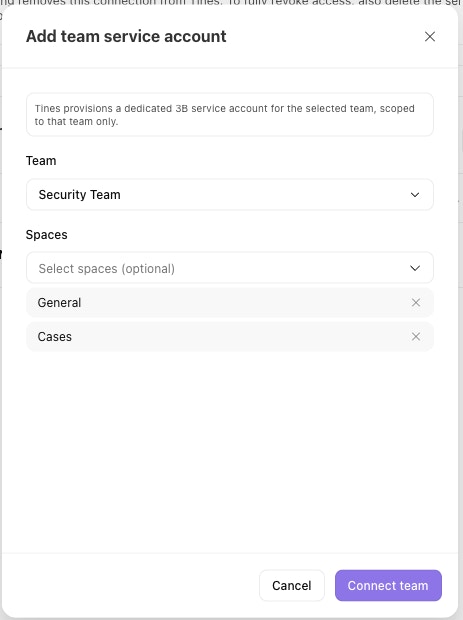
Go to Admin settings → 3B connection.
Enter your 3B instance URL (and a client ID if your 3B instance needs one).
Select Connect and authorize in Tines 3B.
Approving provisions a service account, OIDC provider, and federation in Tines 3B, and records the connection in Tines Stories.
You return to Tines Stories and the page shows Connected.
Connection status
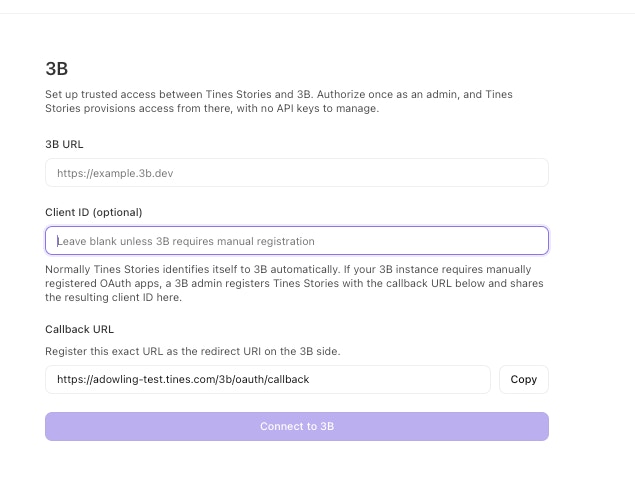
The page shows:
Status:
ConnectedorReconnect required.3B URL: the connected instance.
Service account: the 3B account Tines authenticates as.
Connected on: the date it was established.
How ongoing authentication works
Tines acts as the OIDC issuer for the connection: it publishes public signing keys, mints a short-lived signed token per call, and 3B verifies it against those keys. No shared secret is stored on either side.
Reconnecting
If the page shows Reconnect required, open the 3B connection page and select Reconnect, then authorize again. This re-establishes trust and clears the warning.
Self-hosted: when Tines 3B can't reach your instance
OAuth needs Tines 3B to fetch your public keys from your instance. If Tines 3B can't reach it, for example on a private network, you have two options.
Allow access to the keys endpoint
Preferred. Allow inbound requests to this path only:
/three-b/*/.well-known/jwks.jsonIt serves a public key and nothing else, so no private key or tenant data is exposed. Then connect through OAuth as normal.
Connect with an API key
Use this if you can't expose that path. Tines Stories stores the key encrypted and won't connect without database field-level encryption, so enable that first if you haven't already.
You also need a Tines 3B service account API key whose service-account can create service accounts and grant space access.
Go to Admin settings → Tines 3B connection.
Select Set up API key fallback.
Enter your Tines 3B URL, using HTTPS.
Paste the API key.
Select Connect with an API key.
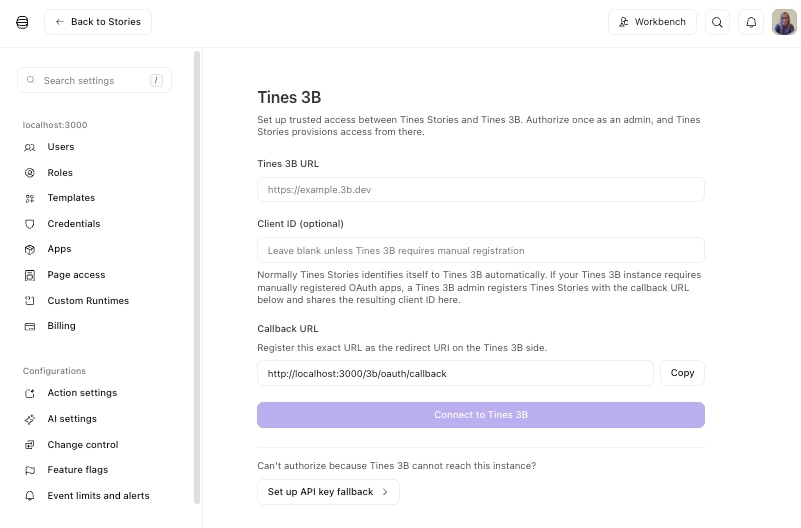
The status then shows an API key badge and no Service account row. Team service accounts work as they do with OAuth(see below section), but Tines Stories limits each team to the spaces its own service account can access.
To replace the key, Disconnect and connect again. Team service accounts are removed from Tines Stories but remain in Tines 3B, and are re-used when you add the teams back.
Creating Tines 3B service accounts for teams in Tines Stories
Go to Admin settings → Tines 3B connection.
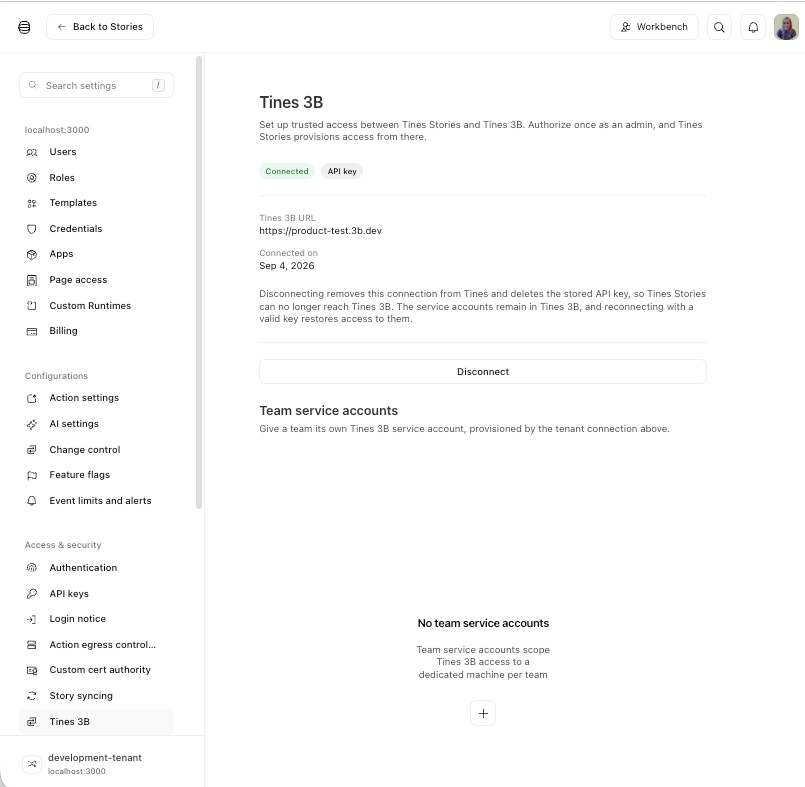
Select Add Team service account.
Select a Tines Stories Team for the service account.
Select the Tines 3B spaces that the service account should have access to.
Select Connect team.
Connecting creates a service account in Tines 3B that acts on behalf of the Tines team.