Not everyone on your team needs the same level of access to cases. Tines Stories uses role-based permissions to control who can view, edit, and manage cases, ensuring that sensitive information stays secure while keeping workflows efficient.
Understanding case permissions
Tines Stories controls case access through a combination of team membership, roles, and case groups. Your ability to view or edit a case depends on:
Which teams you belong to. You can only access cases within your teams (unless you're a tenant owner).
Your role within each team. Your role determines what actions you can perform on cases.
Case group membership. Cases can be organized into groups with specific access controls.
This layered approach ensures that the right people have the right level of access while maintaining security and compliance.
Default team roles
Tines Stories includes default team roles, each with different levels of case access:
Case manager: Read-write access to cases only, with restricted access to other team objects like stories, resources, credentials, and events. Case managers can create and edit cases but can't access the broader automation infrastructure. This role is designed specifically for users who work exclusively with cases and don't need to interact with the underlying Tines Stories platform.
Editor: Can create, edit, and view cases, but can't delete them or perform other destructive actions. This role is ideal for team members who actively work with cases but don't need administrative control.
Team Admin: Full access to cases, including the ability to create, edit, view, and delete them. Team admins can also manage case-related settings and perform destructive actions.
Viewer: Read-only access to cases. Viewers can see case details and activity but can't make any changes. This role is useful for auditors, stakeholders, or team members who need visibility without editing capabilities.
Workbench user: No direct access to cases. This role is limited to using configured Workbench presets and can't access other parts of Tines Stories.
🪄Tip
Understanding these permission layers helps you design a case management workflow that balances security, collaboration, and efficiency.
Tenant-level roles
In addition to team roles, Tines Stories has two tenant-level default roles that affect case access:
Tenant owner: Can access and manage cases across all teams, regardless of team membership. Tenant owners have unrestricted permissions throughout the entire Tines Stories tenant.
User (non-owner): Can only access cases within teams they belong to, based on their assigned team role.
Understanding these permission layers helps you design a case management workflow that balances security, collaboration, and efficiency.
Custom roles
Beyond the default roles, Tines Stories allows tenant owners to create custom roles with tailored permissions. Rather than granting one broad "manage cases" permission, you can assign specific capabilities for each part of Cases, so a role gets exactly the access it needs and nothing more.
When creating or editing a custom role, you can grant access to individual case components, including:
Cases: create, update, set status, update tags, update priority, and override closure conditions.
Templates, statuses, fields, and field values: create, update, and delete.
Case links and case records: create and delete.
SLAs and webhooks: create, update, and delete.
Subscribers and comment reactions: create and delete.
Assignees: update.
This granularity lets you match access control precisely to your team's structure and security requirements. Two common examples:
View permission: Grants read-only access to a team's cases without any other team access, which is useful when someone needs visibility into case activity without the ability to make changes or reach other team components.
Transition case status permission: Controls who can change a case's status. This lets you restrict status changes to specific members, such as leads or reviewers, while others can still view, comment on, or edit other case details.
Custom roles give you the flexibility to design access control that matches your team's structure and security requirements.
❗️Important
ℹ️Info
Permissions reference
Use this table as a quick reference guide to understand how each default role in Tines Stories can interact with cases:
Where to find roles
You can view and manage role assignments in several places within Tines Stories:
To see role permissions:
Navigate to the team menu Settings → Roles. Click into any role (like case manager) to see which permissions it grants:
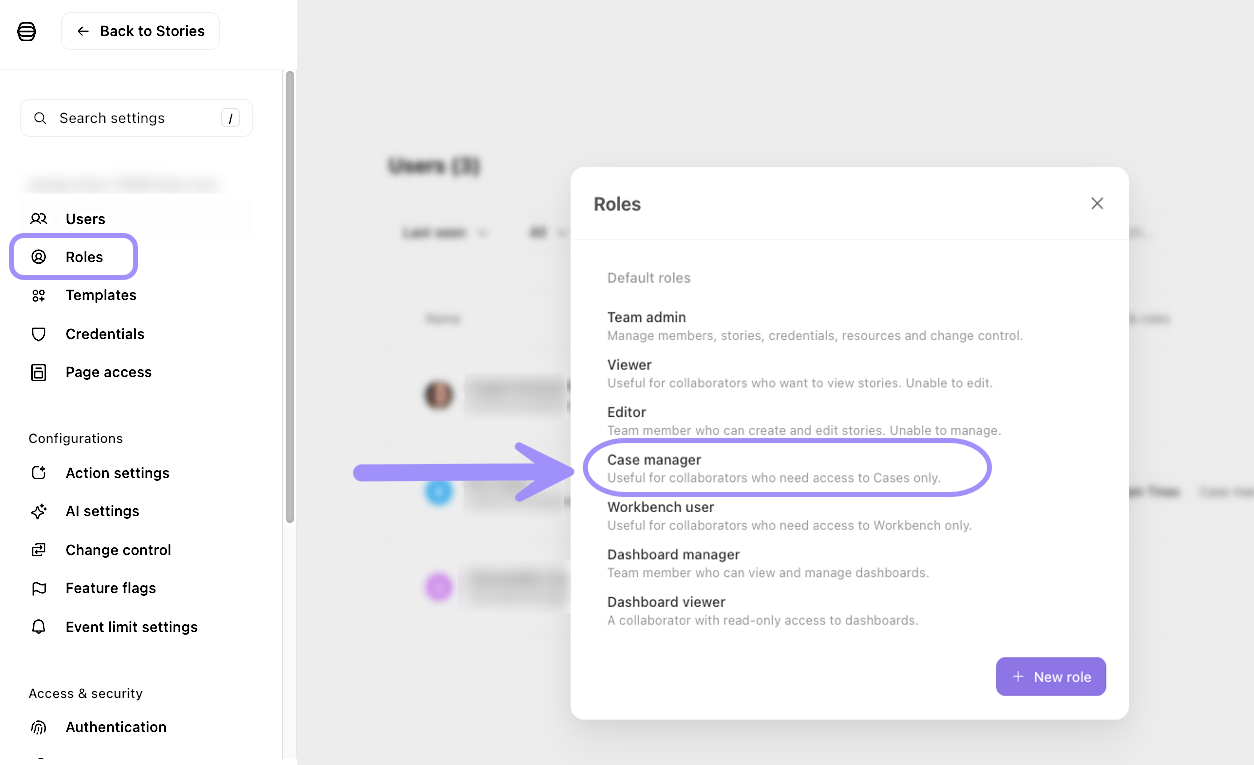
The Roles page, highlighting the Case manager role and other default roles available.
To see user role assignments:
Tenant-wide view: Go to team menu Settings → Users and check the Teams & roles column to see each user's role assignments across all teams:
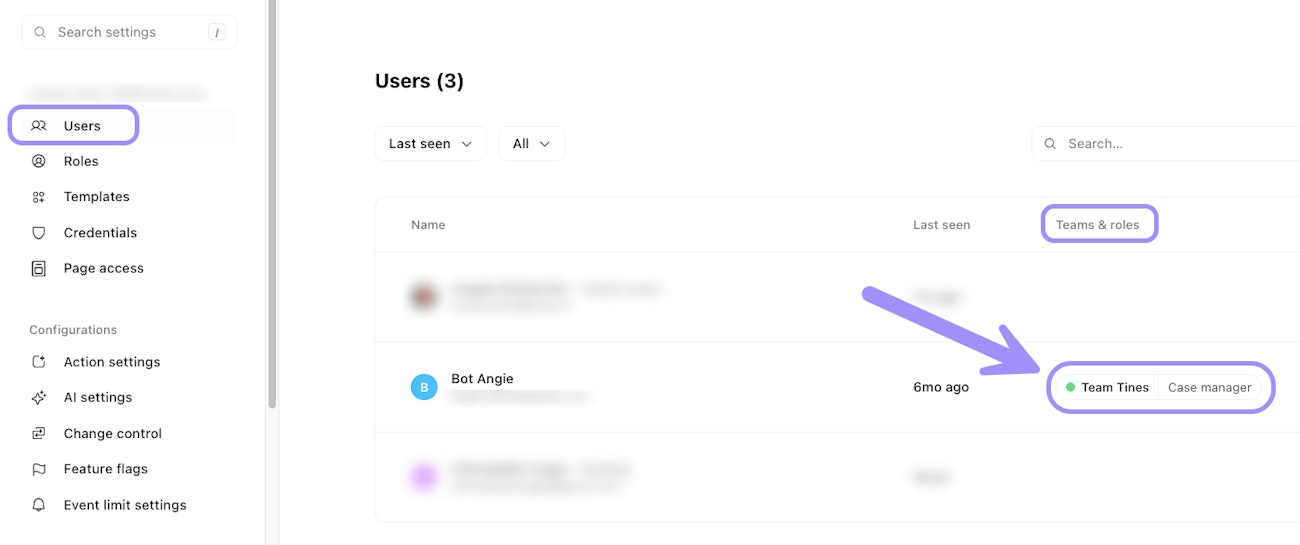
The Users page, showing team members and their assigned teams and roles.
Team-level view: Go to team menu Manage team → Members to see role assignments for a specific team:
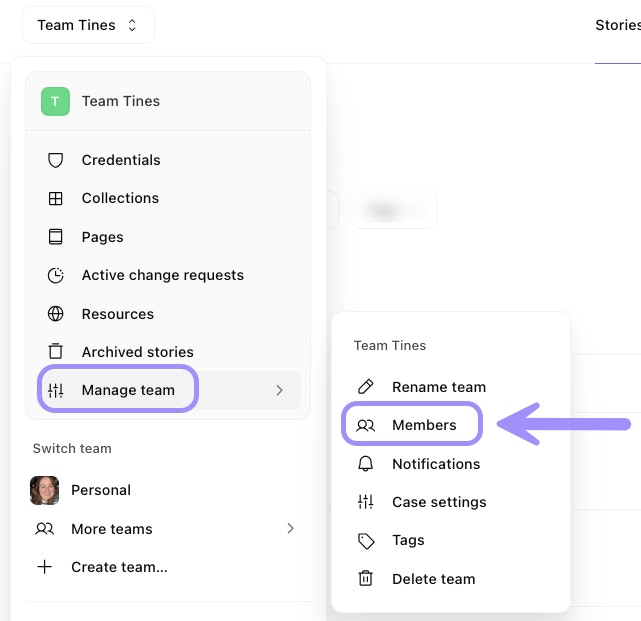
The team menu, highlighting the Manage team option and its Members submenu for managing team membership.