Create a credential
Via the UI
To create a credential for your team:
Navigate to the team menu.
Click Credentials.
Click + New.
Navigate to manual creation.
Select the credential type you want to create.
Click Create credential.
The settings will be different depending on the credential type chosen in step five.
Set up the accessibility for other teams via the Access setting.
Set up a custom expiration date and notification schedule via the Expiry setting.
Click Save to create your new credential.
Via the Tines Stories API
We also offer a full library of API endpoints to manage Tines Stories features. Utilize our credential API endpoints to manage credentials across your teams.
Credential naming best practices
Follow these naming conventions for clarity and organization:
Use descriptive names that indicate the service and purpose.
Include the environment (prod, dev, test) if applicable.
Consider prefixing with a team or function.
Be consistent across your organization.
Examples:
gmail_security_teamslack_notifications_prodaws_s3_backupsjira_ticket_creation
Notify on credential expiration
Many credentials, like API tokens, certificates, and service account keys, have a finite lifespan. When they expire without warning, the stories that depend on them are impacted. Tines Stories lets you track expiration dates directly on the credential and notify the right people before things break.
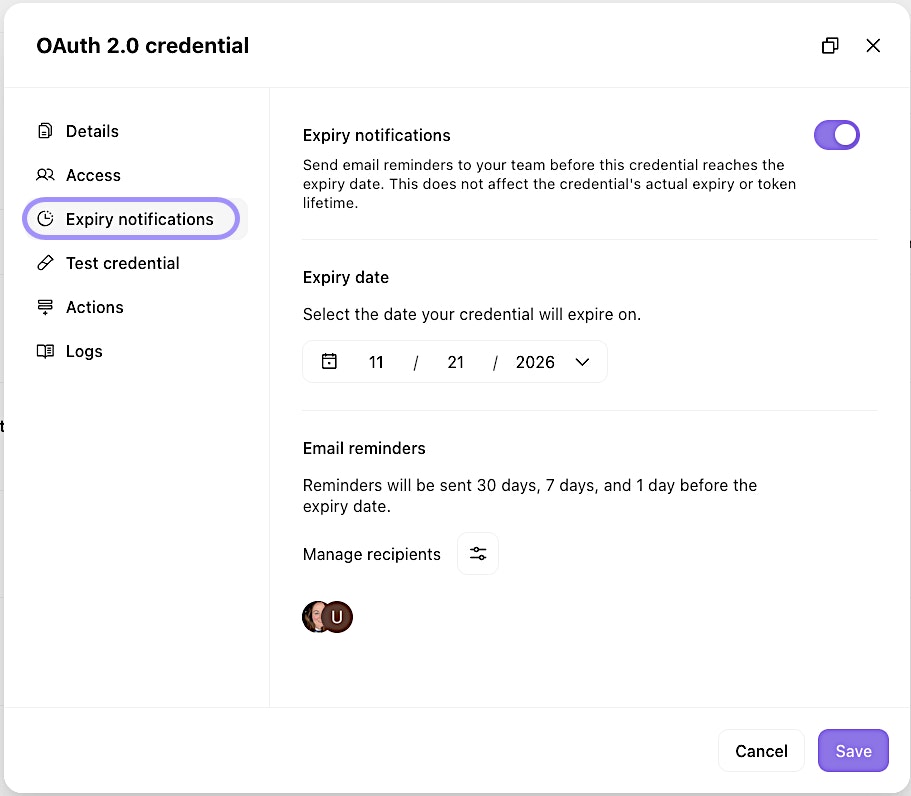
The Expiry notifications tab of a credential, showing options to set an expiry date and manage email reminder recipients.
When creating or editing a credential, open the Expiry notifications tab to:
Record the credential's expiration date so you always have a single source of truth for when it needs to be rotated.
Enable expiry notifications to alert your team before the credential expires.
Choose which users receive expiration notifications, and optionally notify owners of stories that use the credential. This way, the people most affected are always informed without you having to manually track which stories depend on it.
🪄Tip
Organize your credentials
As the number of your credentials grows:
Use consistent naming patterns to make credentials easy to find.
Document the purpose of each credential in its description.
Include expiration dates, if applicable, and use the Expiry notifications settings to notify on those dates.
Utilize the Product setting within your credentials to categorize them by tool.