Searching and filtering
Narrow a record type down to the records you care about using field filters, a date range, and an optional story filter.
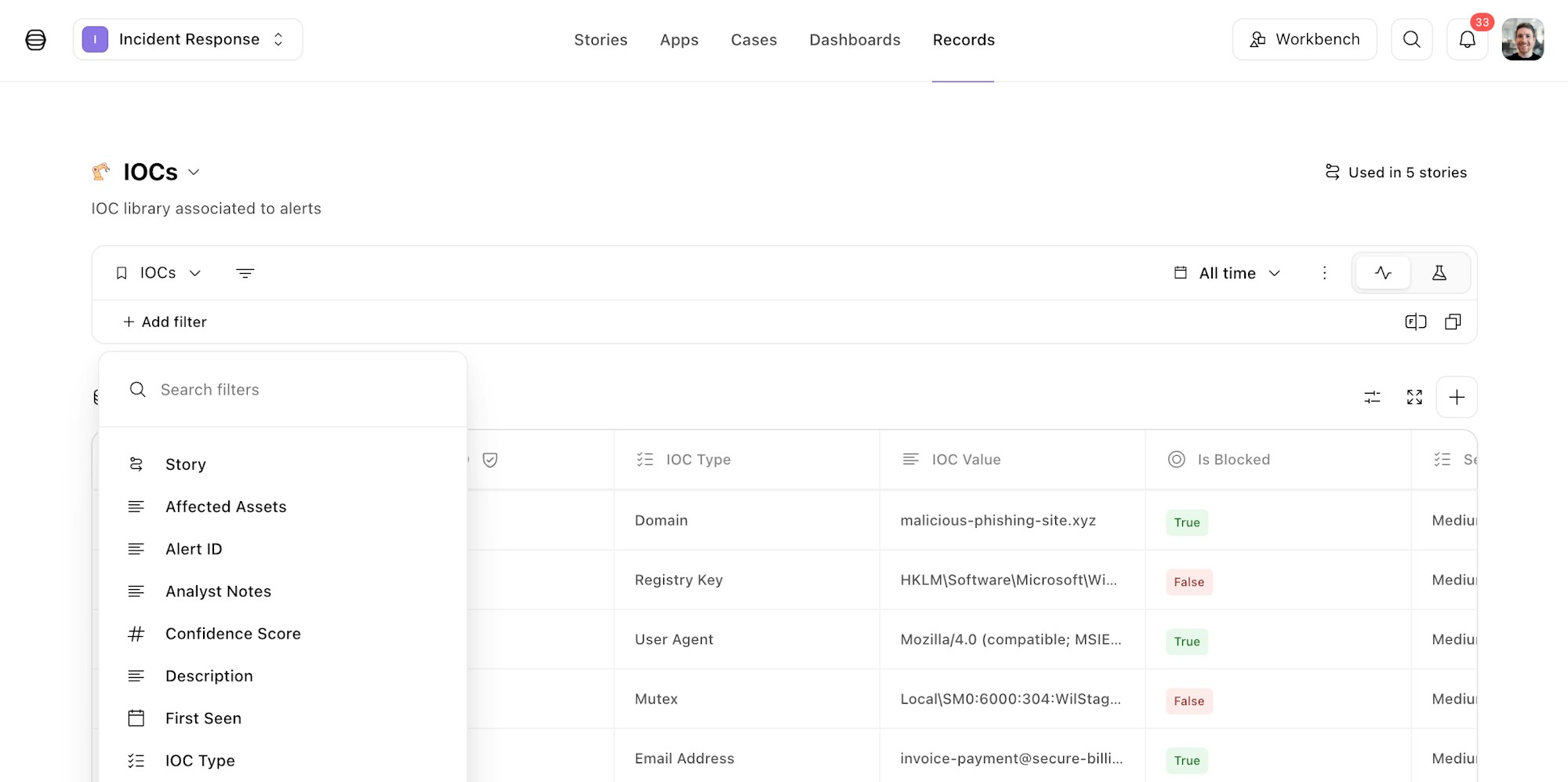
Use search and filtering when a record type holds more records than you can scan by eye – for example, to pull every high-severity alert from the past week, or to find records missing an owner. You filter from All records or from a saved view, then combine filters to drill in.
A field filter has three parts:
Field – the column you're matching, such as Story name, Timestamp, or a field you added to the record type.
Operator – how the field is matched, such as is, contains, or before.
Value – the text, number, date, or list entry you're matching against. Some operators, such as is empty and is true, don't take a value.
Filters you add side by side are combined with AND – a record must match every filter. There are no filter groups, and there's no way to combine filters with OR.
Choose where to search
Open Records and select a record type.
All records shows every record of that type, with no filters applied. Changes you make here stay in your browser until you leave them or choose Save view. Clear removes the filters, the story filter, the date range, and the live or test selection. Use All records when you want to try a search without changing a view that other people rely on.
A saved view is a shared, named configuration of filters, columns, a date range, and any charts. Open the views menu and type a view name to find it – All records stays in that list when your search matches its name. From the same menu you can create a view, or rename, clone, or delete an existing one. A record type always keeps at least one saved view.
On a saved view, adding, editing, or removing a filter saves immediately, and everyone who opens that view sees the change.
Build a query
To build a filter, choose Add filter, or press F, then optionally navigate the filter selection via your keyboard using tab, arrow keys, and enter.
Pick the field, the operator, and the value. The filter appears as a pill – choose the pill to change it, and add another filter to narrow the list further. The pills scroll sideways when they no longer fit on one line.
The date range on the right of the toolbar limits the view to a time window, such as All time, Last 7 days, or a custom range. This control is separate from a filter on a timestamp field: a timestamp filter matches one field, while the date range limits the whole view.
When change control is turned on for the team, the live and test control switches between records written by the live story and records written by the test story.
A Story filter can be added from Add filter when you want records from particular stories. On a saved view, the stories already attached to that view appear as their own pill.
Choose Save view on All records to keep the current filters, date range, columns, and live or test selection as a new shared view. You need permission to manage views to do this. If Add filter is unavailable, you need permission to edit filters.
Fields every record type includes
A new record type starts with four fields, and you can filter each of them. Add your own fields when you need to search on anything else, such as severity, a URL, or an email address.
Story name and Timestamp are filled in when the record is created. Record ID and Updated at come from the record itself.
How the field type changes the value
The field type you choose on the record type decides which operators appear and how you enter the value. That type also validates the value when a story writes the record – a value that doesn't match the type isn't stored.
A fixed-values field is a pick list: is selects one allowed value, and is any of and is none of select up to 10. Text, email, URL, IP address, and custom regex fields all use a text box. These types still validate what gets stored – they don't turn the search box into a list.
Large text and JSON fields can each hold up to 100,000 characters. They stay visible in the table, and stories and the API can read them, but they can't be filtered from a record view. Capture the pieces you'll search on – such as source, severity, or a hostname – as separate fields on the same record.
Operators
Text matching is case-insensitive.
Is matches the whole stored value, so
highmatchesHighbut nothigh severity.Contains, starts with, and ends with match characters inside the value, so
phishmatchesspear phishing.Contains, starts with, and ends with need at least three characters and can't be longer than 256. A view can use only one of these three at a time. After you add one, the other two are unavailable until you remove it.
Examples
Records from one story, created this week. Open All records, set the date range to Last 7 days, and add a Story filter for the story that writes the records.
High-severity alerts that name a host. On a record type with a fixed-values Severity field and a text Hostname field, filter Severity is High, then Hostname contains db-prod. Both filters apply. Severity offers the allowed values in a list; Hostname takes typed text.
Records missing an owner. Filter Owner is empty to find records where that field wasn't set, or Owner is not empty to find the records that have one.
An address inside a network. On an IP address field, choose is in any CIDR range and enter 10.1.0.0/16. Add a second range in the same filter when an address in either network should match.
Related pages
Overview of records – what records are and how stories write them
Record types and fields – add and configure the fields you filter on
Record limits – field size and entry maximums