Searching and filtering
Case search helps you find the exact cases you need by filtering on parameters like tags, assignees, priority, SLA status, dates, as well as a free text search for case ID, name, and description.
How case search works
You can find cases two ways: a quick text search across case ID, name, and description, or structured filters that narrow by specific parameters. Most searches combine both.
Each structured filter has three parts:
Parameter – what you're filtering on (for example, tag, priority, or created date).
Operator – how the parameter is matched (for example, is, is not, or contains).
Value – the term or selection you're matching against.
The operator available to you depends on the parameter and, for many parameters, on how many values you select. When you select a single value, you'll see singular operators like is and is not. When you select two or more values, those expand to is any of, is all of, or is not any of.
Quick text search
The search bar at the top of the cases list is the fastest way to find a case when you already know something about it. Type any term and Tines searches across three fields at once.
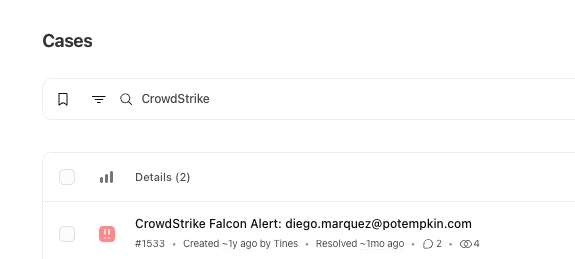
Case ID – the unique identifier for a case.
Case name – the case title.
Description – the content of the case's description block.
Comments, notes, fields, and metadata aren't included here – those have their own dedicated filters.
How free text search matching works
Quick search uses whole-word, prefix-based matching. In practice, that means:
It's case-insensitive. Phishing and phishing return the same results.
It matches word prefixes. phish matches "phishing," and invest matches "investigation." Matching starts from the beginning of a word, so vestigation will not match "investigation."
It splits text into words. A title like "login-failure" is indexed as login and failure, so searching either word finds it.
Multiple words are all required, in any order. Searching failed login matches a case titled "Login attempt failed," because both terms are present. If either term is missing, the case is excluded.
Case IDs are searchable. Typing 1567 finds case 1567. Because matching is prefix-based, a shorter term like 15 also matches IDs such as 1500 and 1567 – so use the full ID for an exact match.
Pasted URLs are cleaned up. Tines strips the scheme (for example,
https://orhxxp://) before searching, so pasting a URL searches the rest of it.
For anything beyond these three fields – comments, notes, tags, or structured attributes – use the filters described below.
Searching mentions in descriptions
Descriptions often contain mentions – dynamic references to fields, users, stories, records, and other resources (for example, an @ reference to a field value). Quick search won't find a case by the displayed value or name of a mention.
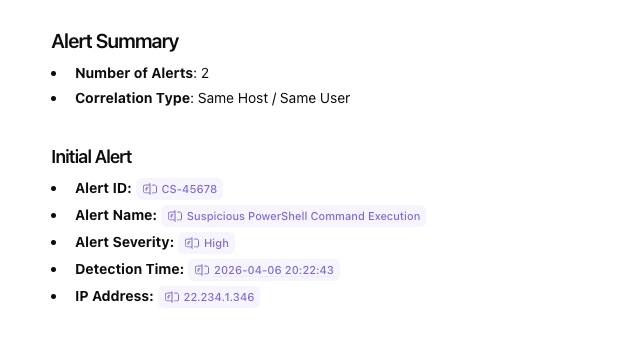
Behind the scenes, each mention is stored as an markdown-formatted reference ID, rather than its rendered value. Thus quick search matches only the stored markdown text.
Cases resolves a mention to its readable value or name when it displays the description, but that resolved text is not inherently searched.
For example, if the description references a username (e.g. @nick.winninger), searching that person's name won't match through the description; if it references a field holding an IP address, searching the IP address won't match either.
To find a case by an underlying value, use the corresponding structured filter.
Operators by parameter
Structured filters fall into two groups: those where you choose the operator, and those where the operator is fixed.
Parameters with selectable operators
For these parameters, the operator adapts to the number of values you select.
A few parameters intentionally omit some operators:
Priority and author never offer is all of, because a case has exactly one priority and one author – it can't match two at once.
Status (sub-status) also omits is all of for the same reason.
Metadata and field don't offer is not or exclude-style operators.
Parameters with a fixed operator
These parameters use a set operator, so there's no dropdown to choose from.
For date parameters, the operator is derived from the shape of the value you enter – a single date maps to on, a duration maps to in the last, and a start-and-end pair maps to between.
How structured filters match
Quick search matches word prefixes, but the Record, Field, and Metadata filters behave differently: they search the structured data attached to your cases using exact, whole-value matching, with wildcard support in a couple of places.
Record filter
The record filter searches across all field values on any record linked to a case and returns cases where a field value exactly equals what you typed.
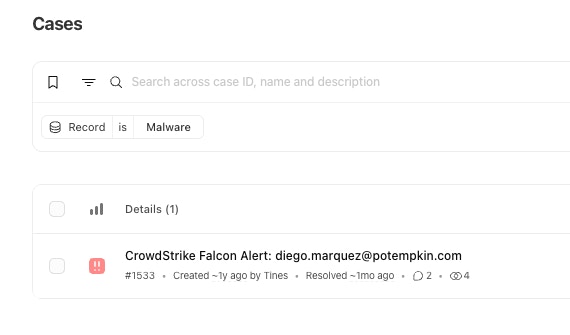
It's a whole-value match. The field value must equal your input in full – it isn't partial, word-based, or fuzzy. Tines matches a field value of "Tines," but Tin, tnies, and login (against "login failed") won't match.
It searches every field at once. You don't pick a column – the filter checks all field values across the case's linked records.
Multiple values are OR'd. Enter several values and a case matches if any field value equals any of them.
Large text fields aren't searchable. Very large text record fields are excluded, so you can't match on them.
Field filter
The field filter also uses exact, whole-value matching, but it targets one specific field by its key rather than searching across all of them. Use it when you know exactly which field holds the value you're looking for – for example, matching only the "Host name" field rather than any field that happens to contain the value.
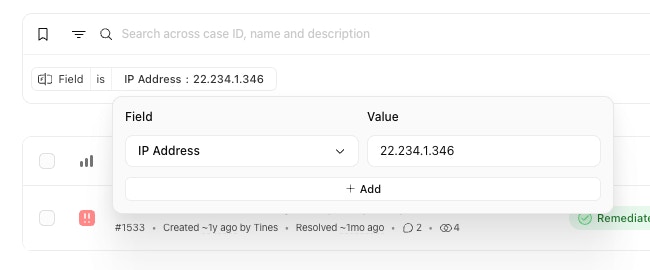
Match a specific value. Enter a value to find cases where that field equals it exactly.
Match any value with
*. Enter*to find every case that has the field attached, regardless of what it contains. This is a presence check – it matches whenever the field exists on a case, even if its value is empty. It doesn't guarantee the field has been filled in.
The key difference is that the record parameter searches every field value at once, while field scopes the match to a single field.
Metadata filter
Metadata filters match against the key–value pairs stored on a case. Like the field filter, every match is exact – metadata doesn't support partial or pattern matching, so a term like source_* is treated as literal text, not a prefix. What metadata does allow is a standalone * – entered on its own in a key or value field to mean "any" and leave that side unconstrained. This makes it more flexible than the field filter.
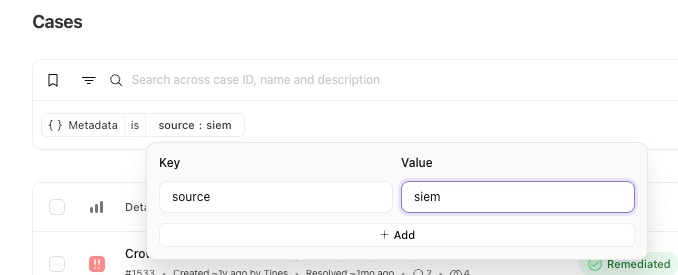
Specific key and value. Match cases where a given key equals a given value.
Specific key, any value (
*). Match cases that have the key set, whatever its value.Any key (
*), specific value. Match cases where any key holds a given value.
This is the key difference from the field filter, where only the value can be wildcarded – the field key is always a specific field.
How operators are labeled
Behind the scenes, three logical operators drive most of the labels, and the wording shifts between singular and plural based on how many values you select:
Or – is (one value) or is any of (two or more).
And – is (one value) or is all of (two or more).
Exclude – is not (one value) or is not any of (two or more).
A separate set of operators – contains, between, in the last, and on – always uses fixed wording and doesn't change with value count.
Best practices
Use quick search for what you remember, filters for what you know. Quick search spans case ID, name, and description; the contains filters target comments and notes specifically.
Search word beginnings, not endings. Because quick search matches prefixes, phish finds "phishing" but ing won't – lead with the start of the word you remember.
Search structured data with the right filter. To find a case by a record or field value – or by a value referenced through a mention – use the Record or Field filter, not quick search.
Start broad, then narrow. Begin with one high-signal filter (like status or assignee) and add filters to refine.
Combine filters for triage views. Pairing assigned to me with a priority filter is a fast way to build a personal work queue.
Worked examples
These examples combine multiple filters to build focused, real-world search views.
1. Surface SLA-breaching cases across a team
Goal: As a team lead, find every open case owned by your team that has breached its SLA, so you can reassign or escalate.
How it reads: open cases belonging to SOC – Tier 1 whose SLA status is breached or at risk, excluding low and medium priority. SLA status uses is any of because you're matching two values, while priority uses is not any of to exclude a set – and remember priority can't use is all of, since a case has only one priority.
2. Track a phishing campaign by tag and record
Goal: As an analyst, pull together every case tied to a specific phishing campaign so you can see the full scope of the investigation.
How it reads: cases tagged with both phishing and campaign-2026-08 (is all of), linked to a record whose field value exactly equals mail.acme-vendor.example or https://acme-vendor.example/reset (is any of), and created within the last 14 days.
Because the record filter is a whole-value match, each entry must be the complete stored field value – a partial domain like acme-vendor.example wouldn't match mail.acme-vendor.example. This pairs a strict tag match with an exact record match to capture the cases tied to this campaign.
Pair this search with a case group to keep the campaign organized as it evolves.
3. Build a personal end-of-week review queue
Goal: As an analyst, review the high-signal cases you personally worked on this week – whether or not they're still assigned to you.
How it reads: cases you're assigned to and subscribed to, updated between the two dates, whose sub-status is in progress or awaiting response. The two toggles use their fixed is operator, the date range maps to between, and the sub-status filter uses is any of – it can't use is all of, since a case holds one sub-status at a time.