Distribution and access control
Distribution and access
Apps let you put a custom interface in front of your workflows for end users. Once you've built an app, you control who can open it and share its link with the right audience.
Sharing an app
Every app has its own URL. To share it:
1. Open the app in the builder and select Share.
2. Copy the link with the link icon, or open it in a new tab.
A published app is available at its live URL. Before you publish, the Share panel shows a preview link so you can test the app yourself.
Customizing the URL
An app URL looks like https://your-tenant-domain/apps/url-identifier. By default, the url-identifier is a randomly generated string that is unique to your tenant.
You can set your own identifier (for example: case-summary-dashboard) to make the app easier to find using the Share panel. Be cautious: changing the identifier of an existing app may break existing bookmarks.
Controlling access
Every app has an access control setting that decides who can open it. Select Share, then choose one of the following under General access:
Anyone on this team (default): only signed-in members of the team the app belongs to can view it.
Anyone in this tenant: anyone signed in to your Tines Stories tenant can view it, even if they're not a member of the app's team.
Only specific people: only the people you add to the app can view it. Choose this option, then search for and select the users who should have access.
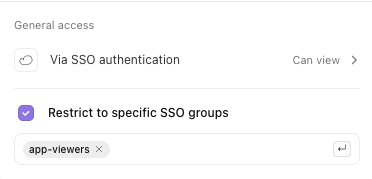
Via SSO authentication: anyone in your organization granted access to the Tines Stories app through your SSO provider can view it, useful for company-wide access. You can add a further layer of granularity by restricting access to particular groups:
First, an admin needs to turn this feature on in Authentication settings.
Then select Via SSO authentication under General access, enable Restrict to specific SSO groups, and add one or more SSO group names. Press Enter or type a comma after each name. Visitors need to belong to at least one of the listed groups to view the app.
Tenant owners can always open every app on the tenant.