The Tines user interface (UI) is designed to provide intuitive access to all platform capabilities while maintaining a clean, organized workspace. In this section, we'll explore the key components of the Tines UI and how they help you navigate the platform efficiently.
🪄Tip
Main navigation components
The Tines UI consists of three primary navigation areas that work together to provide a seamless user experience:
Top navigation bar

Visual of the top navigation bar within the Tines UI.
The top navigation bar displays tabs for accessing different primary features in your Tines tenant:
Stories: Where you build, run, and monitor your intelligent workflows.
Cases: (Paid feature) Access to the built-in case management system for tracking incidents and requests.
Dashboards: (Paid feature) Custom visualization dashboards for monitoring your case and record metrics.
Records: (Paid feature) Access to stored data that can be referenced across your stories.
❗️Important
On the right side of the top navigation, you'll find:
Workbench: Quick access to speak with our universal AI copilot, Workbench.
Search: (🔍 icon) Global search functionality to find elements across your Tines tenant.
Notifications: (🔔 icon) Manage your personal notifications.
Help: (🛟 icon) Access Tines resources and our in-app chatbot for help with learning Tines or if you need Technical Support assistance.
Avatar: Access to personal user settings and UI interface preferences.
Team menu
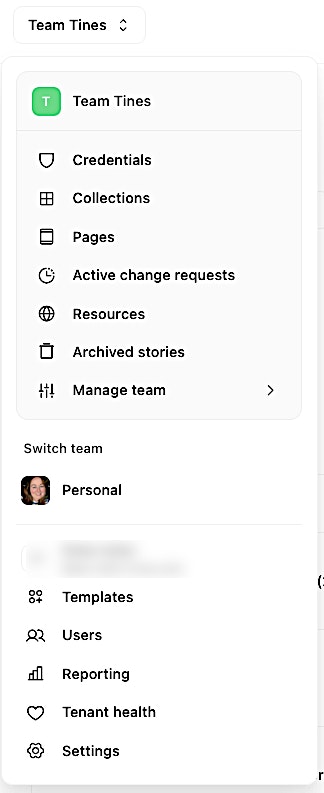
Visual of the team menu within the Tines UI.
The team menu provides hierarchical access to teams, resources, and system settings (depending on your tenant permissions):
Team-specific elements: The following components will display for the team you are currently viewing (depending on your permissions):
Credentials: Your team's credentials.
Collections: Your team's page collections.
Pages: Pages that exist throughout your entire team's stories.
Active change requests: (Paid feature) Currently active story change requests.
Resources: Your team's resources.
Archived stories: Stories that have been archived within the team.
Manage team: Settings for managing team values, such as name, users, and notifications.
Team selector: Switch between different teams you belong to, including your Personal team.
Templates: Access to your private templates.
Users: Tenant user list.
Reporting: Analytics of build components, such as the number of license flows in use, most used resources and credentials, and AI credit usage.
Tenant health: Health and monitoring of story run statistics across the tenant.
Settings: More tenant-level settings.
Main content area
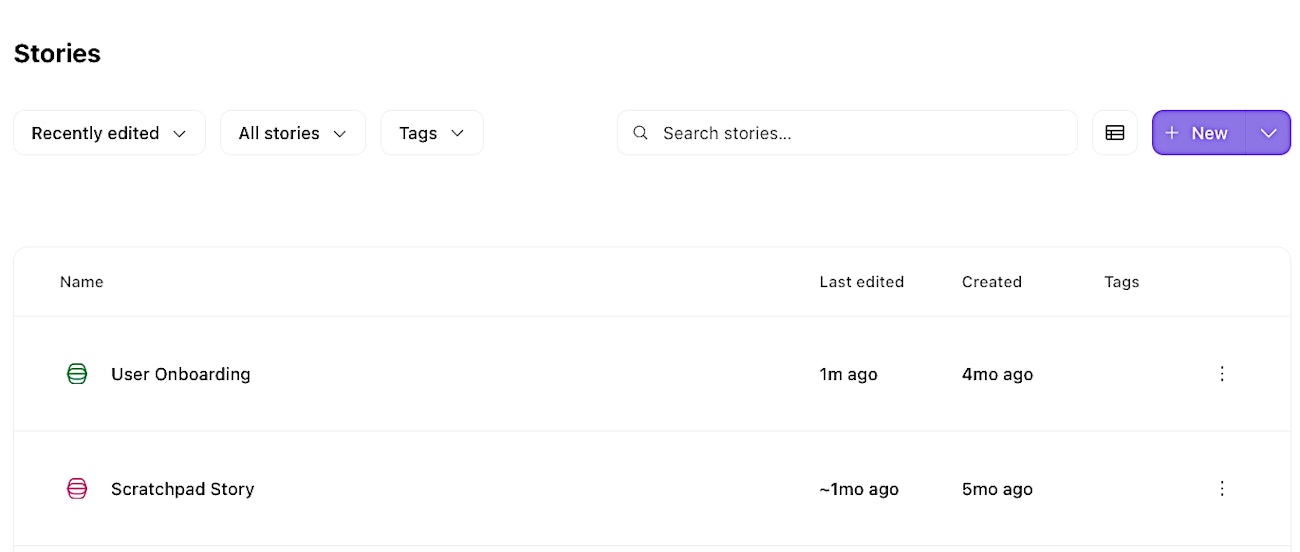
Visual of the Stories tab's main content area within the Tines UI.
The central area of the interface displays the content relevant to your current tab selection:
When viewing Stories, this area shows the stories of the current team you are in, with filtering and sorting options.
For Cases, it displays the list of cases within your current team.
For Dashboards, it shows your created visualizations for your current team's case and record metrics.
For Records, it displays the list of record types within your current team.