Tines Stories gives you two ways to create endpoints, and you can use whichever suits how you like to work. The first is handled for you by Workbench. The second gives you hands-on control from the storyboard. Let's look at each.
Workbench-generated endpoints
The quickest way to create endpoints is to let Workbench do it for you, right from the conversation panel in the App builder.
When you're building, Workbench acts as a companion that can create the connections you need. You can simply ask it to create or use endpoints, and it handles the details within the conversation. Depending on what you need, Workbench can either generate endpoints within an existing story or spin up a brand-new, dedicated story for your App.
For example, while building an IT helpdesk App, you might prompt: "Connect this form to a story that logs each submitted ticket." Workbench can set up the endpoint and the underlying story for you, without you ever leaving the builder.
❗️Important
🖐️ Try this: Generate an endpoint with Workbench
New to emulations? Swap between watch, try, or scroll mode.
Manually created endpoints
Sometimes you'll already have a workflow you want your App to use, or you'll simply prefer to set things up yourself. In that case, you can manually define endpoints, either in an existing story or in a new one.
If you've already built a story you want to expose in your App, you can enable its inputs and outputs as App endpoints. This lets your App interact directly with that story and its data.
To configure endpoints manually, you'll work from the storyboard:
Navigate to the right-hand panel on a storyboard, find the Interfaces section, and select App endpoints.
Make sure you have a webhook action to set as an entry point, and a message-only event transform action to set as an exit point. The entry point is where data comes into the story from your App, and the exit point is where data goes back out to your App.
When you configure the entry point, it converts into an endpoint that your App can use. From there, your story and your App can communicate directly.
🖐️ Try this: Manually add an endpoint
New to emulations? Swap between watch, try, or scroll mode.
❗️Important
Test and debug endpoints with Workbench
Connecting an endpoint is one thing. Making sure it actually works the way you expect is another. The good news is that Workbench can help you test and debug your endpoints directly from the App builder, so you don't have to jump back and forth to hunt down problems.
If an endpoint isn't behaving as expected, say, your form submits, but the data doesn't appear where it should, you can turn to the conversation panel and ask Workbench to investigate. Because Workbench understands both your App and the stories it connects to, it can help you check the connection, spot what's going wrong, and suggest or apply a fix, all within the same conversation.
The Logs tab will appear temporarily when any errors are returned by your App. You can use this tab in collaboration with Workbench to troubleshoot and fix your App with ease.
Reuse recent responses
Once your endpoints are set up, reusing recent responses is a handy option that can make your App feel faster and lighten the load on your workflows.
Some endpoints return the same result for the same input every time. Think of an endpoint that looks up your company's list of office locations, or fetches a fixed product catalog. If 10 people open your App in the same few minutes, there's no need to run the whole story 10 times to return identical data. Instead, you can tell the endpoint to reuse a recent response, which reduces latency for your users and cuts down on repeated story runs.
You configure this on the endpoint's entry point (the App endpoint action) on the storyboard. Open the action and set Reuse recent responses to one of three options:
Off (the default). Every request runs the story fresh. This is the right choice when you always need up-to-the-moment data.
Per user. Each person only reuses their own previous responses. Use this when the response depends on who's asking, like an endpoint that returns "my open requests."
Per app. A single response is shared across everyone who sends the same input. Use this for data that's the same for all users, like that shared list of office locations.
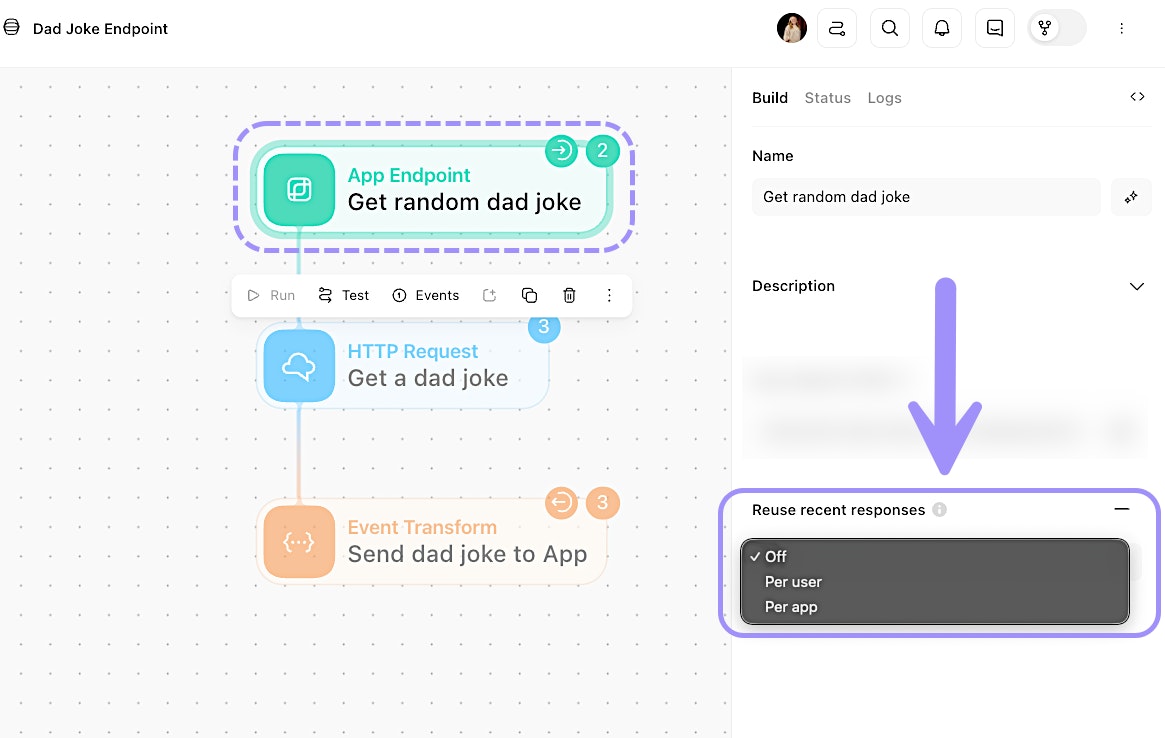
The Build tab for an App endpoint, showing the Reuse recent responses setting, which controls how often the story reruns for repeated requests.
When you choose Per user or Per app, you also set Reuse responses for (minutes), which controls how long a response can be reused before the story runs again. It's a simple way to balance freshness against speed: a shorter window keeps data current, while a longer one maximizes the performance benefit.
A few things happen automatically to keep this safe and predictable.
A stored response is only reused when a later request sends exactly the same input, so different inputs always get their own result.
Tines Stories also clears stored responses automatically whenever you edit the story, so your changes take effect right away.
Reuse never applies while you're testing a draft, those runs always run fresh, so you can trust what you see while building.