Why set team limits?
As your Tines tenant grows, you'll want to manage how components are distributed across teams. Team limits help you:
Prevent any single team from consuming too many events or AI credits.
Plan capacity and understand usage patterns.
Ensure fair distribution of automation capacity across your organization.
Maintain the performance and stability of your tenant.
Think of team limits like departmental budgets. Just as you might allocate a budget to different departments, you can allocate capacity to different teams.
Team story allocation
Story allocation limits control how many stories a team can create. This is useful when you want to ensure teams don't create an excessive number of stories, which could make the tenant difficult to manage, or potentially impact the number of flows you are licensed for.
To set story allocation limits:
Navigate to the team menu.
Select Settings from the dropdown menu.
Choose Story allocation from the secondary menu.
In the Team allocation pop-up window, check the box next to the team(s) you want to limit.
Set the maximum number of stories for each team.
Click Save.
For example, you might give your IT Operations team a limit of 100 stories, while smaller teams like Marketing might have a limit of 25 stories. You can always adjust these limits as teams' needs change.
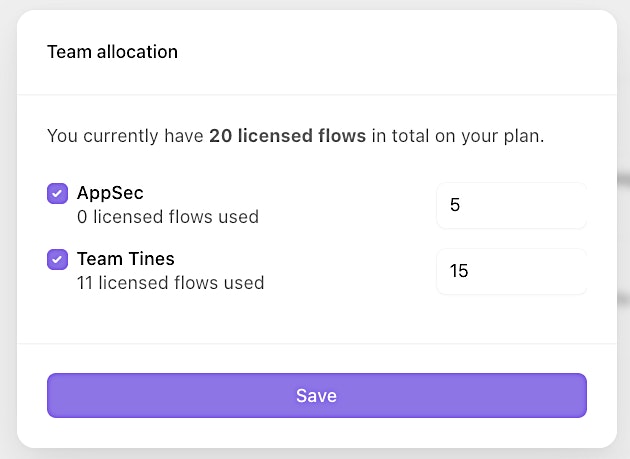
UI location to allocate flows across tenant teams.
Team event limits and notifications
Event limits control how many events a team can process per day. Events are the individual data items that flow through your workflows.
Setting event limits helps you:
Prevent runaway workflows from consuming excessive resources.
Identify workflows that might need optimization.
Plan capacity for growing orchestration and automation needs.
To configure team event limits:
Navigate to your tenant Settings.
Navigate to the Event limit settings tab.
Set daily event limits for specific teams via the Team event threshold alerts setting’s cog icon (⚙️).
Configure notifications via the Notification recipients section to alert yourself and/or team admins when they're approaching their limit.
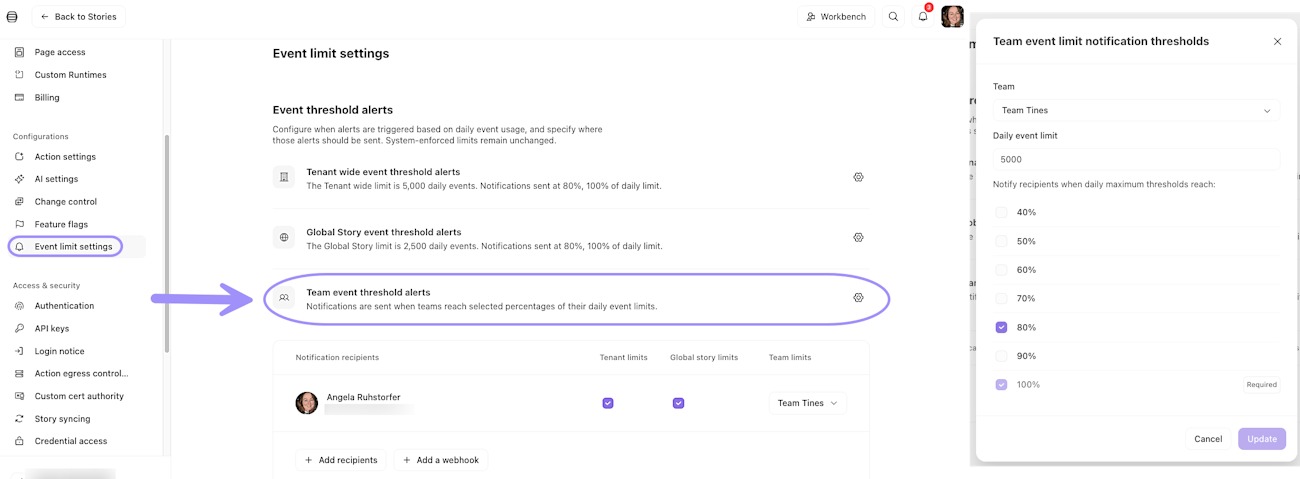
UI location to configure team event limits, with an example.
AI credit allocation
If your tenant uses AI features in Tines (such as the AI Agent action or Workbench), you'll need to allocate AI credits to teams. There are two AI features in Tines that consume AI credits:
AI Agent action: Uses credits each time the action runs, based on the amount of data processed and the complexity of the task.
Workbench: Workbench consumes AI credits for each message sent and each time it calls a tool to perform a task.
All Tines plans include a monthly allocation of AI credits. These credits reset on the first of each month and do not roll over. Tines will provide warnings when teams are nearing their credit limits. If you need additional credits, you can purchase AI credit add-ons through your Tines Customer Success Manager or directly from the Billing tab in the tenant owner settings.
To allocate AI credits to teams:
Navigate to your tenant Settings.
Navigate to the AI settings tab.
For each Provider, click the Configure button.
In the Edit Tines provider pop-up window → Allocation tab, distribute your available credits across teams based on their AI usage needs.
Click Update to save your changes.
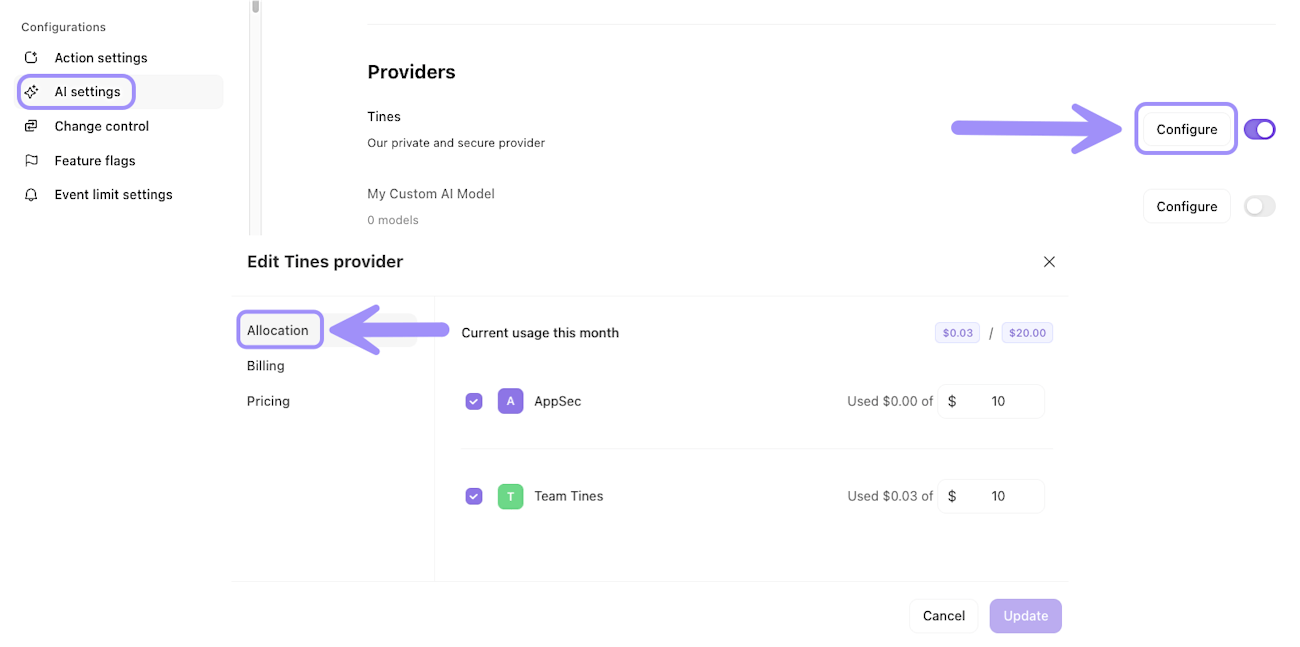
UI location to distrubute AI credits across tenant teams.
When allocating AI credits, consider:
Which teams are actively using AI features in their workflows.
The complexity of AI tasks each team is performing (more complex tasks consume more credits).
Whether teams are using Workbench with presets (which use the team's allocated credits) or without presets (which use unallocated tenant credits).