Why share components across teams?
In many organizations, teams need to collaborate and share resources. For example:
Multiple teams might need to connect to the same CRM system, so they share a Salesforce credential.
Different departments might use the same list of office locations, stored in a shared resource.
Teams might want to trigger each other's workflows using Send to Story functionality.
Tines makes it easy to share credentials, resources, and stories across teams while maintaining security and access control.
🪄Tip
Share credentials across teams
When you share a credential with another team, that team can use the credential in their workflows without seeing the actual sensitive value. This maintains security while enabling collaboration.
To share a credential:
Open the credential you want to share.
Navigate to the Access section.
Check the box next to Grant access to all teams on this tenant, or choose specific teams from the list, along with their access level.
Click Save.
Share resources across teams
Resources are shared using the same process as credentials. When you share a resource, other teams can reference it in their workflows. If you update the resource, all workflows using it (across all teams) will automatically use the updated version.
This is particularly powerful for maintaining consistency. For example, if you have a resource containing your company's standard email signature, sharing it across teams ensures everyone uses the same signature. When the signature needs to be updated (maybe the company address changes), you update it once, and it's instantly reflected everywhere.
To share a resource:
Open the resource you want to share.
Navigate to the Access section.
Select either All teams or choose specific teams from the list.
Click Save.
Tenant-wide credentials and global resources
Some credentials and resources need to be available across your entire organization. These are called tenant-wide credentials or global resources. Common examples include:
Company-wide API keys for shared services
Enterprise authentication tokens
Shared service account credentials
Standard configuration settings that apply to all teams
Shared lookup data used across departments
Configure Send to Story access
Send to Story is a Tines feature that allows one workflow to trigger another workflow. When you enable Send to Story for a workflow and configure its access, other teams can call that workflow from their own stories.
To configure Send to Story access:
Open the story you want to make available to other teams.
Open the Send to Story settings from the story’s properties panel.
In the Access section, select which teams can use this workflow.
This can come in handy when you want to create reusable workflows. For example, the IT team might create a "Create User Account" story that the HR team can trigger as part of their employee onboarding process.
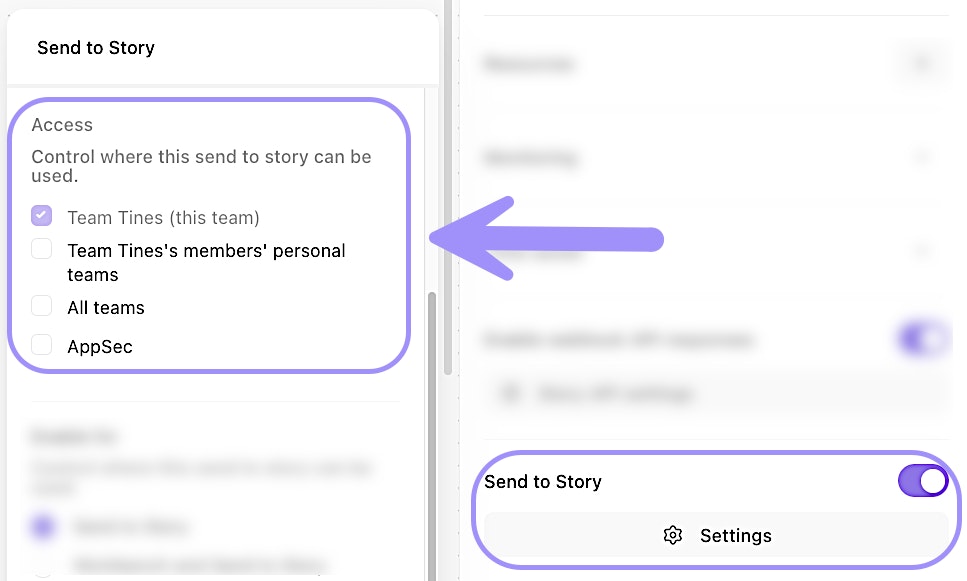
UI location to configure teams' Send to Story access for a story.
❗️Important
View shared team components
As a tenant owner, you can see all components shared with a team by navigating to that team's Credentials or Resources page and clicking the Shared with this team folder. This shows you the resources or credentials created by other teams that are shared, along with which team owns the component.
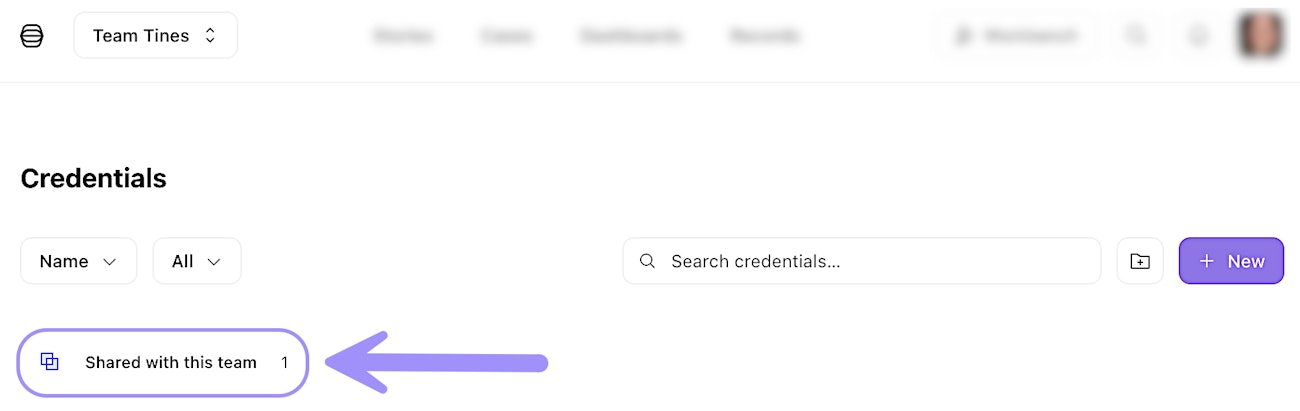
UI location of the Shared with this team folder.
What cannot be shared
While credentials, resources, and stories can be shared across teams, some components are team-specific and cannot be shared.
Cases and Records belong to the team where they were created and cannot be shared with other teams. This means:
Cases created by the Finance team can only be accessed by Finance team members.
Records associated with a team's workflows remain within that team.
Tenant owners can access cases and records across all teams, but individual teams cannot share these components with each other.
If multiple teams need to work with similar case types or record structures, each team will need to configure their own cases and records independently.