This section covers general guidance that applies whether you're using Ask mode or Build mode, helping you get the most value from Workbench for Storyboard.
Manage conversation history
Workbench for Storyboard maintains a conversation history for each story, allowing you to return to previous conversations and continue where you left off.
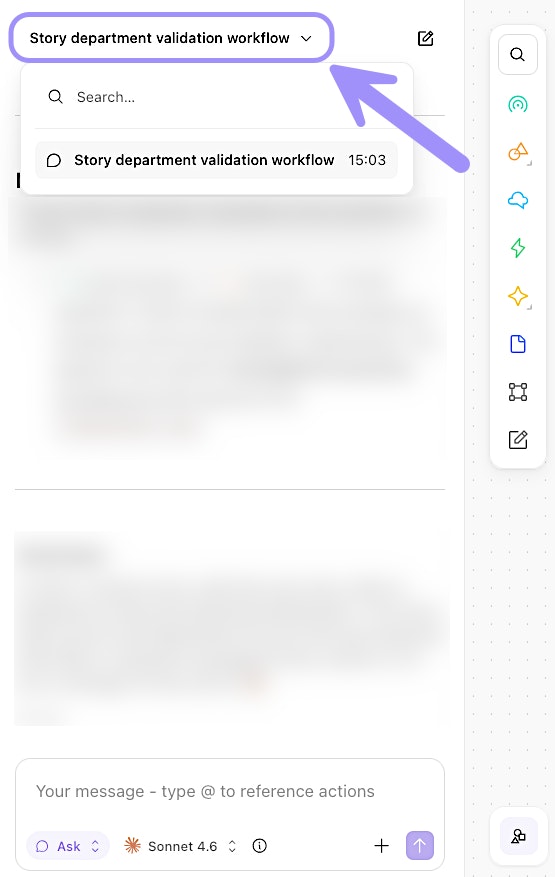
The Workbench for Storyboard panel, showing the conversation history menu for searching past sessions.
How conversation history helps:
Ongoing development. Work on a story over several days, making incremental improvements. Each time you return, Workbench for Storyboard remembers the context of your previous conversations.
Team collaboration. If a teammate made changes using Workbench for Storyboard, review the conversation history to understand what was done and why.
Learning from past decisions. When you encounter a similar problem in a different story, reference how you solved it before.
Tracking changes. The conversation history serves as a log of what was changed and when, helpful for troubleshooting or auditing.
Learn from Workbench for Storyboard
One of the most valuable aspects of Workbench for Storyboard is its educational value. As you work with it, you'll learn Tines Stories patterns, discover features you didn't know existed, and understand best practices.
Maximize learning by:
Ask "why" questions. When Workbench for Storyboard does something you don't understand, ask for an explanation. Example: "Why did you use a Condition action here instead of a formula? What are the advantages of this approach?"
Experiment with different approaches. Try describing the same workflow in different ways and compare the results. Example: First ask Workbench for Storyboard to build a workflow one way, then start a new conversation and describe it differently. See how the approaches differ.
Review generated formulas. Look at the formulas Workbench for Storyboard creates and make sure you understand how they work. Example: "Can you explain this formula step by step? I want to understand the logic."
Try to recreate manually. After Workbench for Storyboard generates something, try to build a similar workflow manually to reinforce your understanding.
Study the patterns. Pay attention to how Workbench for Storyboard structures workflows, handles errors, and organizes logic. These patterns represent Tines Stories best practices.
Roles and permissions
Workbench for Storyboard respects your role and permissions in Tines Stories. You can't do something with Workbench that you can't do yourself.
Viewer roles: Have access to Ask mode only. They can understand and analyze stories but can't make changes.
Tenant owner, Editor, and Team admin roles: Have access to both Ask and Build modes. They can create, modify, and optimize workflows.
Monitor usage and costs
Workbench for Storyboard usage can be monitored at the conversation level. Click the Information icon (ⓘ) within Workbench for Storyboard to see token usage for the current conversation. This appears after you've started the conversation.
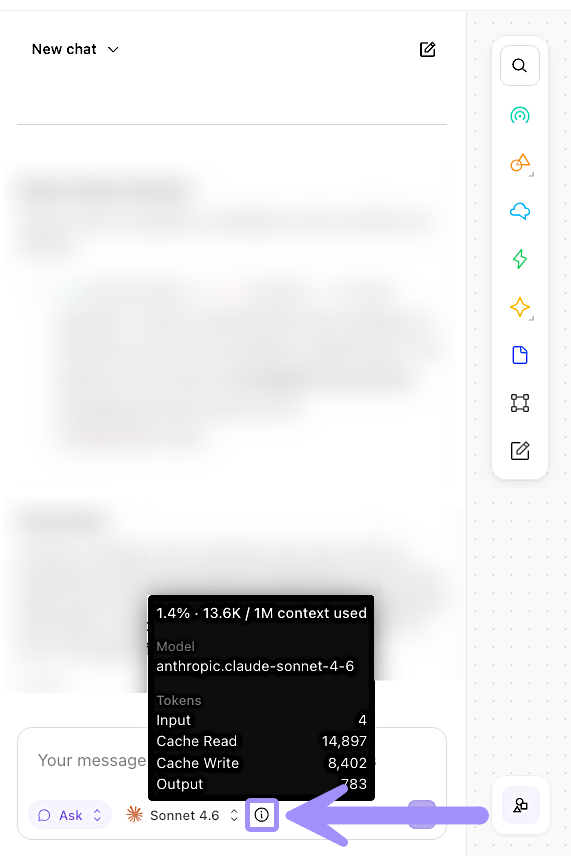
The information icon in Workbench for Storyboard, showing model details and token usage for the current session.