Security is critical when you're exposing tools to external systems. Tines Stories gives you several options for controlling who can access your MCP server.
Access control modes
We offer the following access control modes for MCP servers:
OAuth: This mode prompts users to authenticate with their Tines Stories account when they connect to your MCP server. You can scope access to specific teams or the entire tenant. You can also require connecting users to supply their own credentials for specific tools, so some tools run on the credentials you configure while others prompt the user for theirs. OAuth is a good choice when you want identity-based access control without requiring users to manually manage API keys, as the authentication flow is handled automatically.
API key: This mode requires authentication with a Tines Stories API key passed in the HTTP Authorization header. Like OAuth, you can scope access to specific teams or the entire tenant. It's ideal when you want to restrict access to Tines Stories users but need a key-based approach, for example, when connecting from automated systems or MCP clients that don't support OAuth.
Anyone with the secret: This mode requires a secret to be passed either in the URL or in the HTTP Authorization header. It's a good middle ground when you want to share access with external partners or systems that don't have Tines Stories accounts.
Anyone with the URL: This mode allows anyone who has the MCP server URL to connect. It's useful for testing or tools made for an external-facing audience.
Members of this Tines Stories tenant: Similar to team members, but allows anyone in your Tines Stories tenant to connect, regardless of which team they're on.
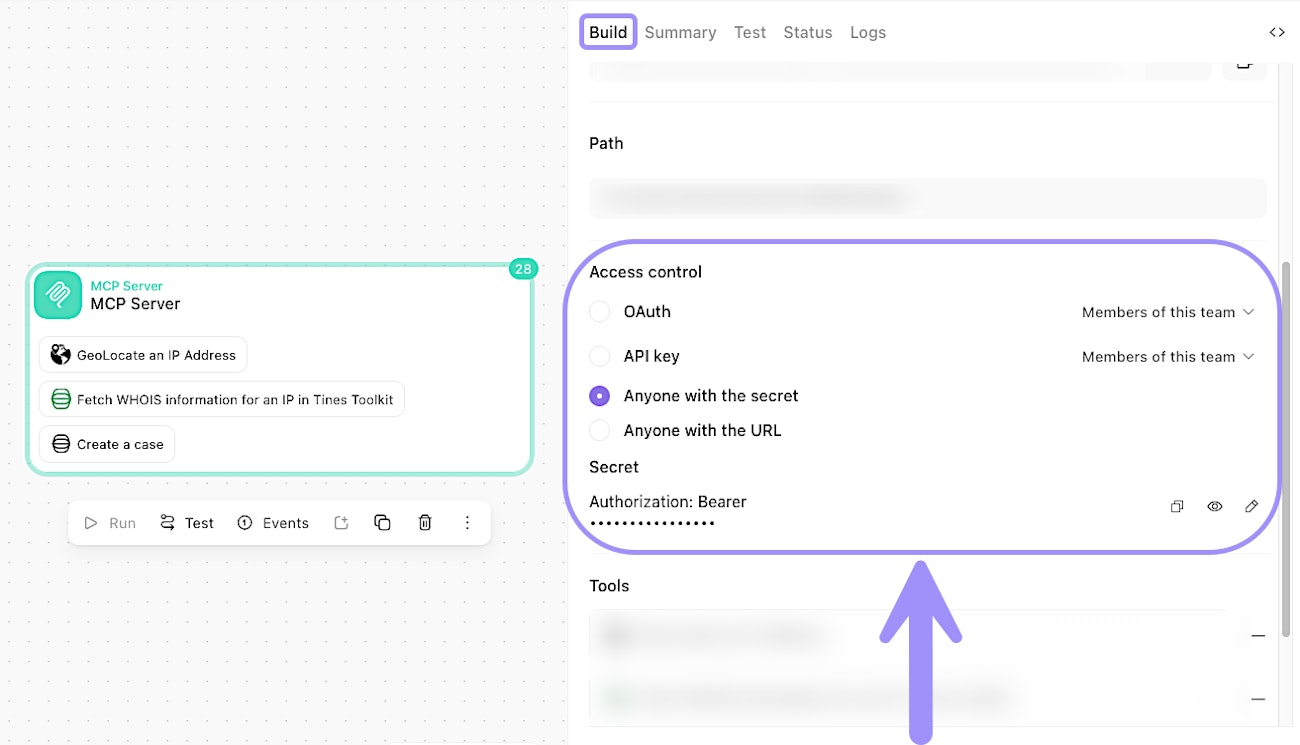
The Build tab of an MCP Server action, showing access control options for securing the server endpoint.
🪄Tip
Configure authentication
The authentication method you choose depends on your access control mode:
API key
You must pass a Tines Stories API key in the Authorization header: Authorization: Bearer your-api-key
You can scope access to either a specific team or the entire tenant using the dropdown next to the API key option.
🪄Tip
OAuth-based access
When you select OAuth as the access control mode, users connecting to your MCP server will be prompted to authenticate with their Tines Stories account. No manual key or secret configuration is needed on the client side: the authentication flow is handled automatically through the OAuth handshake.
As with team or tenant member access, you can scope OAuth access to either a specific team or the entire tenant.
Secret-based access
You can pass the secret in the URL:
https://your-tenant.tines.com/mcp/your-path?secret=your-secretOr in the Authorization header:
Authorization: Bearer your-secret