Actions serve as the integration surface within a workflow, connecting data from multiple systems. Each action performs a specific function, like sending, receiving, or manipulating data, and produces an event when it runs.
When actions are connected in a story, they work together to pass information from one step to the next. You can think of actions as workers in an assembly line: Each one handles its part of the process and then hands the finished result to the next worker down the line.
A quick glance at our actions
We'll dig into each action type throughout this module, but here's a glance at the eight actions we offer and what their primary usage is:
Action activity bar
When selecting an action, there is an activity bar below that includes the following options:
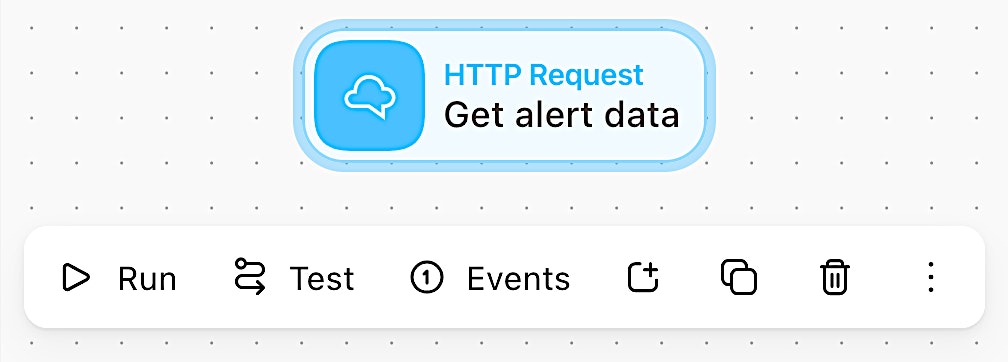
Visual of the action activity bar.
Run: Execute the action.
Re-emit: Send an action's selected previous event output down the story again.
Test: Try out the action with sample data before connecting it to your full story.
Schedule: Set action to run at specific times (great for reports or regular checks) via the Status tab of the properties panel.
Group: Create an action group where you can further organize your actions within your story.
Copy: Copy the action tile. You can simply paste it onto a storyboard. It will paste the action with its configuration already set! (Note: This does not copy over the action's past event data.)
Delete: Delete the selected action.
Three-dot menu: Access additional activities that can apply to the selected action.
🖐️ Try this: Run an action
Action properties panel
While the action is selected, you will also see the properties panel change. The core tabs of an action's properties panel include:
Build tab
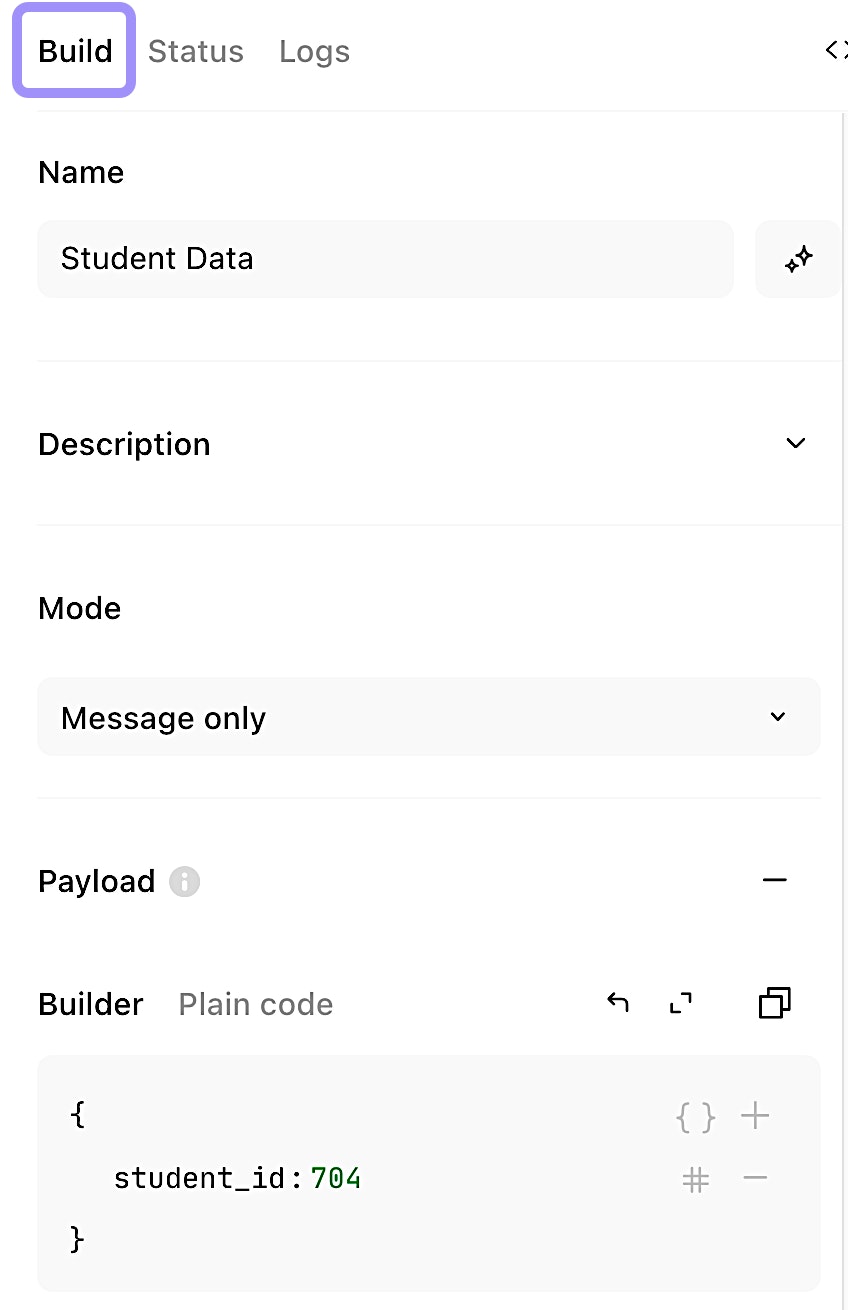
Visual of the Build tab of an Event Transform action.
The Build tab is where you configure your action. This is where you set key fields, such as URLs, recipients, or input data, depending on the action type.
Status tab
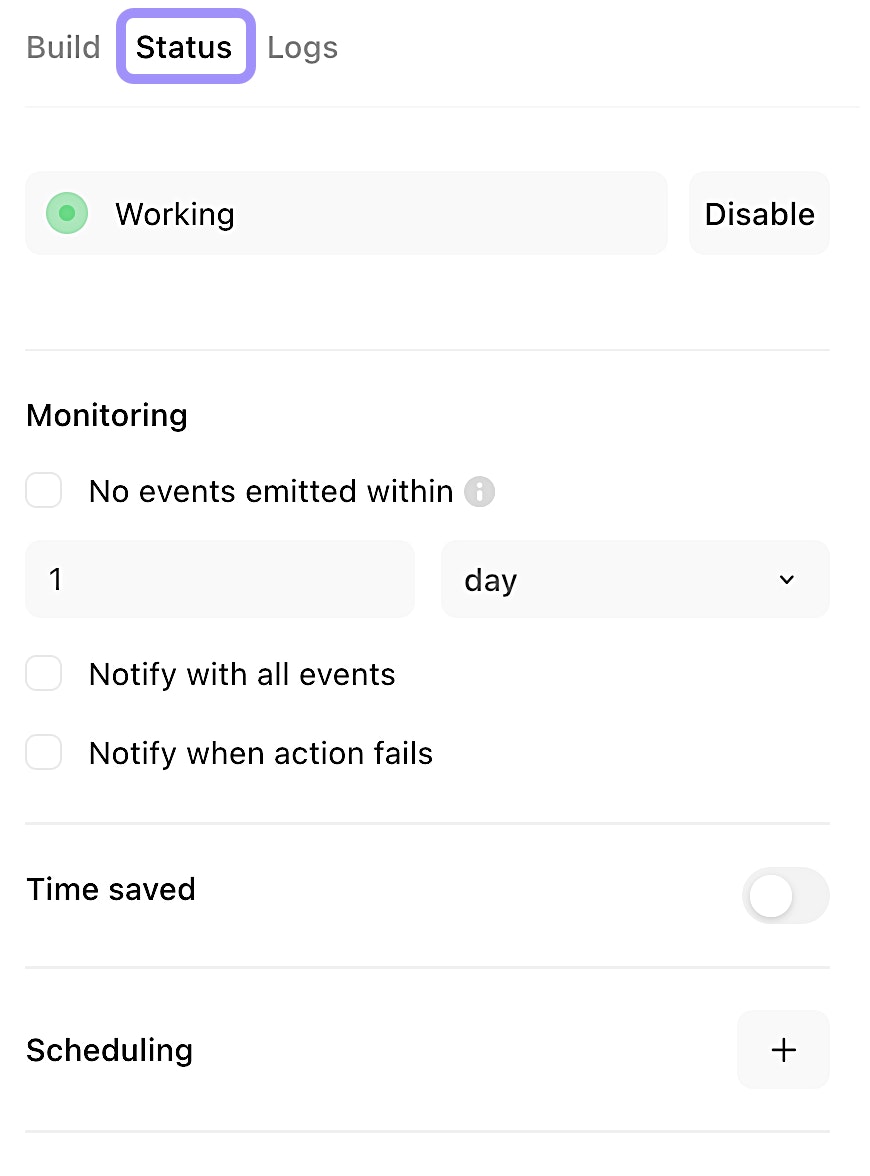
Visual of the Status tab of an action.
The Status tab shows the current state of the action within your story. You can enable/disable an action (or the entire story) here, as well as set up action monitoring. This is also where you can schedule your action.
🪄Tip
Logs tab
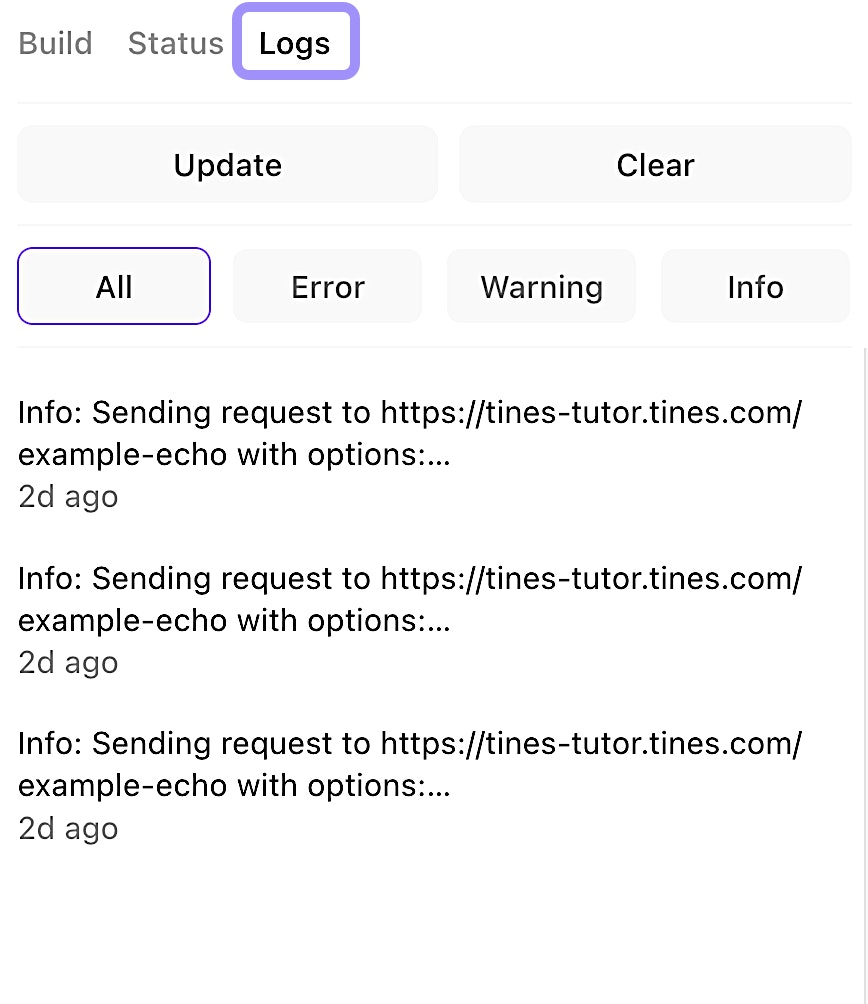
Visual of the Logs tab of an action.
The Logs tab will surface whenever we encounter errors with components like HTTP requests or Tines functions, show us the timing around delays, and provide information about our throttled events. You can filter the view by event type (All, Error, Warning, or Info).