Chrome's site search feature lets you create shortcuts that open Workbench with prepopulated messages directly from your browser's address bar. Prepopulated links work well in documentation and runbooks, but Chrome shortcuts are better for tasks you run repeatedly throughout the day, since you don't need to find or click a saved link.
What are site search shortcuts?
Site search shortcuts let you type a keyword in Chrome's address bar, press Tab, and then type your query. Chrome constructs the URL and navigates to it automatically.
Set up a Workbench shortcut
Open Chrome Settings and navigate to Search engine.
Click Add next to Site search.
Fill in the details:
Name: "Workbench"
Shortcut: "wb" (or any shortcut you prefer)
URL:
https://[subdomain].tines.com/workbench/?initialMessage=%s
Click Add.
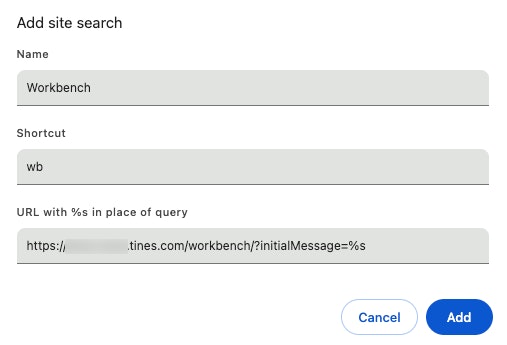
Chrome's site search settings page showing the Name, Shortcut, and URL fields configured for Workbench.
Use your shortcut
Type "@wb" in Chrome's address bar.
Press Tab.
Type your message.
Press Enter.
Chrome will open Workbench with your message prepopulated.