Select a template
Under All tools, you'll find a list of available templates. Each one shows the service it connects to, what action it performs, and what credentials it requires.
All templates require credentials to connect to external services. When you select one, you'll need to either choose an existing credential or create a new one:
Use existing credentials: If your team has already created credentials for the service, select them from the dropdown. This is the quickest option and ensures you're using tested, approved credentials.
Create new credentials: If no credentials exist, you can create them directly from the template configuration. You'll need the appropriate authentication details for the service (API keys, tokens, username and password, etc.).
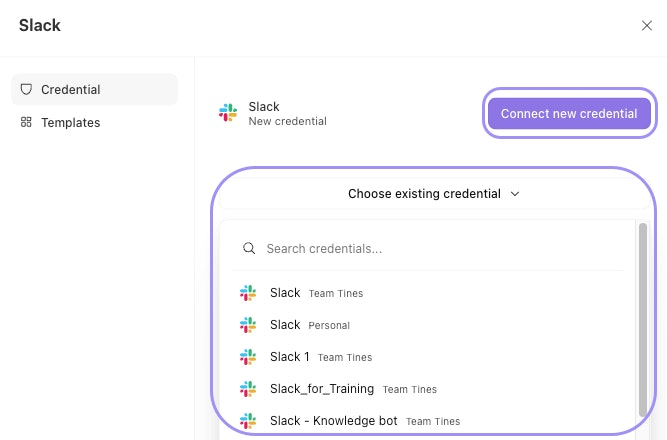
The template configuration panel showing the credential dropdown with options to select an existing credential or create a new one.
Enable and disable templates
Once you've selected credentials, you can enable the template. A green dot means it's enabled and ready to use; a grey dot means it's disabled.
You can toggle templates on and off at any time. This is useful when you want to temporarily restrict Workbench's access to certain services, or when you're troubleshooting and want to isolate a specific tool.
✋ Try this: Enable a template with credentials
Templates that require confirmation
Some templates are configured to require confirmation before running, particularly those that make changes to your environment. You'll see a prompt before Workbench proceeds. This keeps you in control of operations that could modify your systems or data.
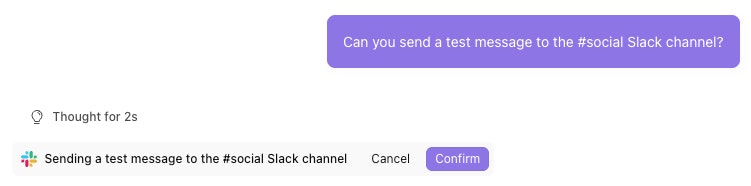
A tool confirmation prompt in Workbench showing the tool name, input details, and Confirm and Cancel buttons.