The Records UI is where you view, filter, and analyze structured data captured from your Tines workflows. This is where you'll query, filter, and report on your records data.
There are three main areas of the Records UI you'll interact with:
List view: Shows all record types in your team. You can access it by navigating to the Records tab in the top navigation bar.
Table view: Displays all records for a specific record type, where you can filter, sort, rearrange columns, and export data. Access it by clicking a record type in list view, or directly from a story by clicking on a Capture Record tool tile.
Individual record view: Detailed workspace for a single record, showing all its fields, values, and any linked cases or parent-child relationships.
List view
The list view is your starting point when you click the Records tab in the top navigation. It displays all record types available in your team, with each type showing its name, record count, and last edited timestamp.
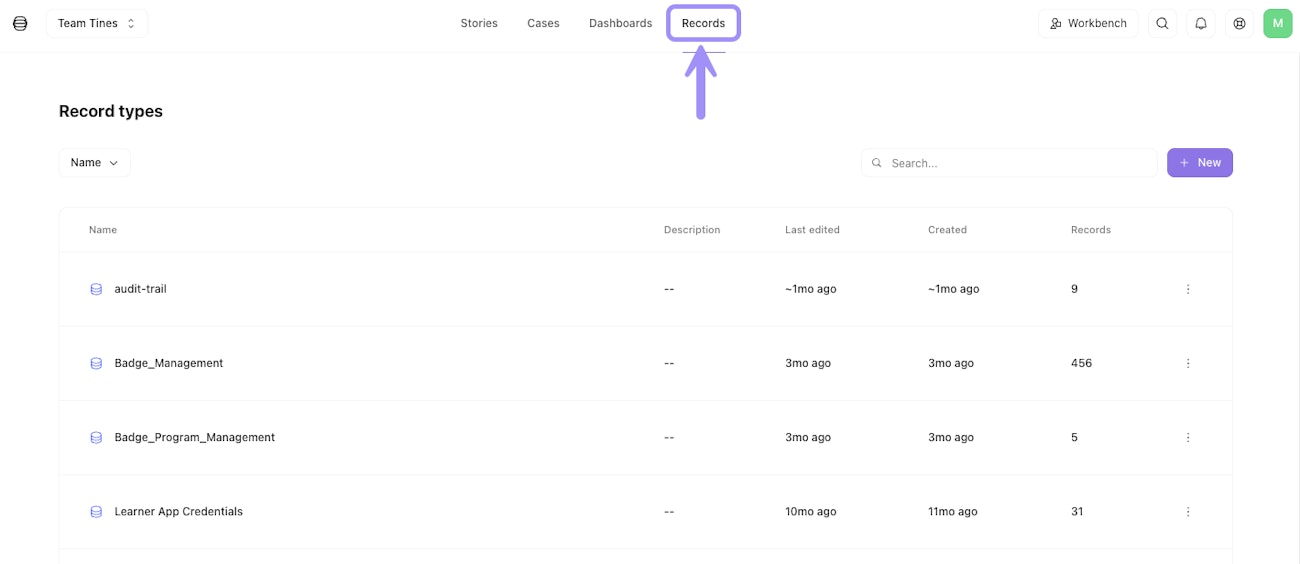
The Records list view showing record types with their names, record counts, descriptions, created and last edited timestamps.
From here, you can click any record type to open its table view, or click + New in the top right corner to create a new record type.
🪄Tip
Table view
Once you've selected a record type from the list view, the table view displays all individual records captured for that type. This is where you'll spend most of your time analyzing data, applying filters, and preparing exports.
The table view presents your records in a spreadsheet-like format, with each field from your record type appearing as a column and each record as a row.
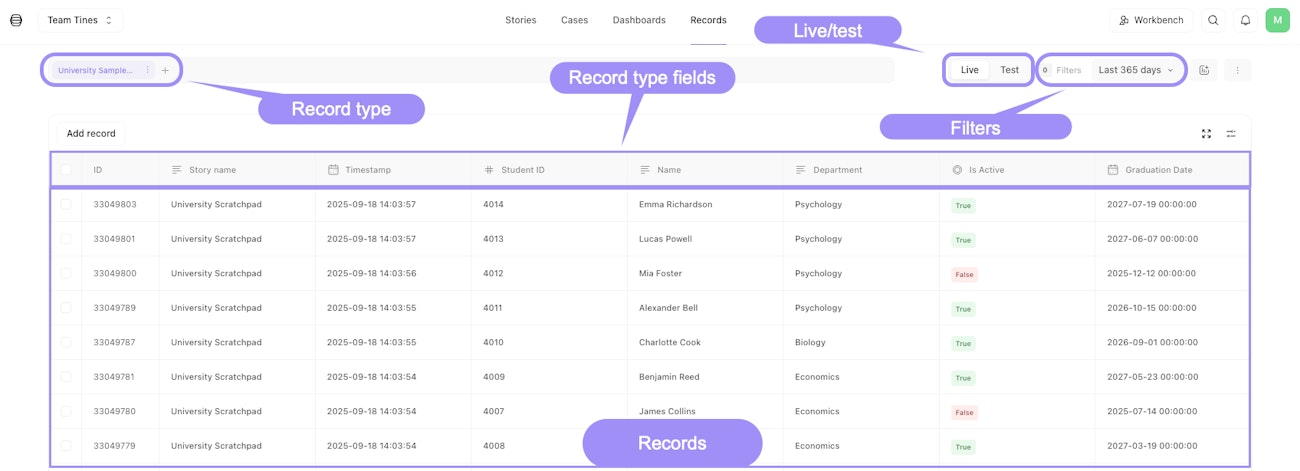
The Records table view displaying individual records as rows with field values as columns, plus filter and export controls, and the live/test toggle.
🪄Tip
💡Note
Individual record view
To view a record's full details, select the checkbox next to the record in the table view, click the View dropdown, and select Record data. This opens a popup displaying the record's field values, timestamp, and story name.
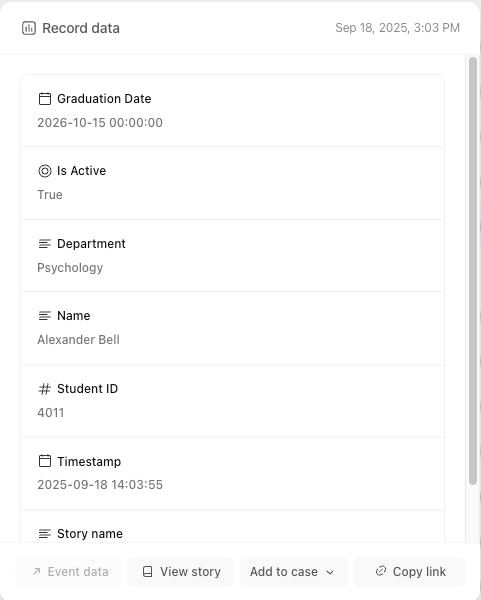
An individual record's detail view showing field values, timestamp, and the story that captured it.