Why query records in workflows?
Querying records within your workflows allows you to make decisions based on historical data. This is powerful for detecting patterns ("Has this user triggered alerts before?"), preventing duplicates ("Did we already process this event?"), enriching context ("What was the severity of the last similar alert?"), and calculating trends ("How many incidents occurred this month?").
Tines gives you three ways to query records, each suited to different needs.
List mode
List mode retrieves multiple records that meet specified filter criteria directly within your story. Think of it as a built-in search tool that doesn't require API calls or complex configurations.
When to use List mode: You need a straightforward query with basic filters and want to keep your workflow simple and readable.
Example scenario: Find recent high-severity alerts. You want to check if there have been any high-severity alerts in the past seven days before escalating a new one. Configure List mode with your Security Alerts record type, filter for severity >= 7 and timestamp within the last seven days. List mode returns an array of matching records that you can reference in downstream actions. You can also filter by parent record ID, which makes it easier to retrieve all child records associated with a specific parent.
Get mode
Get mode retrieves a single specific record by record ID. It's like looking up a book by its ISBN instead of searching the library catalog.
When to use Get mode: You know the exact record ID you need, or you're following up on a record created earlier in your workflow.
Example scenario: Retrieve the original request record. Your workflow fulfilled a software access request, and now you need to pull the full request details to include in a confirmation email. Configure Get mode with the record ID from an upstream action: <<capture_request.id>>
Records API
For more complex queries or when you need additional control, you can query records using the Tines API via an HTTP Request action. This gives you the most flexibility but requires more setup.
When to use the API: You need complex filtering with multiple conditions, you want to query records across different teams, or you need precise control over sorting and pagination.
🪄Tip
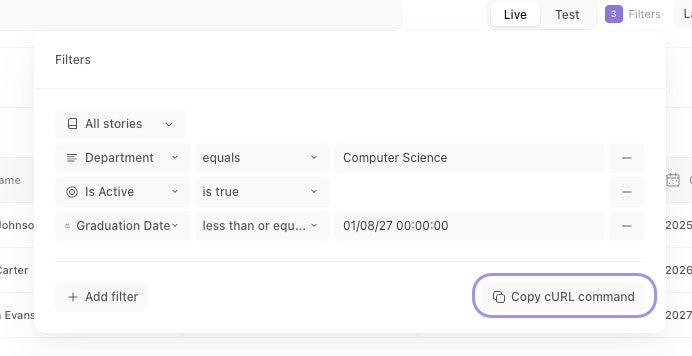
The records table filter menu with the Copy cURL command option highlighted.
The API returns a JSON response containing a record_results array (your matching records with all field values, metadata, and linked case IDs) and a meta object (pagination details including current page, total pages, and total count). Use the meta object to implement pagination in your workflows: if next_page is not null, make another API call to retrieve the next batch.