Case notifications are one of the most powerful ways Tines keeps your team in sync. They ensure that important updates are seen immediately, so nothing falls through the cracks.
How are case notifications set up?
Subscribe to a case
Any user viewing a case can choose to subscribe. This ensures they receive alerts within the UI whenever important changes occur. Multiple users can subscribe to a case, and they can unsubscribe when updates are no longer needed.
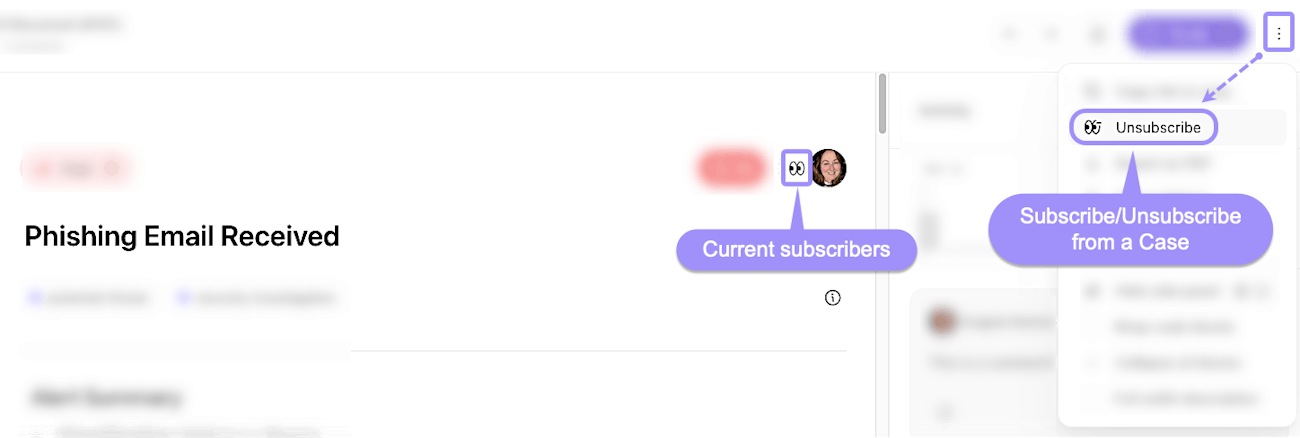
UI location of where to subscribe to a case.
Automated notifications via stories
For more advanced workflows, notifications can be configured to send messages externally, like Slack or email alerts, when a case is updated. This ensures updates reach the right people even if they aren’t actively in the cases UI. We'll take a look at this later on in the learning path.
💡Note
What triggers a case notification?
Notifications are automatically sent for various activities within a case. These include:
Case creation: When a new case is initiated.
Status changes: Updates to the case's status.
Priority updates: Changes in the case's priority level.
Tag modifications: Adding or removing tags associated with the case.
Assignee changes: Assigning or reassigning users to the case.
Case linking/unlinking: Connecting or disconnecting related cases.
Record additions/removals: Attaching or detaching records to/from the case.
Task completion: Marking tasks within the case as done or undone.
Comment additions: Adding new comments to the case.
File attachments: Uploading files to the case.
Subscription changes: Users subscribing or unsubscribing to the case.