As you build and deploy MCP servers in Tines, keep these practical considerations in mind to create reliable, secure, and maintainable integrations.
When to use what feature
With multiple ways to work with AI in Tines, it's helpful to understand when to use each approach:
Use MCP servers (building in Tines) when:
You want to make your Tines workflows available to external AI applications.
You're making capabilities available to AI clients like Claude Desktop, Cursor, or custom AI tools.
You need a standardized way to share your workflow capabilities with multiple AI platforms.
Use MCP clients (connecting from Tines) when:
You have existing MCP servers in other systems that you want to leverage.
You're building AI Agent actions in Tines that need access to external tools.
Use AI Agent actions (without MCP) when:
You're building AI functionality entirely within Tines.
You want Tines to orchestrate the AI interaction.
You're creating user-facing chat experiences within Tines.
In many cases, you'll use multiple approaches. For example, you might build AI Agent actions for internal automation. You could then make some of those capabilities available through MCP servers for external AI tools. You could also connect to external MCP servers to access third-party capabilities.
Design effective MCP tool interfaces
The quality of your tool descriptions directly impacts how well AI clients can use them. When an AI is deciding which tool to invoke, it relies entirely on the names and descriptions you've provided. Here are some guidelines for writing descriptions that help AI clients make good decisions:
Be specific: Instead of "Get data," use "Get customer order history for the last 90 days."
Explain parameters clearly: Don't just say "customer_id (string)." Say "customer_id (string): The unique identifier for the customer, typically in the format CUST-12345."
Describe the output: Let the AI know what to expect. "Returns a JSON array of orders, each containing order_id, date, amount, and status."
Mention limitations: If a tool only works for certain types of data or has rate limits, say so in the description.
Use consistent naming: If you have multiple related tools, use a consistent naming pattern (like "customer_get_orders," "customer_get_profile," "customer_update_address").
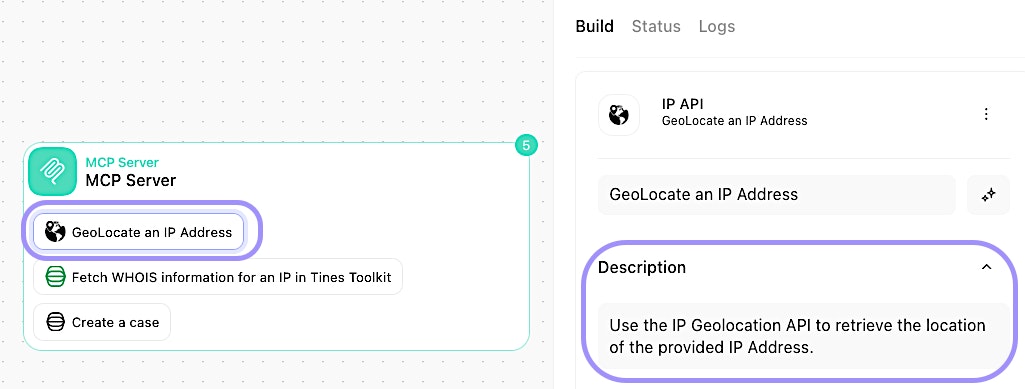
Example of a tool description within an MCP server.
Security for tools
When you expose tools through an MCP server, you're giving your systems outside of Tines the ability to trigger actions in your Tines tenant. Take security seriously:
Use the most restrictive access control that works for your use case: If you only need team members to access the server, don't use secret-based or public access.
Rotate secrets and API keys regularly: Treat them like passwords.
Design tools with security in mind: Don't create a tool that can delete all your data without confirmation. Build in appropriate checks and validations.
Monitor usage: Keep an eye on who's calling your tools and how often.
Use credentials properly: Use Tines Credentials when connecting your tools to services, instead of hardcoded secrets.
Rate limits and CORS configuration
MCP servers in Tines support the same rate limiting and CORS options as {webhook actions}:
Rate limiting: You can limit how many requests a client can make in a given time period. This is useful for preventing abuse or managing costs if your tools consume external API credits.
CORS: If you're building web-based MCP clients, you may need to configure CORS to allow browser-based connections to your MCP server.
Both of these are configured in the MCP server action's options, just like they would be for a webhook.
Test MCP integrations
Before you deploy an MCP server to production:
Test with a local client first. Use Claude Desktop or another MCP client on your own machine to verify that the server works as expected.
Try each tool individually. Make sure every tool returns the right data and handles errors appropriately.
Test authentication. Verify that only authorized clients can connect.
Check error handling. What happens if a tool times out? If it receives invalid input? Build out the rest of your workflow from the MCP Server to handle errors.
Monitor performance. Watch the Events tab during testing to see how long tools take to run and whether you're hitting any limits.