Manage your workflow collection
The Stories tab serves as your central location for viewing your team's stories. This view provides powerful elements to organize, find, and create stories efficiently. In this section, we'll explore the various features available in the Stories tab that help you maintain a well-organized library of your stories.
Sort your stories
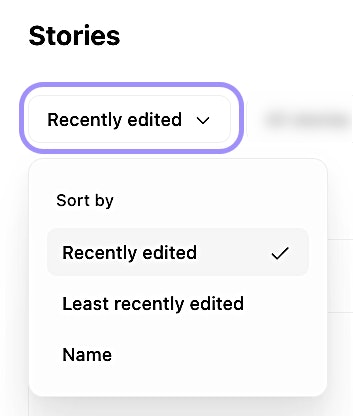
Sort your view within the Stories tab.
The Stories tab offers several options to sort your automation workflows based on different criteria, helping you quickly find what you're looking for.
You can sort the Stories tab view by:
Recently edited
Least recently edited
Name (of the story)
Sorting your stories is particularly useful when you're working with a large number of workflows and need to quickly locate stories you've recently modified or find stories in alphabetical order.
Filter your stories
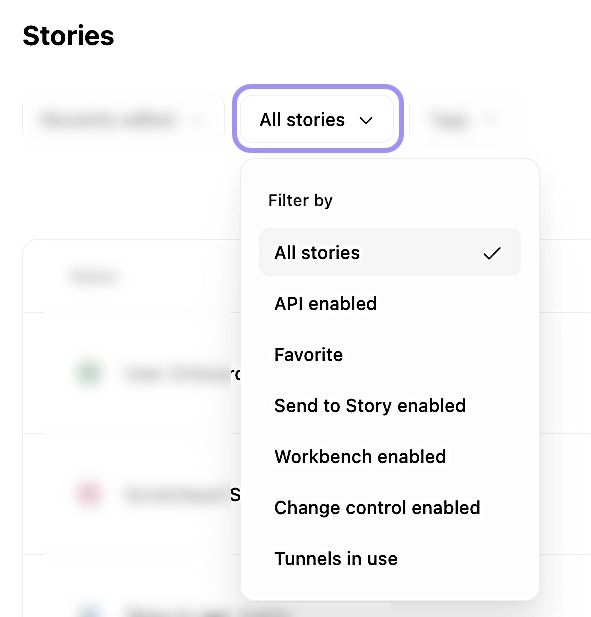
Filter your view within the Stories tab.
The Stories tab allows you to filter the view, making it easier to focus on specific groups of stories. The options to filter by are:
All stories: Unfiltered view of all non-archived stories in the team.
API enabled: Stories enabled to use Workflows as APIs.
Favorite: Stories that you've bookmarked as Favorites.
Send to Story enabled: Stories enabled to use Send to Story.
Workbench enabled: Stories enabled to interact with Workbench.
Change control enabled: Stories that have change control enabled.
Tunnels in use: Stories utilizing our tunnel feature.
Organize stories with tags
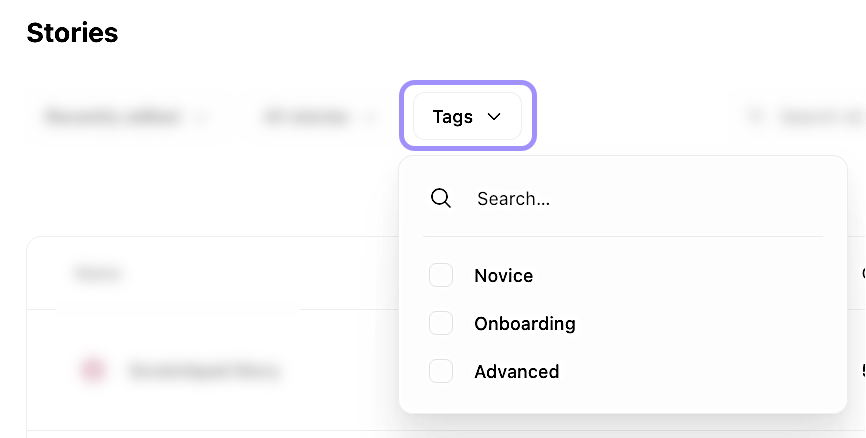
Organize your view within the Stories tab with tags.
Tags provide a powerful way to categorize and organize your stories based on custom criteria that make sense for your team. You can apply tags to a story when working in the storyboard. You can then filter the Stories tab by the tags you've applied to your stories.
Tags are particularly valuable for organizing stories by department, use case, priority level, or any other classification system that helps your team stay organized.
Search for stories
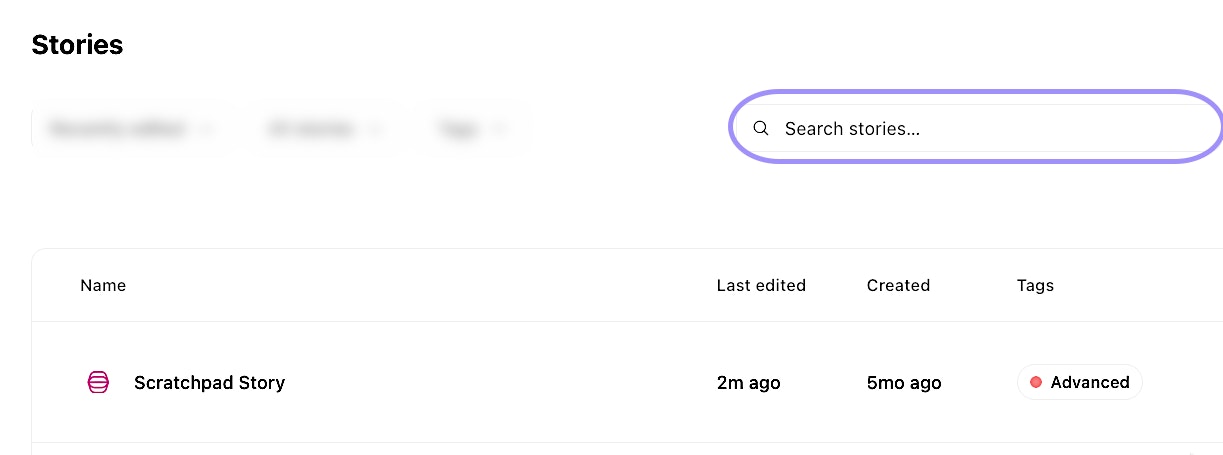
Search for stories within the Stories tab.
When you need to find a specific story quickly, the search functionality in the Stories tab is your best option. The search feature is especially useful in environments with numerous stories, allowing you to quickly locate specific workflows without having to scroll through your entire team.
🪄Tip
Edit display options
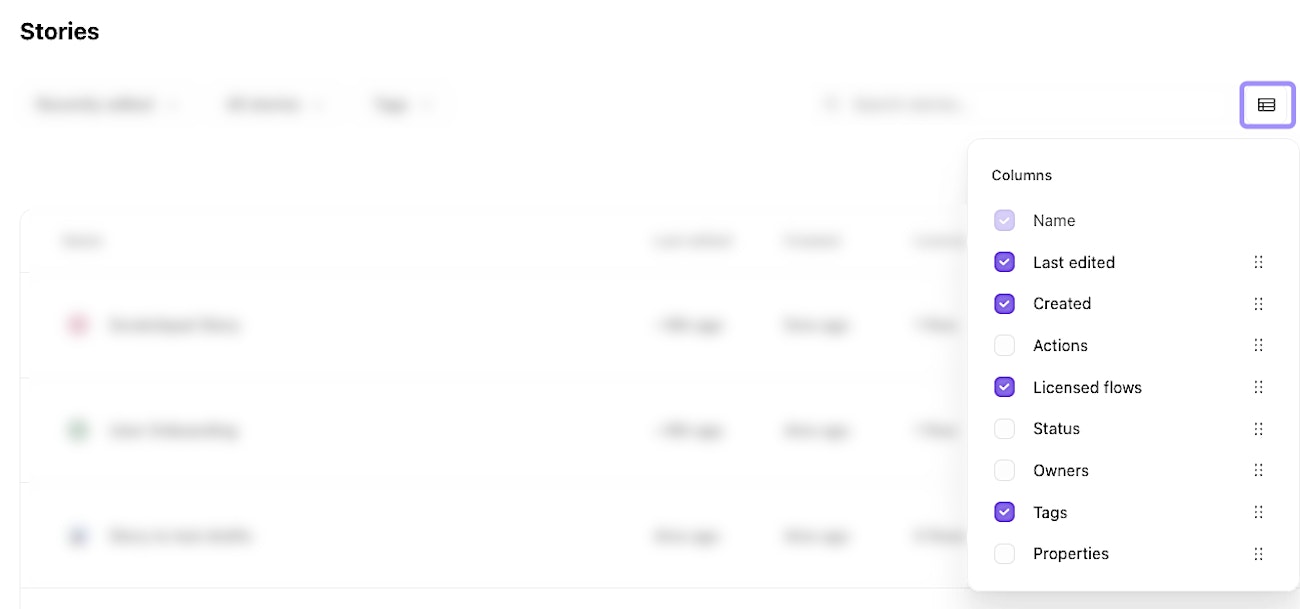
Edit your display options within the Stories tab.
You can personalize which columns are displayed in the Stories tab to match your preferences and workflow needs. You can customize the following columns for the Stories tab view:
Name (required)
Status
Owners
Actions
Licensed flows
Last edited
Created
Properties
Tags
Customizing your display columns helps you focus on the information that matters most to your workflow and team organization.
Create a story
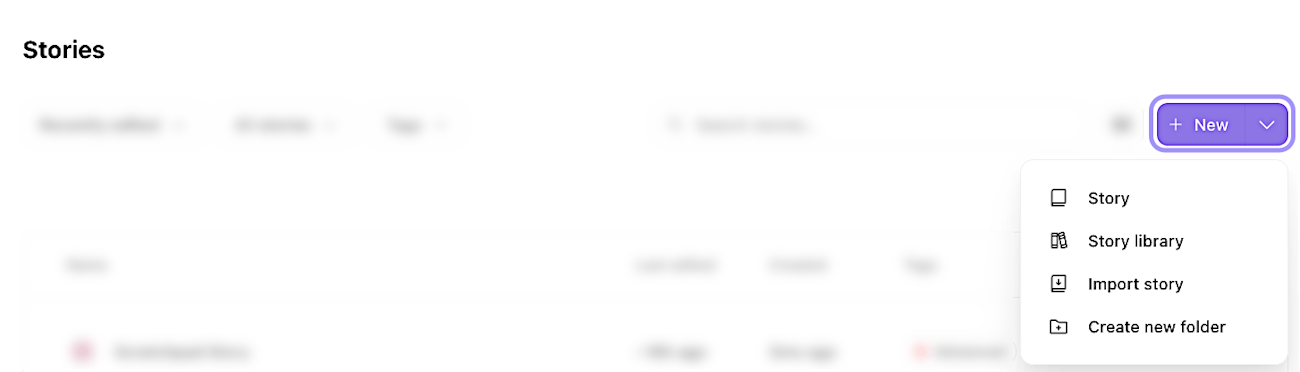
Create a story within the Stories tab.
The Stories tab offers multiple options for creating new workflows tailored to your needs. You can create new stories via the following options:
Story: Create a brand new story from scratch.
Story library: Import a template from our expansive library.
Import story: Import a story into your tenant using a story JSON file.
Organize stories with folders
Folders help you create a structured organization system for your stories. This is especially useful as your team's workflows grow. You can create folders to organize your stories via the drop-down + New menu → Create new folder for story creation.