Diving deeper into referencing upstream event data, when you’re working in Tines, you’ll often see colorful blocks called pills (look out for the + symbol) appear when you’re typing or editing within an action. These pills represent pieces of data, and they’re one of the easiest ways to pull information from one connected action into another connected action.
Think of them like “data shortcuts": Instead of hard-coding data from one action into another or pulling data manually from events, you can utilize pills to automatically pull down data from a previous action or execute other logic when the story is executed.
What are pills in Tines?
Pills are placeholders for data that exists in your story. They let you quickly reference information created by prior connected action events. When your story runs, Tines replaces the pill with the actual data it represents. There are two main types of pills you’ll see:
Value pills: Represent dynamic data coming from earlier events or data transformed by Tines functions.
Tag pills: Represent specific, static values such as text you entered manually. It is also primarily used to implement Tags.
When a story runs, Tines automatically replaces these pills with their real values. You can use pills to:
Execute Tines functions (we dig into these more in our Builder Learning Paths).
Execute operators (such as "1 + 1 = 2" will return
truewhen executed in a pill).Reference other Tines elements (i.e., tenant or story metadata).
Pull in upstream event data from prior connected actions.
So, if you insert a pill that represents, for example, an upstream reference path to an email address stored in a previous action's events, the story will use that address when it sends an email. We'll cover what the upstream reference path is later on in this section.
The pill editor
Once you create a pill in your action's configuration, a pop-up will appear where you can start filling in your pill with the logic you'd like executed. It includes sections like:
Functions list and Auto-generate: Our full list of Tines functions, as well as our Auto-generate helper. The Auto-generate feature is where you can insert the logic you need executed in plain language, and the feature will utilize AI to create a set of Tines functions that will carry it out.
❗️Important
Advanced mode: You can toggle this feature on and off to change the pill editor's interface. This advanced mode is helpful when you need to write a long string of functions together to manipulate your data. (This is covered more in our Builder learning paths.)
Output preview: A preview of the results of the logic within your pill, allowing you to validate that the data passing through your actions is correct before continuing.
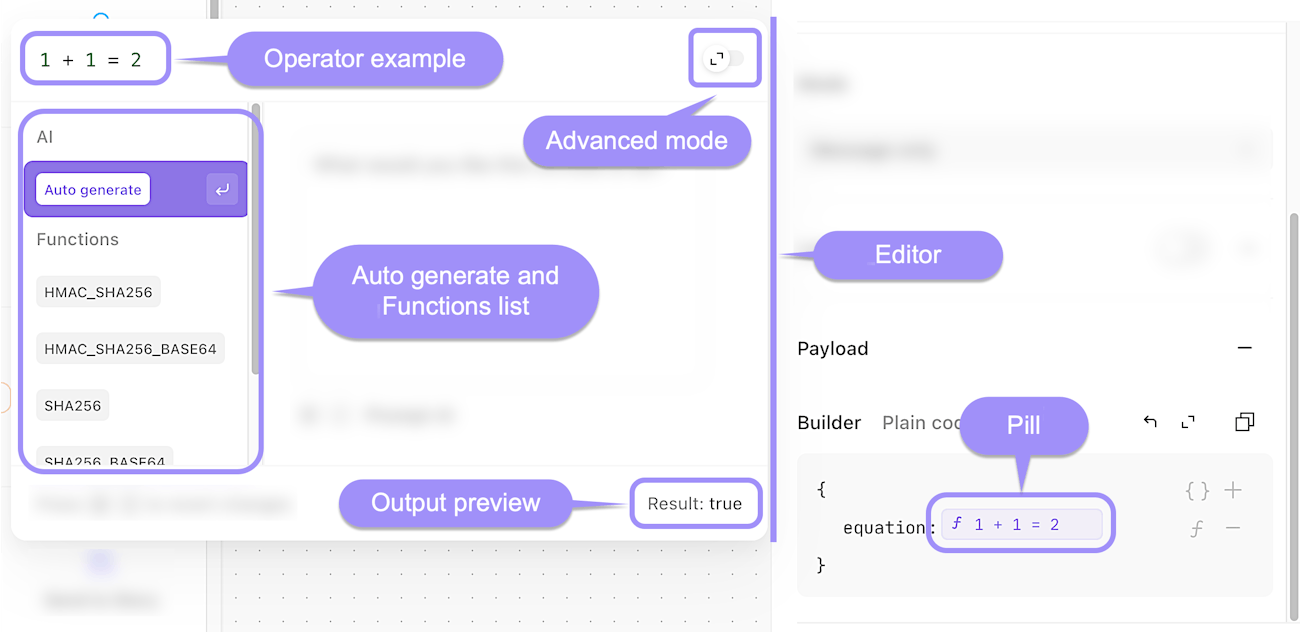
A visual guide to the features of the pill editor.
❗️Important
What is the upstream reference path?
Behind every pill is something called an upstream reference path, sometimes also referred to as an upstream event path. You can think of it as the address where that piece of data lives inside a previous event. This "data" is also referred to as upstream event data.
As we've learned, every time an action runs, it creates an event that stores data in a structured JSON format. When you insert a pill that references prior event data in a connecting action, Tines looks at that earlier event and follows a path through the JSON structure to find the exact value you need.
When setting up an upstream reference path, it will start with the action name (in snake-cased format) you are trying to reference data from.
For example, if there is an event output from an action called "Pull Student Data" that looks like so:
{
  "student": {
    "id": 534,
    "first_name": "James",
    "last_name": "Tino",
    "learning_path": "Tines Foundations"
  }
}
If we wanted to pull the learner's first name (James) into the following action, we'd put the following upstream reference path in a Value pill:
pull_student_data.student.first_namepull_student_data: The name of the upstream action.student: The object name that contains the key-value pair we're looking for.first_name: The key name of the value we want to pull.
Reference other elements in Tines
Besides prior action event data, you can also reference other Tines elements in a pill to dynamically pull data in, such as: