Welcome to your personal command center in Tines! This is where you can tailor the platform to fit your working style and preferences. Taking a few minutes to customize these settings will make your intelligent workflow journey more comfortable and efficient.
Your personal team
When you join a Tines tenant, you automatically get your own Personal team. Think of this as your private sandbox where you can experiment, learn, and build without affecting your organization's production workflows.
Access to your personal team is restricted to you and your tenant owners. This gives you the privacy to work on projects at your own pace, while ensuring your administrators can provide support when needed.
Once you're ready to move a story from development to production, you can transfer it or share it with another team within the tenant, where it can run automatically and be accessed by your colleagues.
❗️Important
Find your personal settings
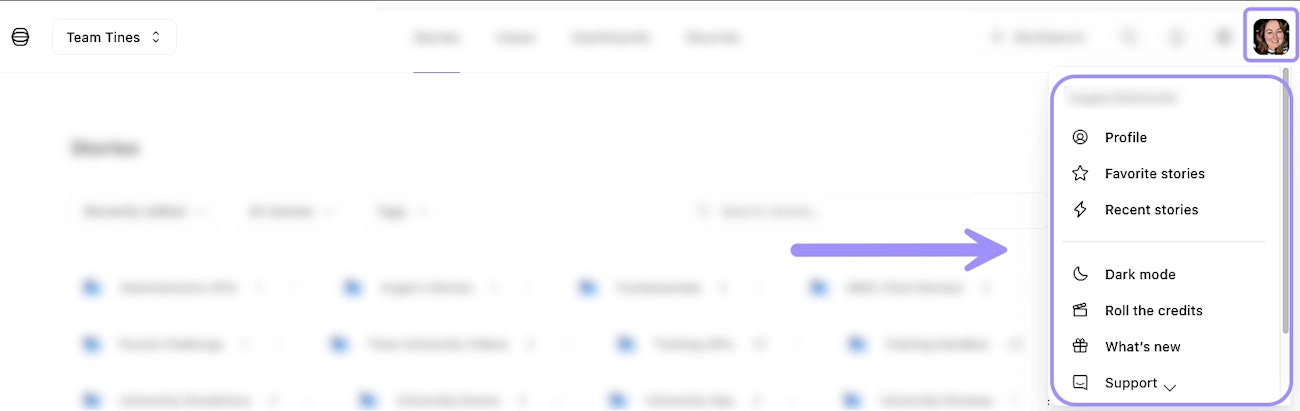
UI location of the personal user settings menu.
Profile
Within the Profile option, you can:
Set your first and last name.
Set your email address.
Set your avatar.
See the teams and roles you are a part of within the tenant.
Stories
Within the personal settings menu, you can view your:
Favorited stories: Your personal bookmarks for important workflows.
Recent stories: Recently viewed or edited stories so you can jump back into action.
Other options
Also available in the personal settings menu:
Dark mode/Light mode: Switch between light and dark themes for the UI.
What's new: Open our "What's new" release notes page in another tab.
Support: Pull up our in-app chatbot for assistance with technical questions about Tines.
Log out: Log yourself out of this Tines tenant.
Personal notifications
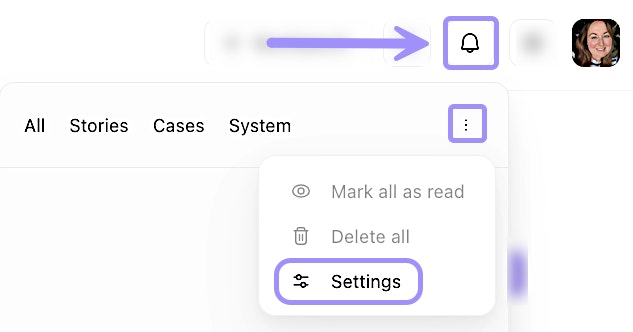
Visual of the personal notifications menu in the UI.
Tines organizes personal notifications into distinct categories to help you quickly find and focus on the information that matters most to you. Notifications can be found via the bell icon on the top navigation bar and may include (depending on your permissions and licensing):
All notifications
Stories
Cases
System
You can edit your personal notification settings via the bell icon → three-dot menu → Settings.