Presets let you configure which tools and instructions are available for a conversation. In Slack, you select a preset when starting a new chat.
Choose presets when starting conversations
When you click New chat, Workbench offers the option to select a preset. Presets might include specific templates and stories, custom instructions for a particular use case, credential configurations, or tool sets curated for different teams. For example, your team might have presets like:
"Security Triage" (security tools and incident response stories)
"User Support" (user lookup and provisioning tools)
"Reporting" (data analysis and visualization tools)
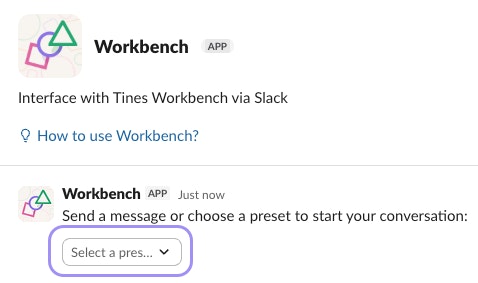
The Workbench app in Slack showing the welcome message and a dropdown to select a preset before starting a conversation.
Default preset behavior (All tools)
If you don't select a specific preset, Workbench uses the All tools preset, which includes all tools you've personally enabled. Conversations using the All tools preset (or no preset) draw from your tenant's unallocated AI credits. Team-specific presets use credits allocated to that team.
Link to view conversation in Tines
Conversations started in Slack are also accessible in your Tines tenant. Workbench provides a link to take you from the Slack conversation to the same conversation in the Tines web interface. This is useful when you want more detail than Slack displays, need to access features only available in the web interface, or want to share a conversation with someone who doesn't use Slack.