If you use Tines Cases, you can send cases directly to Workbench for analysis or action.
From a case, select Open in Workbench from the bottom menu. This opens a new Workbench conversation with the case details loaded.
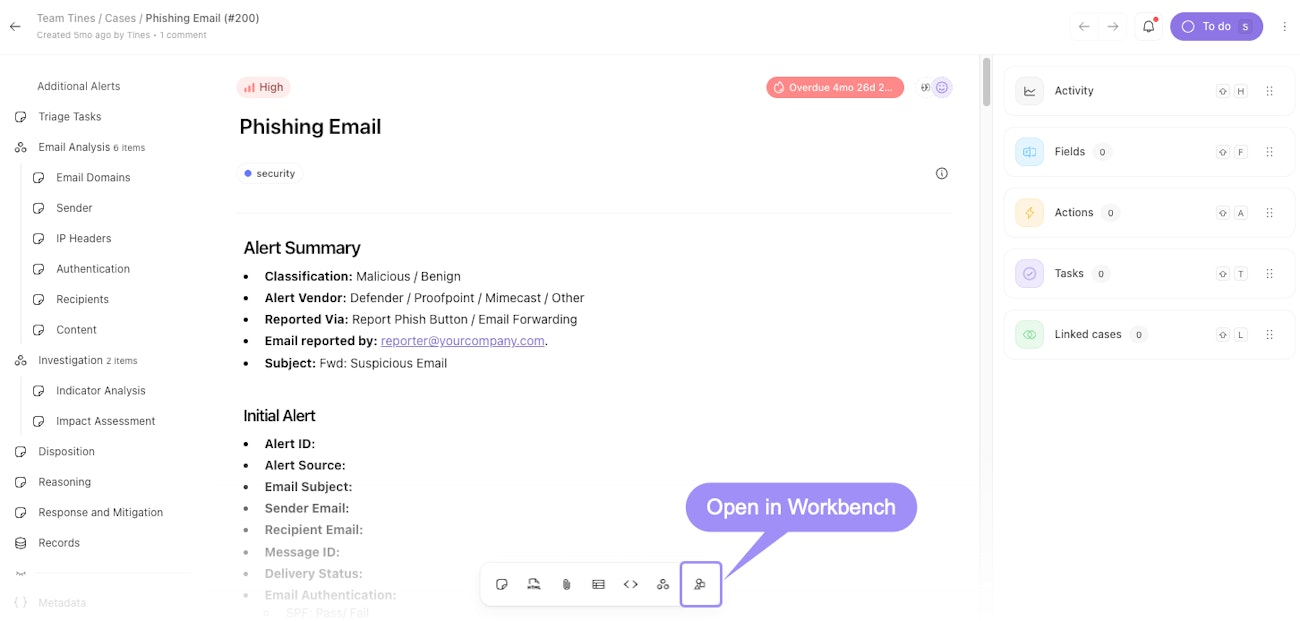
A case detail view with the Open in Workbench option highlighted in the bottom menu.
What you can do with cases in Workbench
When you load a case in Workbench, it maintains a real-time connection to the case, so Workbench has access to the latest information if the case is updated. From there, you can ask questions about the current status, request summaries or analysis, have Workbench suggest next steps, use tools to gather additional context, or generate reports or documentation.