Custom instructions let you give Workbench persistent context that applies to all your conversations. This means Workbench can give you more relevant responses from the start, without you having to re-explain your role or preferences each time.
Access custom instructions
Click Custom instructions in Workbench to open the configuration. You'll see a text field where you can write instructions that apply to every conversation.
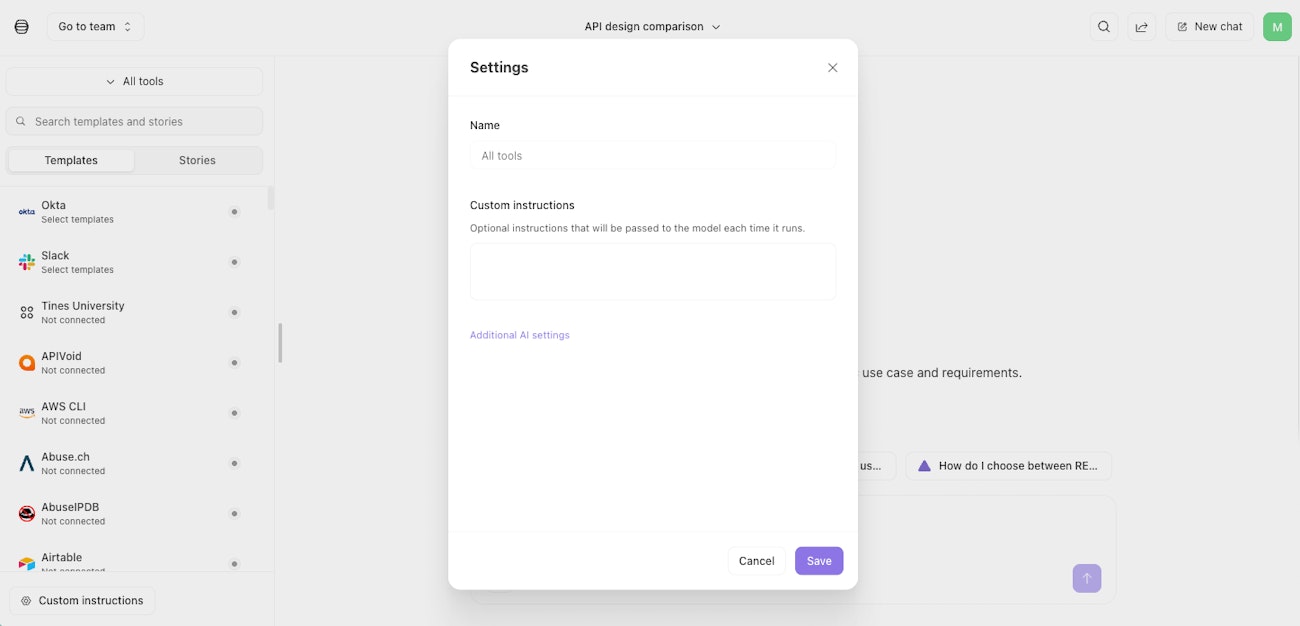
The custom instructions configuration panel with a text field for entering persistent instructions.
What to include
Custom instructions can include things like:
Your role: "I'm an IT operations engineer managing user provisioning and access requests."
Common tasks: "I frequently build workflows for onboarding, offboarding, and access reviews."
Preferences: "When suggesting formulas, always include examples."
Context: "Our team uses Jira for ticketing and Slack for communications."
Constraints: "Always ask for confirmation before making changes to production systems."
How custom instructions are applied
Custom instructions apply to all your conversations immediately, including existing ones. When you update them, both new and existing conversations reflect the change.
Tips for effective custom instructions
Be specific: "When building HTTP Request actions, always include error handling" is more useful than "be helpful."
Keep it concise: Custom instructions are included in every message you send, which counts toward your conversation's token usage. A few clear sentences work better than paragraphs of general guidance.
Update as needed: As your work changes, keep your custom instructions current.