Let's walk through the Workbench interface so you know where to find everything.
Start Workbench
You can access Workbench from anywhere in your Tines tenant by clicking the Workbench icon in the navigation bar. From there, you'll see:
Chat area: The main conversation space where you interact with Workbench.
Message input: The text box at the bottom where you type your messages.
Chat history: A dropdown showing your previous conversations, accessible by clicking the conversation title at the top of the screen. From here, you can search past conversations or start a new chat.
All tools: A view of all of your templates and stories.
Custom instructions: Where you configure persistent instructions for your conversations.
New chat button: Starts a fresh conversation.
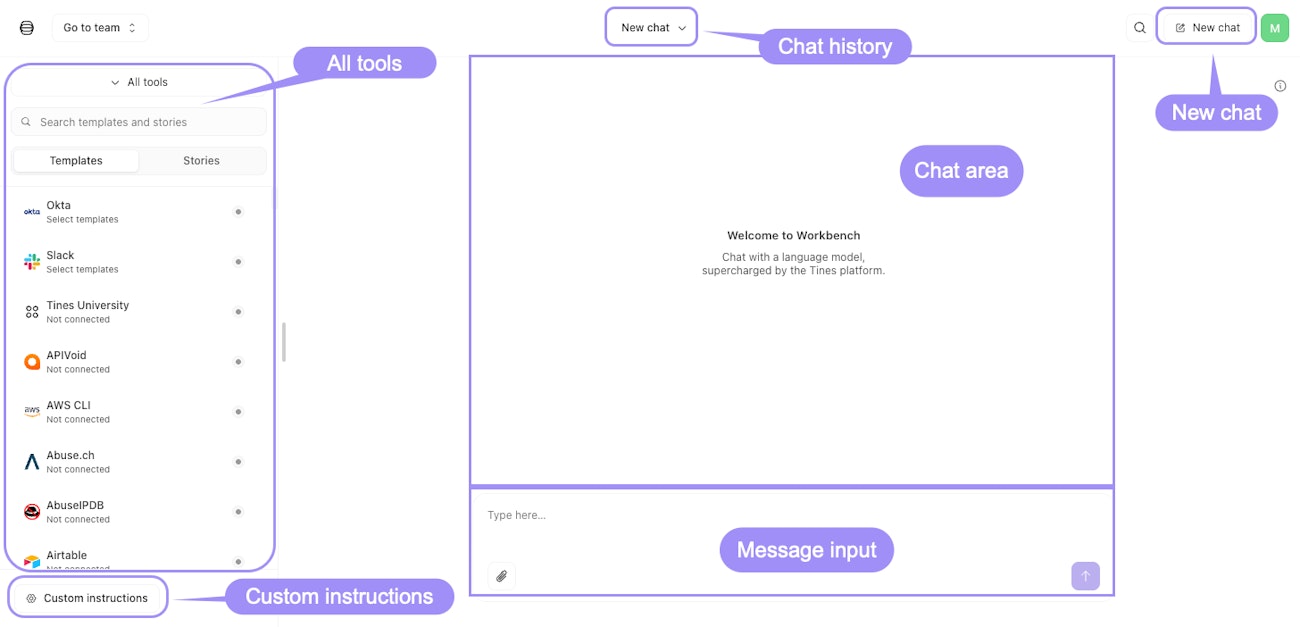
The Workbench interface showing the chat area, message input field, tools panel on the left, and navigation bar with the conversation title, search, and New chat options.
Mobile support
Workbench works on mobile devices, so you can interact with your workflows on the go. Some features (like tool configuration and viewing tool JSON input and output) are only available in the desktop web interface.
Keyboard shortcuts
Workbench includes keyboard shortcuts to speed up your work. These are only available in the web interface, not in Slack or on mobile.