Not everyone on your team needs the same level of access to cases. Tines uses role-based permissions to control who can view, edit, and manage cases, ensuring that sensitive information stays secure while keeping workflows efficient.
Understanding case permissions
Tines controls case access through a combination of team membership, roles, and case groups. Your ability to view or edit a case depends on:
Which teams you belong to: You can only access cases within your teams (unless you're a tenant owner).
Your role within each team: Your role determines what actions you can perform on cases.
Case group membership: Cases can be organized into groups with specific access controls.
This layered approach ensures that the right people have the right level of access while maintaining security and compliance.
Default team roles
Tines includes default team roles, each with different levels of case access:
Case manager: Read-write access to cases only, with restricted access to other team objects like stories, resources, credentials, and events. Case managers can create and edit cases but cannot access the broader automation infrastructure. This role is designed specifically for users who work exclusively with cases and don't need to interact with the underlying Tines platform.
Editor: Can create, edit, and view cases, but cannot delete them or perform other destructive actions. This role is ideal for team members who actively work with cases but don't need administrative control.
Team Admin: Full access to cases, including the ability to create, edit, view, and delete them. Team admins can also manage case-related settings and perform destructive actions.
Viewer: Read-only access to cases. Viewers can see case details and activity but cannot make any changes. This role is useful for auditors, stakeholders, or team members who need visibility without editing capabilities.
Workbench user: No direct access to cases. This role is limited to using configured Workbench presets and cannot access other parts of Tines.
🪄Tip
Understanding these permission layers helps you design a case management workflow that balances security, collaboration, and efficiency.
Tenant-level roles
In addition to team roles, Tines has two tenant-level default roles that affect case access:
Tenant owner: Can access and manage cases across all teams, regardless of team membership. Tenant owners have unrestricted permissions throughout the entire Tines tenant.
User (non-owner): Can only access cases within teams they belong to, based on their assigned team role.
Understanding these permission layers helps you design a case management workflow that balances security, collaboration, and efficiency.
Custom roles
Beyond the default roles, Tines allows tenant owners to create custom roles with tailored permissions. For a case example, the View permission grants read-only access to a team's cases without providing any other team access. This is useful when you need to give someone visibility into case activity without allowing them to make changes or access other team components.
Custom roles give you the flexibility to design access control that matches your team's structure and security requirements.
❗️Important
Permissions reference
Use this table as a quick reference guide to understand how each default role in Tines can interact with cases:
Where to find roles
You can view and manage role assignments in several places within Tines:
To see role permissions:
Navigate to the team menu Settings → Roles. Click into any role (like case manager) to see which permissions it grants:
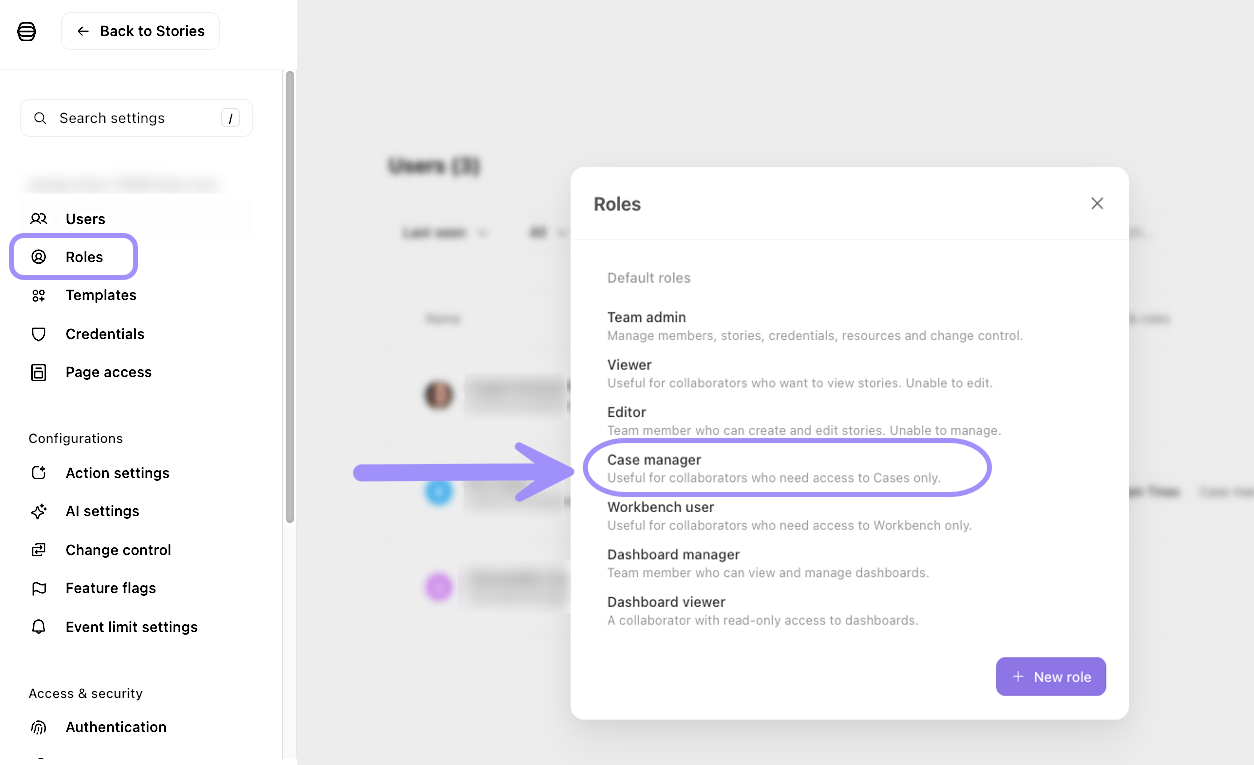
UI location of case manager role settings in the team menu.
To see user role assignments:
Tenant-wide view: Go to team menu Settings → Users and check the Teams & roles column to see each user's role assignments across all teams:
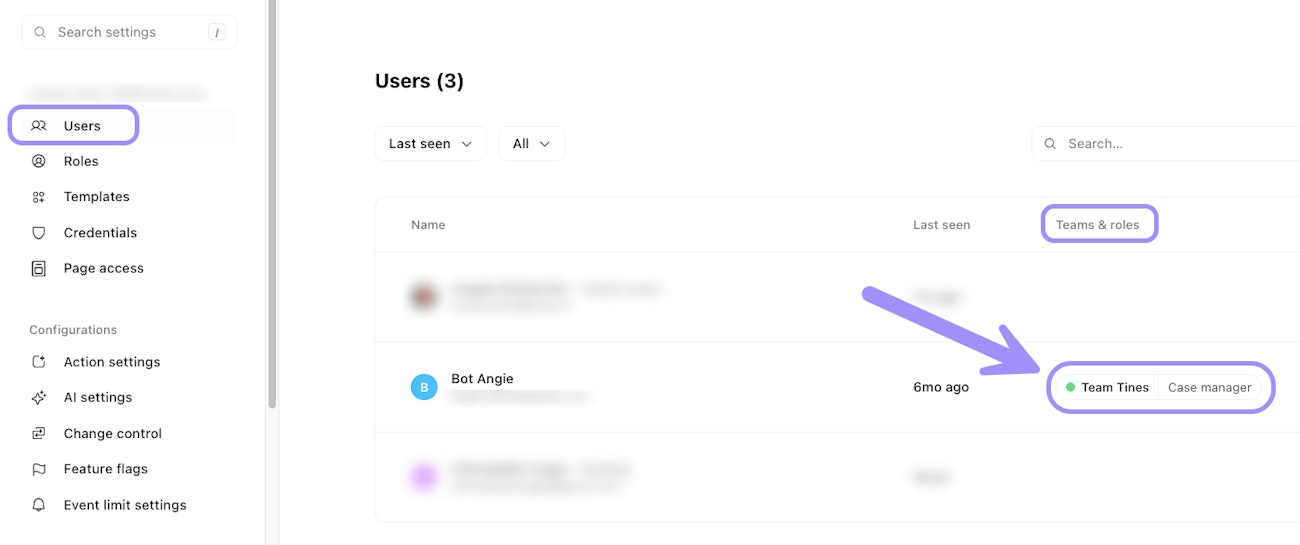
UI location of the users list via the team menu.
Team-level view: Go to team menu Manage team → Members to see role assignments for a specific team:
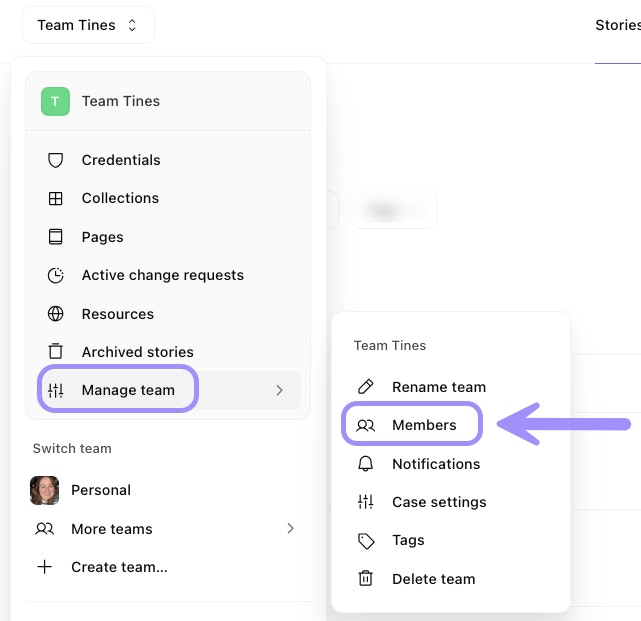
UI location of team member management via the tenant menu.