Login notices for compliance messaging
Some organizations need to display legal notices or acceptable use policies before users can access systems. Tines supports custom login notices that must be accepted by all users each time they sign in.
This feature is commonly used to meet compliance requirements, such as FedRAMP, or to implement organizational policies. For example, a government agency might display a notice stating: "This system is for authorized use only. All activity is monitored and recorded."
❗️Important
Configure a login notice
To set up a login notice, navigate to the Login notice tab in the tenant Settings and enter your notice text. To save your login notice, click the Set Login Notice button. Markdown formatting is supported, so you can include headers, lists, and emphasis. To remove a login notice, simply clear the text box and save via the Set Login Notice button.
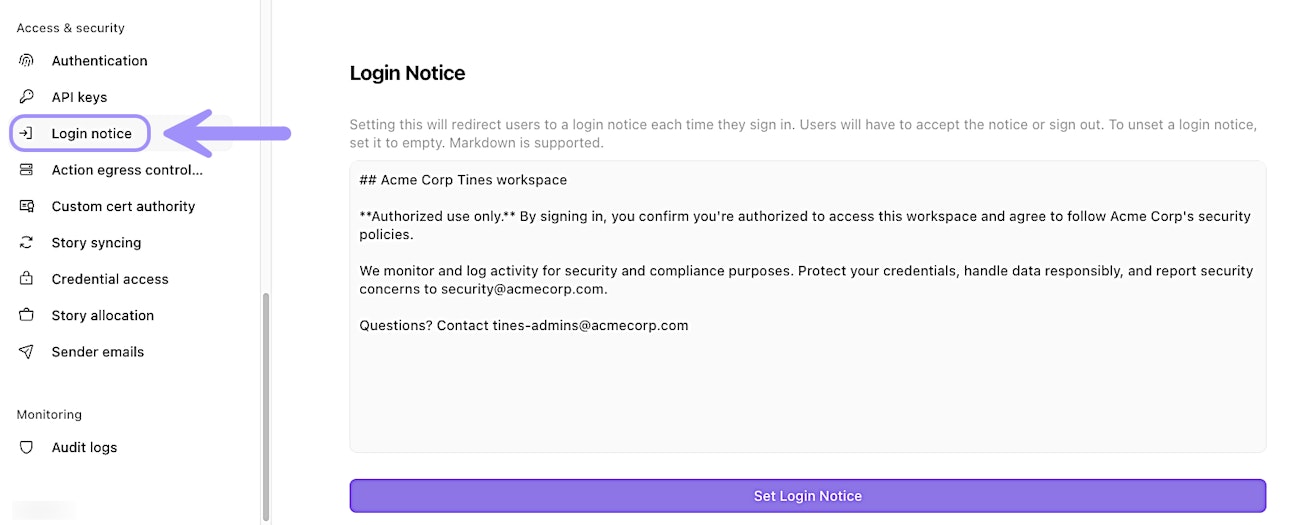
UI location to set up a login notice, including an example.
Once configured, users will see the notice immediately after signing in. They must either accept the notice to proceed or sign out.
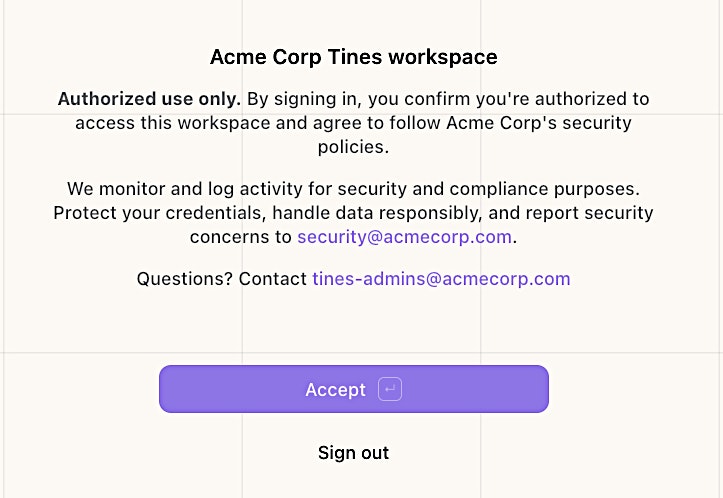
User point-of-view of the login notice.
Session timeout configuration
Tines supports customizable session timeout lengths, allowing you to set how long a user can remain signed in without activity. This helps you balance security with user convenience in line with your organization's policies.
You can configure these settings within the General section of the Authentication tab in the tenant Settings.
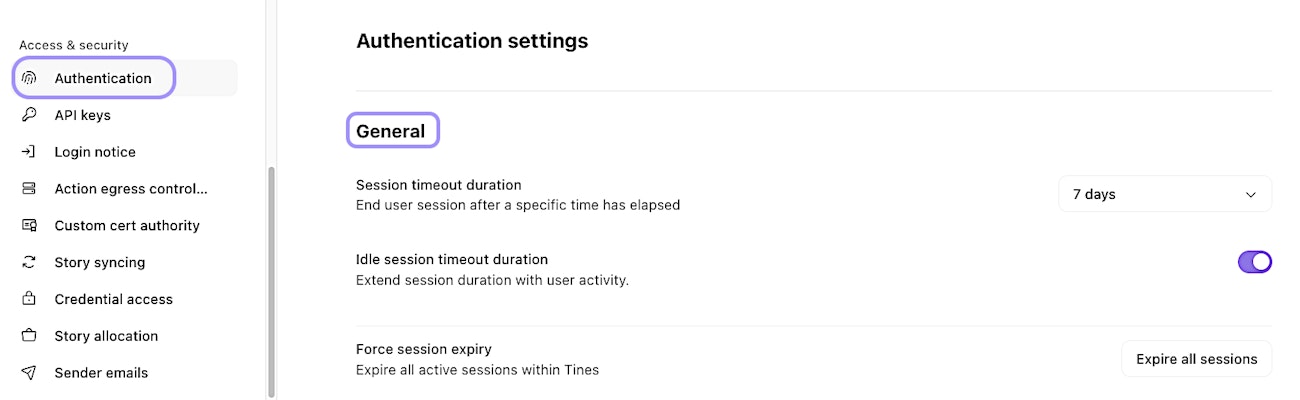
UI location to configure session timeout settings.