Getting the right people into your Tines tenant is the first step in building a collaborative intelligent workflow environment. In this section, we'll walk through how to invite users, manage their profiles, and handle situations where you need to remove or reinvite someone.
Invite users to the tenant
When you invite someone, you're granting them initial access to your Tines tenant (they will have access to their Personal team). What they can do once they're in depends entirely on the permissions you assign them through their tenant role, tenant permissions, and team memberships.
To invite a user to your tenant:
Navigate to the tenant Settings via the team menu.
Navigate to the Users tab.
Click the + New button.
Enter the invitee's email address via the Invite users by email field. You can add multiple email addresses by pressing Enter or adding a comma after each one.
Optionally, assign the user to a team and choose their role.
Click Send invites.
The invitee will receive an email with instructions on how to complete their registration and access the tenant.
✋ Try this: Invite a user to a tenant
Manage user profiles
Once users are in your tenant, you may need to update their information or review their current access. Tines makes it easy to view and edit user profiles from a central location.
To view or edit a user’s profile:
Navigate to the tenant Settings via the team menu.
Navigate to the Users tab.
Select the user you wish to view/edit.
From here, you can view their profile details, including their email, tenant role, team memberships, and last active time.
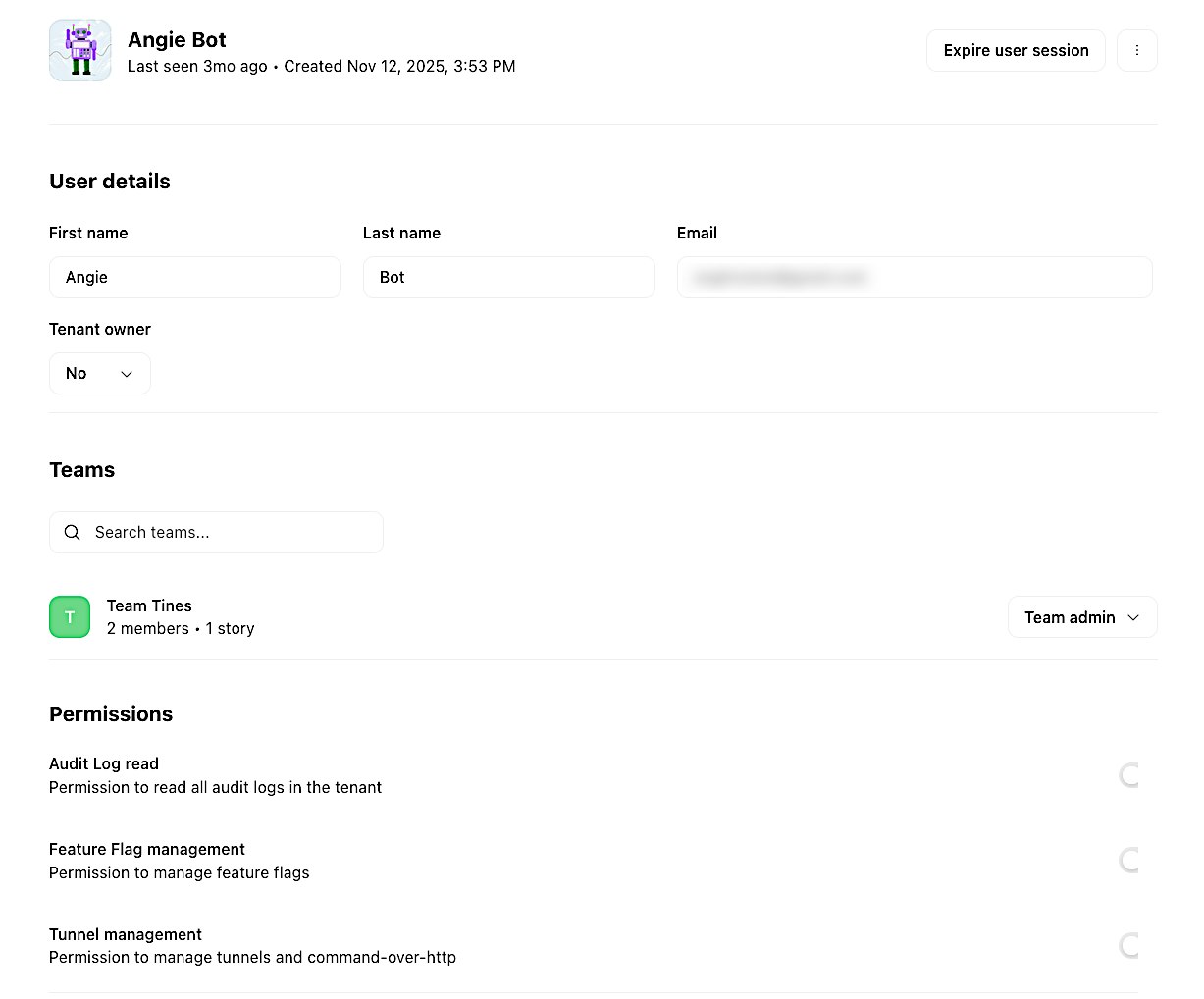
An example of a user profile.
Remove users from the tenant
There are times when you need to remove a user from your tenant entirely. This might happen when someone leaves your organization, changes roles, or no longer needs access to Tines.
Only tenant owners have permission to completely remove a user from a tenant. When you remove a user, they lose access to all teams, credentials, resources, and workflows within the tenant.
To remove a user from your tenant:
Navigate to the tenant Settings via the team menu.
Navigate to the Users tab.
Find the user you wish to remove.
Click the three-dot menu (⋮) → Delete.
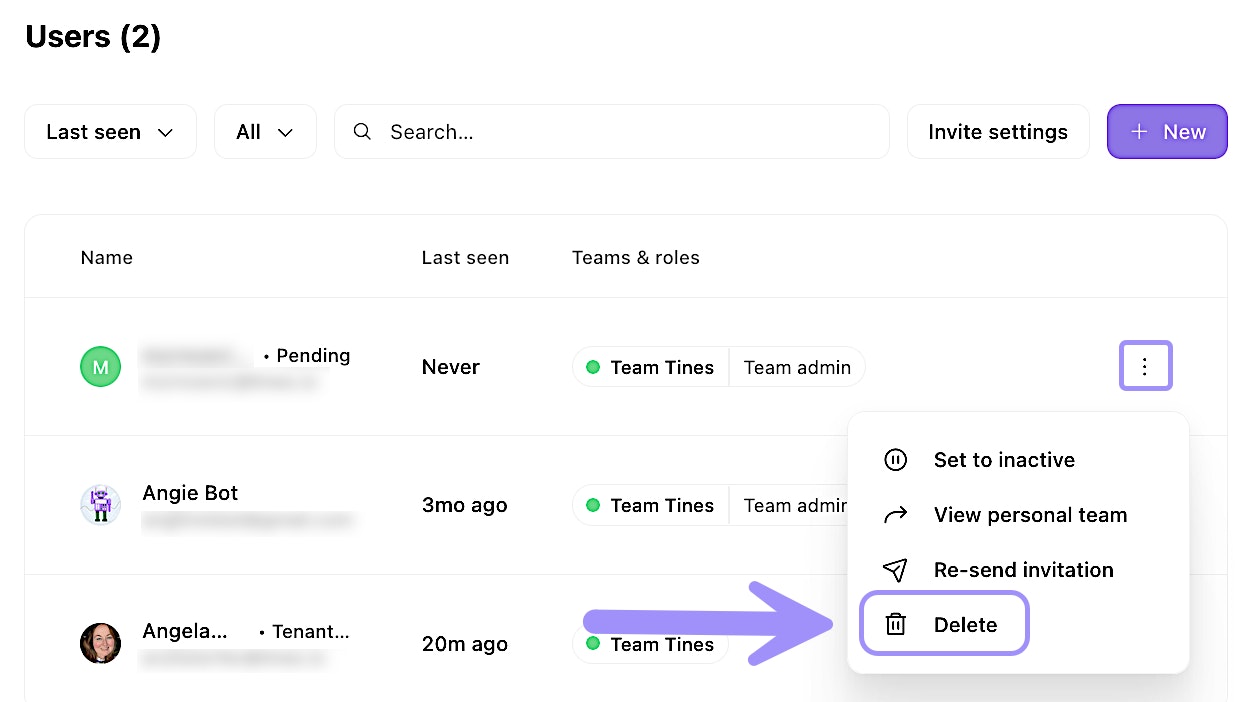
UI location to delete a user from a tenant.
❗️Important
Reinvite users to the tenant
Sometimes an invitation email gets lost, expires, or a user accidentally deletes it. In these cases, you can resend the invitation without creating a new user entry.
To reinvite a user to your tenant:
Navigate the tenant Settings via the team menu.
Navigate to the Users tab.
Find the impacted user in the list.
Click the three-dot menu (⋮) → Re-send invitation.
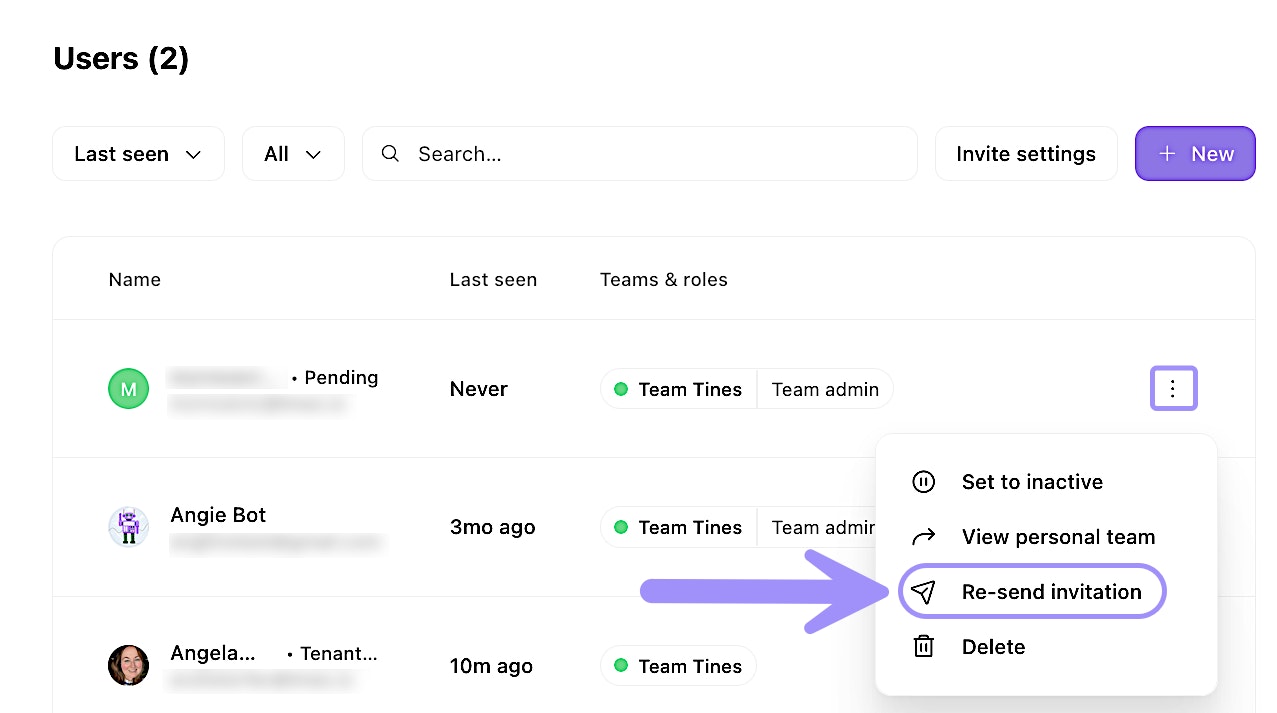
UI location to re-send a tenant invitation to a user.