Automatic mode is one of several modes available in the Event Transform action. It's designed to make complex data transformations accessible to everyone, regardless of coding experience. It is also one of our AI features that does not consume AI credits.
Here's what makes it different: instead of writing Python code yourself via our Run Script action, you describe what you want to accomplish in plain English. The AI reads your guidance, looks at your input data, and generates the Python code for you. This happens at build time, which means the code is created once while you're building your story, not every time the story runs.
Once you save the action, the generated code is locked in place. When your story executes, only that Python code runs. No AI is involved at runtime, which means your transformations are fast, reliable, and predictable.
❗️Important
You'll find automatic mode when configuring an Event Transform action on the storyboard. After adding an Event Transform action to your story, click on the action to open its properties panel. In the Mode dropdown menu, select Automatic from the list of available modes.
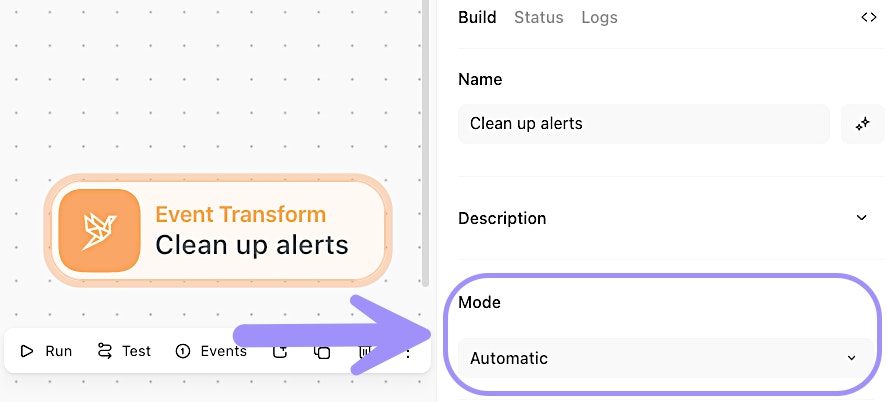
UI location to enable automatic mode in the Event Transform action.
Compare automatic mode to other event transform modes
The Event Transform action offers several modes, each designed for different use cases. Understanding when to use automatic mode versus other modes will help you build more efficient stories.
Automatic mode is ideal when you need custom logic that doesn't fit neatly into one of the predefined modes. Maybe you need to parse a complex nested structure, apply conditional logic, or combine multiple transformation steps. That's where automatic mode becomes invaluable.