When actions run in Tines, they're processed by background workers as jobs. Understanding how these jobs are managed helps you keep your tenant running smoothly and identify potential performance issues before they impact your workflows.
❗️Important
Within a dedicated tenant, the Tenant health page will include additional widgets to monitor job performance, such as:
Workers active: The number of concurrent background workers currently processing jobs.
Queued jobs: Jobs waiting to be processed by background workers.
Jobs awaiting retry: Failed jobs that will be automatically retried.
Dead jobs: Jobs that have permanently failed after exhausting all retry attempts.
Queue latency: The time it takes for a job to start processing after being queued.
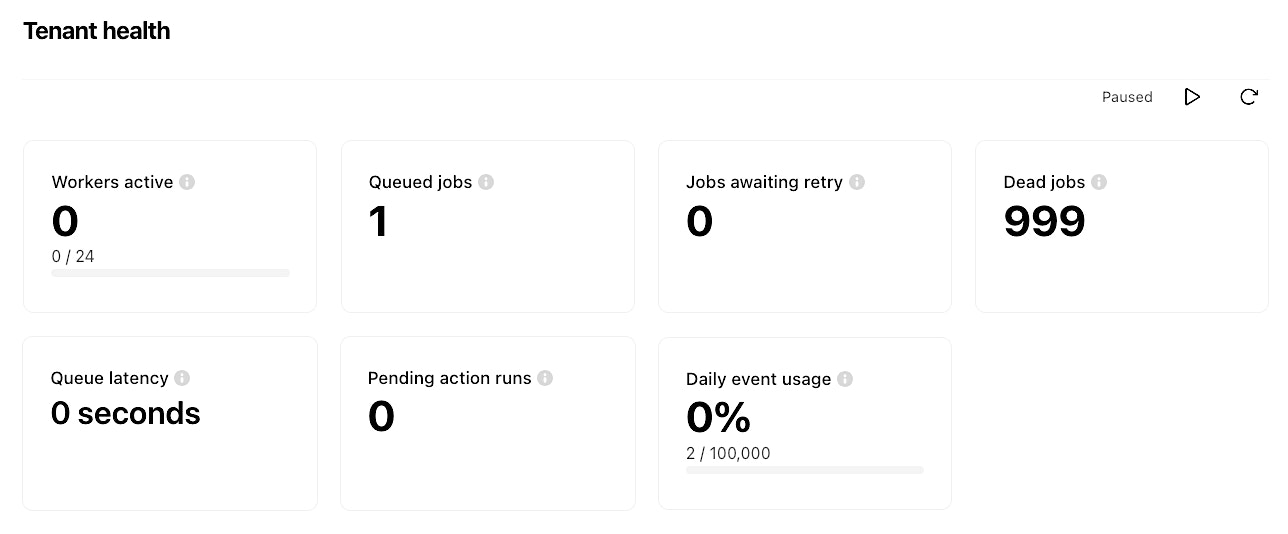
UI view of the Tenant health page of a dedicated stack tenant.
Access job management
To view and clear the Queued and Retry jobs for a story, navigate to the relevant story → three-dot menu → Manage jobs. In the pop-up window, you can see the count of the job types and clear them if needed.
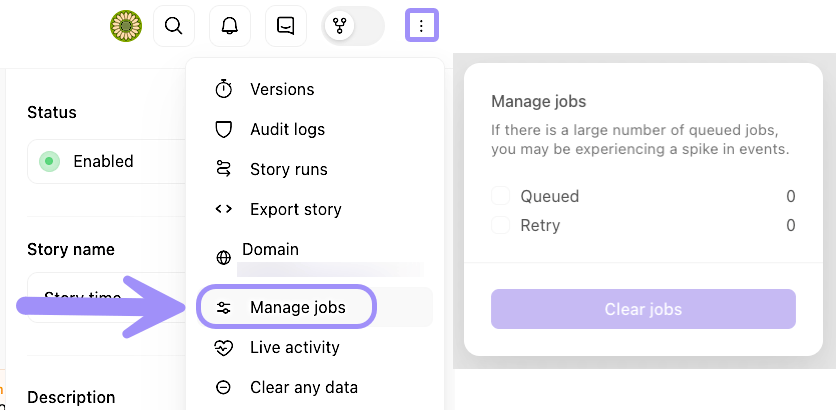
UI location to view and clear queued and retry jobs for a story.
Active workers and in-progress jobs
The Workers active card shows you what's happening in your tenant right now. Click on the card to view a list of current workers, including the type of job they're processing, a description of the work, and how long the job has been running.
This view is helpful when you need to understand what's consuming resources at any given moment. For example, if you notice a job has been running for an unusually long time, it might indicate an action that's waiting on a slow external API or encountering an issue.
Understand queued jobs
When all workers are busy, new jobs are placed in a queue until a worker becomes available. This is normal behavior, especially during periods of high activity.
The Queued jobs card shows you how many jobs are waiting to be processed; clicking into the card will pull up a job list with more details. A large number of queued jobs might indicate a spike in events (for example, if a story is processing a batch of alerts). If you consistently see a high number of queued jobs, it may be time to consider upgrading your plan to add additional workers.
Monitor queue latency
The Queue latency card measures how long jobs are waiting in the queue before a worker picks them up. You'll see this displayed as a time value (for example, "2 minutes" or "30 seconds").
Low latency means jobs are being processed quickly. High latency suggests that workers are consistently busy and jobs are waiting longer than usual. If you observe sustained high queue latency over time, it's a signal that your tenant might benefit from additional capacity.
Manage failed jobs
Sometimes jobs fail. This can happen for many reasons: an external API might be temporarily unavailable, a credential might have expired, or an action might encounter unexpected data.
When a job fails, Tines automatically retries it up to 25 times over approximately 21 days. This retry behavior gives transient issues time to resolve without requiring manual intervention.
You can view failed jobs by clicking on the Jobs awaiting retry card. This list shows you which jobs are failing and how many retry attempts remain.
Handle dead jobs
After a job has failed 25 times, it moves to the Dead jobs section and will not be retried again. These jobs require your attention to understand why they failed repeatedly and whether any action is needed. You can click into this card to see more details.
Dead jobs might indicate a persistent configuration issue, a broken integration, or a story that needs updating. Review dead jobs periodically to identify patterns and address underlying problems.