Enable AI features
AI features are available to all Tines tenants, including Community Edition (with some limitations). By default, AI is turned on for newly created tenants.
As a tenant owner, you control whether AI features are available across your entire tenant. This includes AI Agent actions in stories and AI-powered features like Workbench. You can turn AI features on or off at any time.
To check whether AI is enabled in your tenant:
Navigate to the tenant Settings via the team menu.
Within the tenant Settings, navigate to Configurations → AI settings.
See the Enable AI features setting.
Once AI features are enabled, you can start using them with the default Tines provider immediately. But you can also configure your own AI providers.

UI location to enable AI features.
Build-time vs. runtime AI
Tines uses AI in two distinct ways, and understanding the difference helps you manage governance, costs, and user access effectively.
Build-time: Build-time AI assists users while they create and configure workflows. It runs during the authoring process, not during story execution. From a platform perspective, this means AI usage occurs when users are actively building in the editor.
Runtime: Runtime AI executes during story runs. Every time a workflow triggers, AI processes data and makes decisions based on live inputs.
Configure AI providers
When you enable AI features in Tines, you're using AI providers to power those features. A provider is the service that runs the AI models. Think of it like choosing which engine powers your car. While the car (Tines) works the same either way, you can choose what's running under the hood.
Default Tines provider
By default, AI features in Tines are powered by Anthropic's Claude models, hosted securely through AWS Bedrock. As a user, this is the easiest option because Tines handles all the infrastructure, security, and updates for you. You don't need to set up anything or manage any credentials. You simply use AI features as part of your workflows.
💡Note
Bring your own AI
Bringing your own AI with a custom provider gives you maximum control and flexibility. This approach is particularly valuable for organizations with specific security, compliance, or operational requirements.
Tines supports several AI providers that you can configure:
Anthropic: Connect directly to Anthropic's API with your own API key.
OpenAI: Use OpenAI models with your own account and API key.
AWS Bedrock: Connect to your own AWS Bedrock instance with full control over which models are available. Choose any models enabled in your AWS region, use your existing AWS security and compliance controls, and keep all AI processing within your AWS environment.
Azure OpenAI: Deploy OpenAI models through Azure AI Foundry and connect them to Tines. Each model deployment in Azure has a unique URL, which you'll configure in Tines.
Schema-compatible providers: Any provider that's compatible with OpenAI or Anthropic APIs, including services like Helicone, OpenRouter, xAI, and Ollama. The provider must support streaming and tool use.
To add a custom provider, as a tenant owner, navigate to the AI settings in your tenant and look for the Providers section:
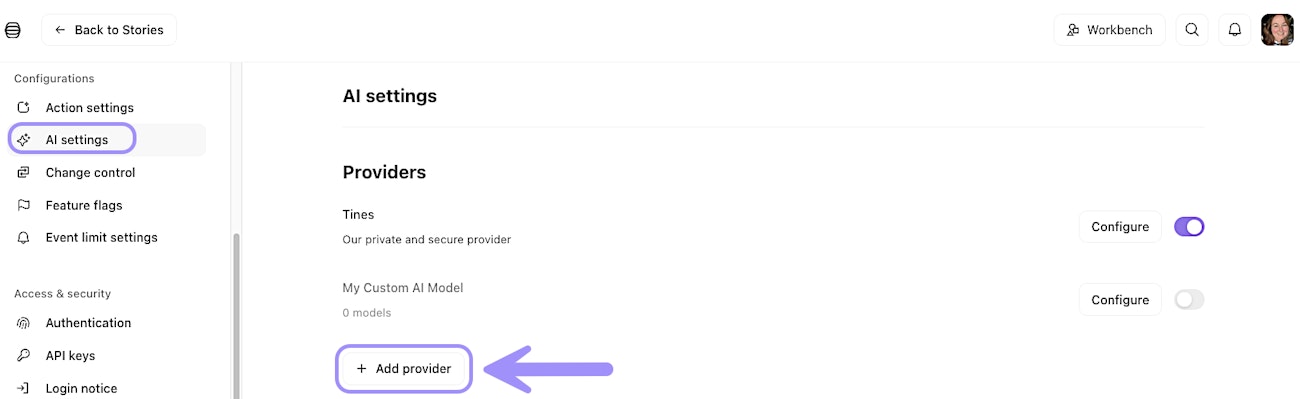
UI location to configure a custom AI provider.
Toggle on Use custom provider and you'll be prompted to provide connection details, such as the base URL and API key, depending on the provider you're configuring.
❗️Important
Manage multiple AI providers
You can enable multiple AI providers within a single tenant. This gives you the flexibility to choose different models for different use cases. For example, you might use one provider for fast, lightweight tasks and another for smart, complex reasoning.
Once you've enabled multiple providers, you can select which models are present when configuring AI Agent actions or setting tenant-wide defaults.
❗️Important
Advanced provider options
When configuring a custom AI provider, you have access to additional options that give you even more control:
Custom certificate authorities: When creating a custom AI provider, you can select the custom certificate authority to use for the connection. This can be helpful when connecting to your own private AI service.
Tunnel connections: You can configure a custom AI provider to connect via a Tines Tunnel. This can be configured under "Extra options" when configuring your provider. Connecting via a Tunnel allows your cloud tenant to securely access AI services running in your internal networks. Only tunnels accessible to all teams can be used this way.
Select fast and smart models
Tines uses two model categories: fast models and smart models. Fast models power features like Automatic mode, where speed is important. Smart models are used for more complex tasks, such as Workbench conversations or AI agent interactions.
You can configure which models serve as your tenant's default fast and smart models in the AI settings. This ensures consistency across your tenant while giving individual story builders the option to choose specific models depending on their workflow.
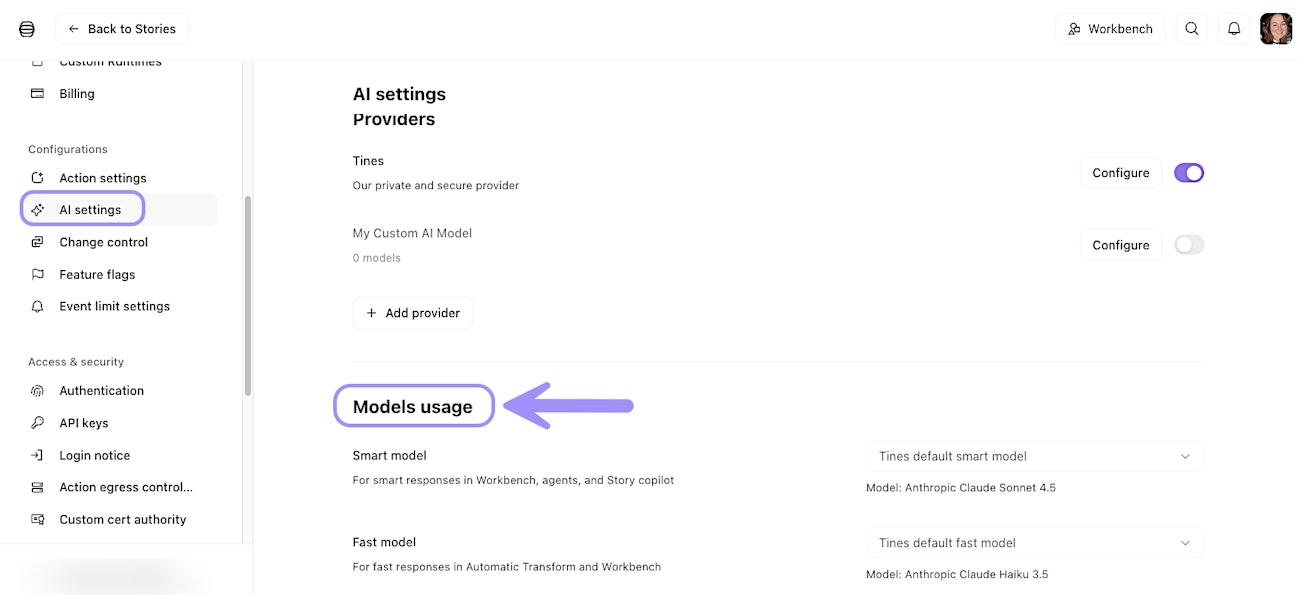
UI location to view and manage AI model usage.