Once a change request is approved, the changes are ready to be deployed. Navigate to the draft and select View request → Push to update the live story.
When you push changes, they're applied together in a single update. Any in-flight story runs will immediately switch to the new logic. This means if a story is currently running when you push changes, it will immediately start using the new logic for any actions it hasn't executed yet. This is consistent with how edits to non-change-controlled stories work. After pushing, the draft is automatically deleted since the changes are now live.
🖐️ Try this: Push a draft to live
Viewing change history: You can see all previous change requests and their descriptions through story versions in the live workflow. This creates a complete audit trail of how your workflow has evolved over time.
Monitor active change requests
To get a bird's-eye view of all pending changes across your team, navigate to Active change requests within the team menu. This centralized view helps team leads and admins track what's in progress and ensure nothing gets stuck in the review process.
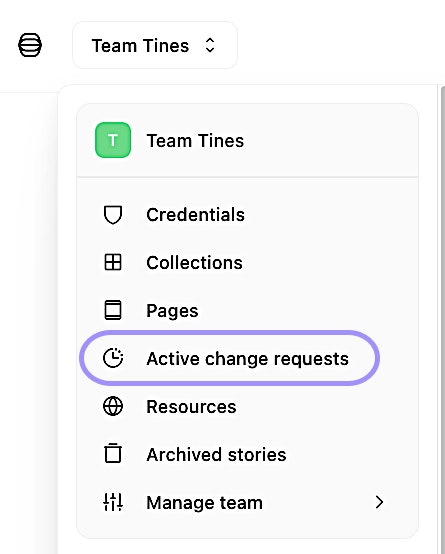
UI location to view all active change requests within a team.
Change control notifications
Change control notifications are managed using webhooks at the team level. A webhook event is generated whenever a story change request is created, cancelled, approved, rejected, or pushed.
To configure change control notifications, navigate to the team menu → Manage team → Notifications → input a webhook action's URL under the Change control heading.
Many teams route these notifications to a webhook action within a story that sends out messages to Slack or Microsoft Teams channels, or store them in longer-term data storage (like records) for compliance purposes.
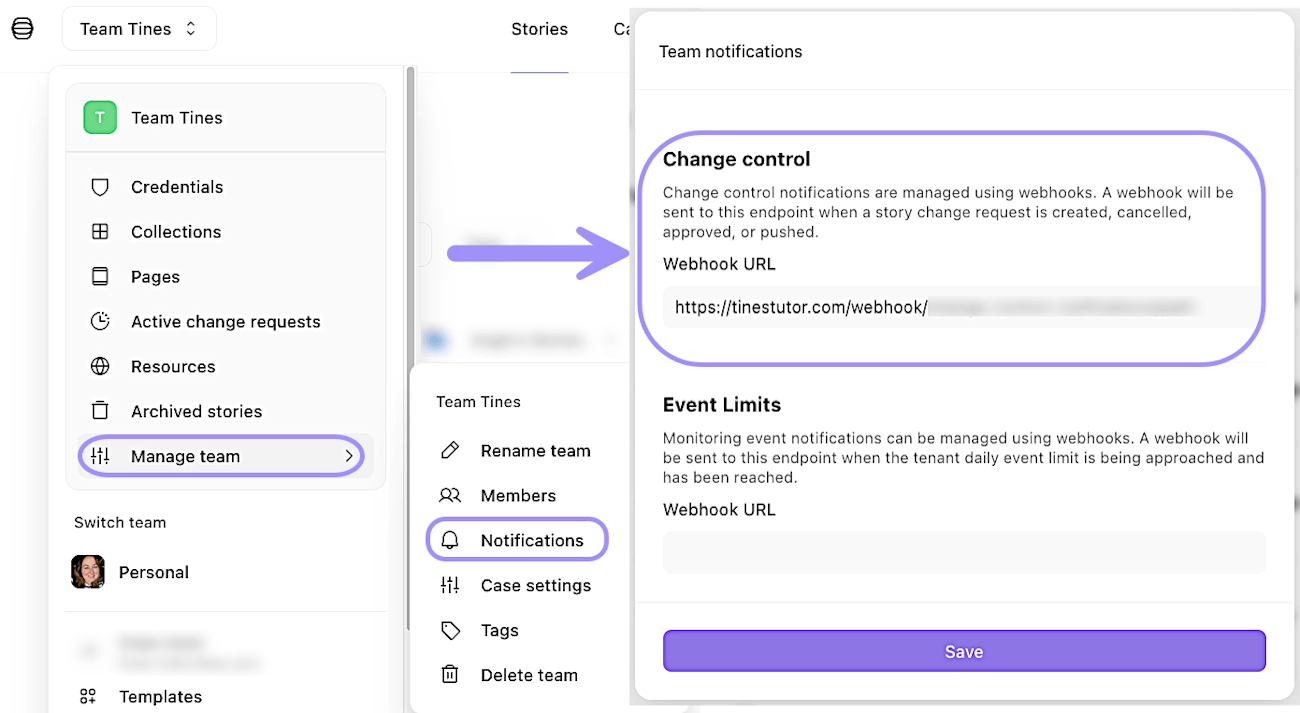
UI location to enable change control notifications at the team-level.