Once you've built and tested your changes, it's time to request a review. Select View changes in the upper right of the storyboard. This opens a modal that visualizes your changes on a per-action basis, making it easy to see exactly what's different.
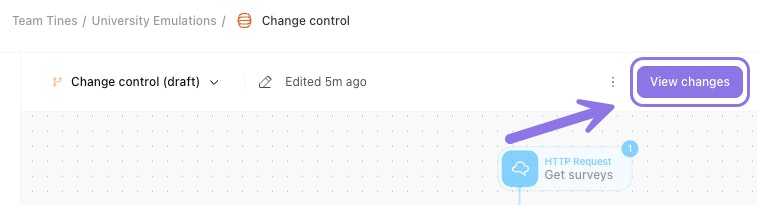
UI location to view story changes.
Within this modal, you can:
Review all changes you've made.
Add a name for your change request.
Provide details in the description field explaining what changed and why.
When you're ready, select Request review. At this point, a notification is sent within the Tines UI and to any configured change control webhook.
🖐️ Try this: Request a change control review
❗️Important
Review changes
Once a review is requested, the approval process begins. By default, change requests can be approved by editors, team admins, or users with the custom permissions change control: review or change control: manage.
🖐️ Try this: Approve a change request
Story owner approvals: For added security, you can restrict approvals to story owners only. To enable this, assign a story owner to the workflow and turn on the Change request approval toggle. Once enabled, only a story owner can disable this setting.
To review a change request, navigate to the draft and select View request. The modal shows all requested changes with helpful toggles:
Show storyboard: Displays a visual of each changed action in the storyboard (on by default).
Show positional changes: Includes changes to action positions, which are purely visual and don't affect functionality (off by default).
Show only changes: Displays only the elements that changed within each action (on by default).
After reviewing, the approver can reject, approve, or cancel the request. A notification is sent for each action taken.
Separation of duties: Tenant owners can require that the person approving a change must be different from the person who requested it. This separation of duties is a common compliance requirement. Team admins can bypass this requirement in emergency situations, but doing so triggers a notification to the change control webhook.