Story copilot brings conversational AI directly into your workflow building experience. Instead of switching between documentation, your storyboard, and external AI tools, you have an intelligent assistant that understands the workflow you're looking at and can help you build, troubleshoot, and optimize it through natural conversation.
❗️Important
Where to find Story copilot
Story copilot lives right where you work. You'll find it in the bottom right corner of your storyboard, ready to assist whenever you need it. The interface opens as a chat panel that doesn't interrupt your workflow. You can minimize it, review previous conversations, or start fresh whenever you need to.
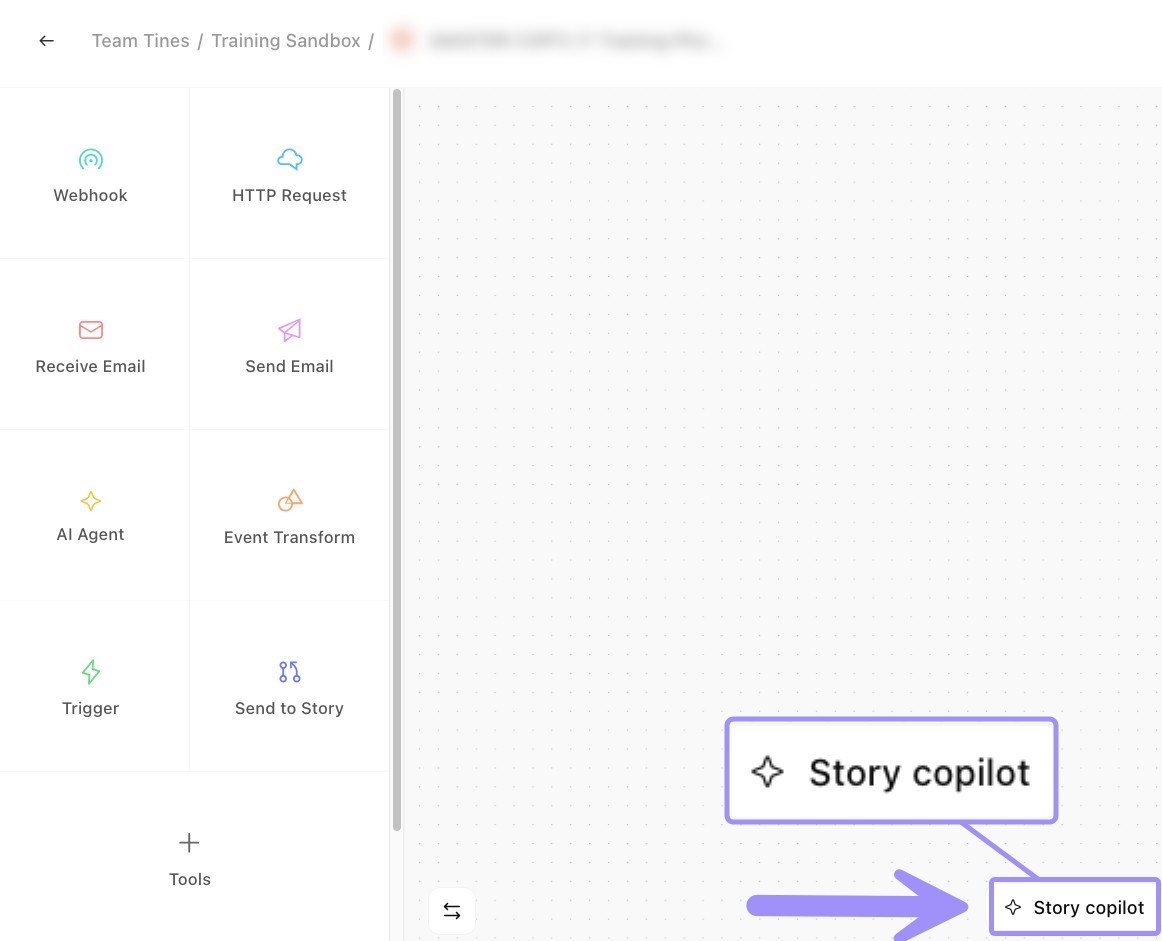
UI location of Story copilot.
Unlike standalone AI tools that require you to switch contexts, Story copilot understands the story you're currently viewing. It can see your actions, configurations, and workflow logic, which means you don't need to explain everything from scratch. Just ask your question or describe what you need.
Understand modes: Ask vs. Build
Story copilot gives you two ways to interact with it, each designed for different situations.
Ask mode
Ask mode is your exploration and learning space. When you activate Ask mode, you're telling Story copilot: "I want to understand, not change." This is perfect when you're:
Reviewing a workflow before making modifications
Learning how a complex story works
Getting ideas for potential improvements without committing to them
In Ask mode, your story stays exactly as it is. You can ask as many questions as you want without worrying about accidentally modifying anything.
Build mode
Build mode activates Story copilot's ability to create and modify workflows. Switch to Build mode when you're ready to:
Generate a new workflow from a description
Add new actions or modify existing ones
Troubleshoot problems by letting Story copilot make fixes
Refactor or optimize your workflow structure
Even in Build mode, you maintain complete control. Story copilot will show you every proposed change and wait for your approval before applying it to your story.
You can switch between modes at any time during a conversation. For example, you might start in Ask mode to understand a story, then switch to Build mode once you're ready to make improvements.
What Story copilot can access
Understanding Story copilot's capabilities and limitations helps you work with it more effectively.
What Story copilot can see:
All actions in the current story
Action configurations and formulas
Connections between actions
Recent execution logs (if available)
Action names and descriptions
Workflow structure and logic flow
Which credentials and resources are referenced (but not their values)
What Story copilot cannot see:
Other stories in your tenant (unless you tell it about them)
The actual data flowing through your workflow during execution
Credential values or sensitive configuration details
Resource contents (unless you mention them)
Your company's specific business rules and processes
❗️Important
Use cases for Story copilot
Story copilot shines in several scenarios. Let's look at some real-world examples across different teams and industries.
Understand inherited workflows
You've taken over responsibility for a story called "Quarterly compliance reporting" that was built by a colleague who left the company. The story has 40+ actions and connects to five different systems.
Your prompt: "Walk me through this workflow step by step, and explain what each major section accomplishes."
What Story copilot does: Provides a structured breakdown of the workflow's purpose, key decision points, and integration dependencies.
Rapid prototyping for new use cases
Your marketing team needs a workflow that monitors campaign performance across three advertising platforms, aggregates the data daily, and generates a summary report with recommendations.
Your prompt: "I need to pull daily metrics from Google Ads, Facebook Ads, and LinkedIn Ads, combine them into a single dataset, and create a formatted report that gets emailed to our marketing director every morning at 8 AM."
What Story copilot does: Generates the complete workflow structure, including API calls, data transformation, and scheduling.
Debug production issues
A workflow that processes customer refund requests has started failing intermittently. You're not sure which action is causing the problem.
Your prompt: "This workflow worked fine last week but now it's failing about 30% of the time. Can you analyze the action logs and help me identify what's going wrong?"
What Story copilot does: Examines the workflow, checks recent execution logs, and identifies that an API endpoint changed its response format, causing a parsing error.
Modernize legacy workflows
You have a story that was built two years ago and uses older patterns. You want to update it to use current best practices.
Your prompt: "This story works, but it's using some outdated approaches. Can you suggest modern alternatives and help me refactor it?"
What Story copilot does: Identifies opportunities to consolidate actions, improve error handling, and use newer Tines features that didn't exist when the story was originally built.
Work together with Story copilot
Here's how to think about when to use Story copilot:
Use Story copilot when:
You're starting a new workflow and want to move quickly from idea to prototype.
You're working with a story you didn't build and need to understand it.
You're stuck on a problem and want a fresh perspective.
You want to learn Tines features while building.
You need to make repetitive changes across multiple actions.
You're exploring different approaches to solve a problem.
Build manually when:
You're working with highly sensitive configurations that require careful review.
You're implementing very specific custom logic that requires precise control.
You're learning a new Tines feature and want to understand every detail.
You're building something experimental that doesn't fit standard patterns.
You're making a quick, simple change and manual editing is faster.