Tools are what transform the AI Agent action from a simple question-and-answer system into an autonomous agent capable of completing complex tasks. When you attach tools to an AI agent, you're giving it the ability to take actions, retrieve information, and interact with other systems.
Tools work in both task and chat modes, giving your AI agents the same capabilities regardless of how they're being used.
How tools work
When tools are attached, the AI enters a reasoning loop. It analyzes the task, decides which tool (if any) to use, invokes the tool, receives the result, and then decides what to do next. This continues until the AI determines it has completed the task.
❗️Important
Templates
Templates are pre-built action configurations for popular products and services. Tines provides a library of public templates that you can attach as tools to your AI Agent action.
You can also create and attach private templates that you've built for your organization's specific needs.
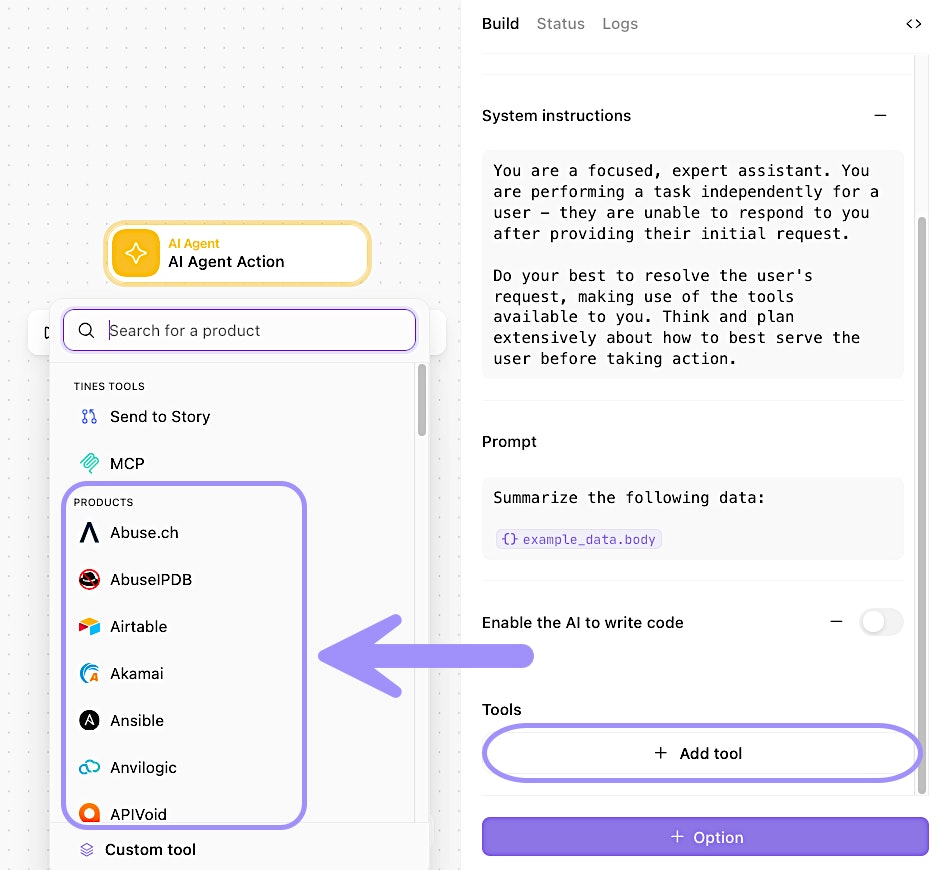
UI location to add a template to an AI Agent action.
Send to Story
Send to Story allows you to attach entire Tines stories as tools. This is useful when you have complex, multi-step workflows that you want the AI to trigger. By attaching these stories as tools, the AI can invoke them when needed to complete its task.
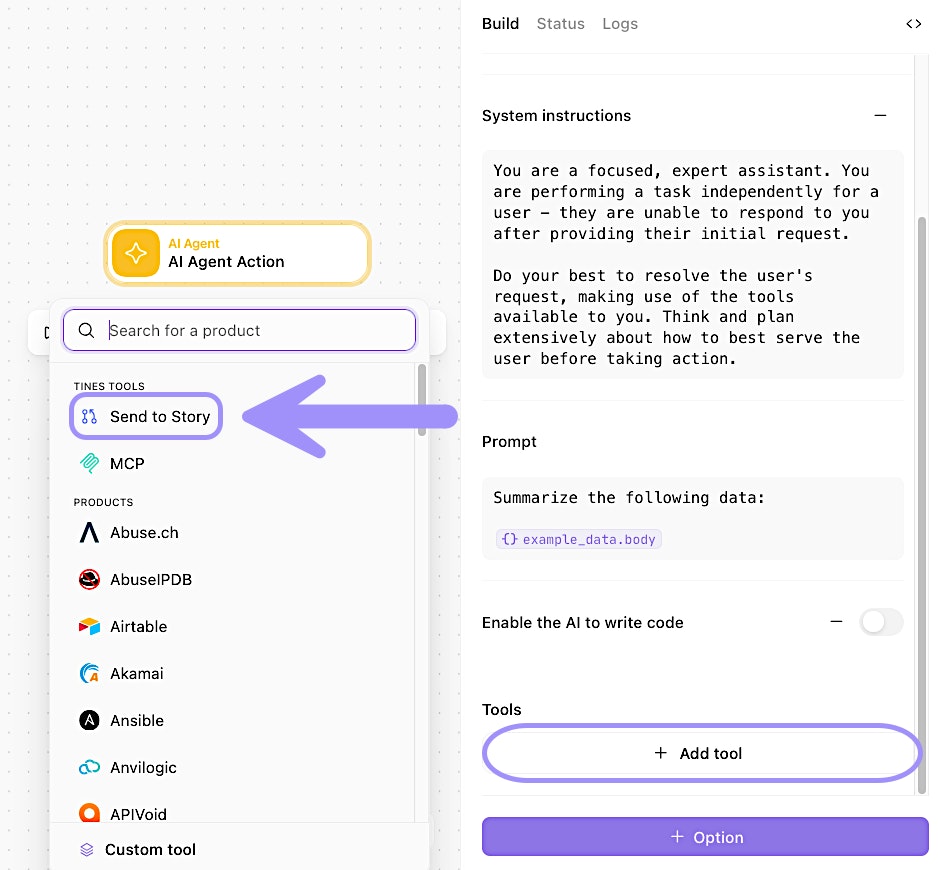
UI location to add a Send to Story-enabled story to an AI Agent action.
❗️Important
Timeout settings for Send to Story tools
You can configure a timeout duration (in seconds) for Send to Story tools added to the AI Agent action. If the underlying story doesn't complete within the specified time, the AI agent will conclude the tool use and continue with its task. This timeout overrides any settings in place in the Send to Story-enabled story.
To add and configure these timeout settings, navigate to the Send to Story tool within the AI Agent action → + Option button → Timeout Duration:
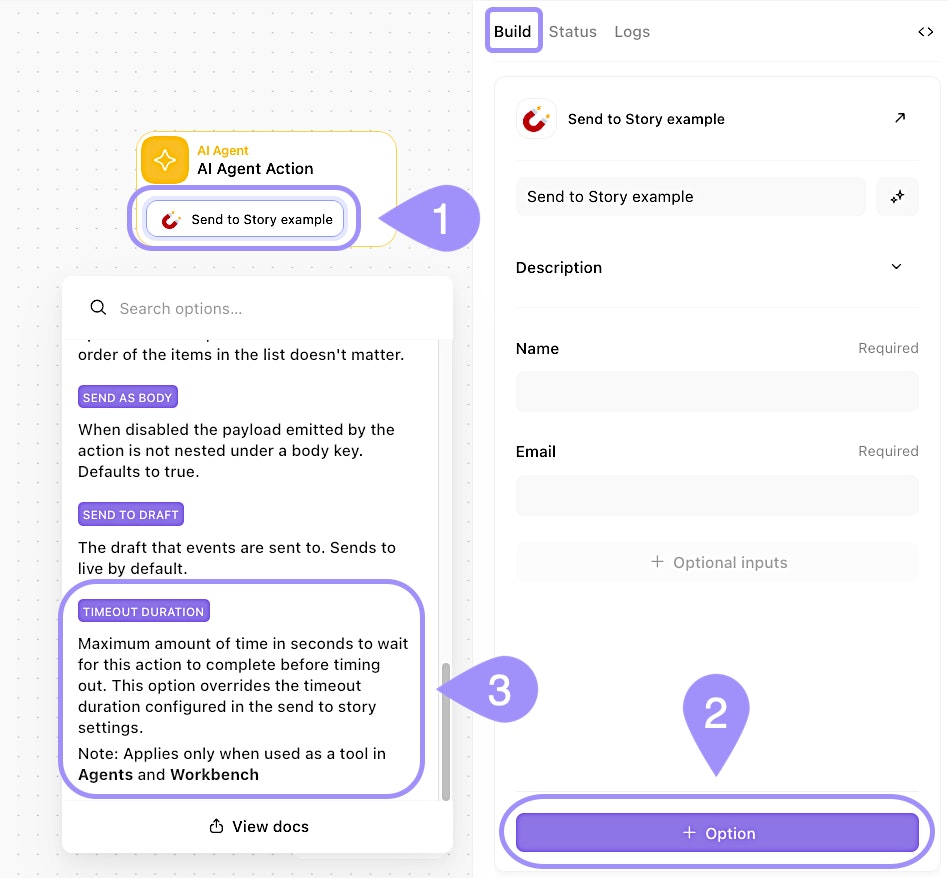
UI location to configure Send to Story tool timeouts for the AI Agent action.
Custom tools
Custom tools let you define tools directly within the same story as your AI Agent action. This keeps everything under a single change control scope and makes it easier to manage related actions together.
A custom tool is essentially an action group that the AI can invoke. You define the tool's name, description, input parameters, and the actions it should execute.
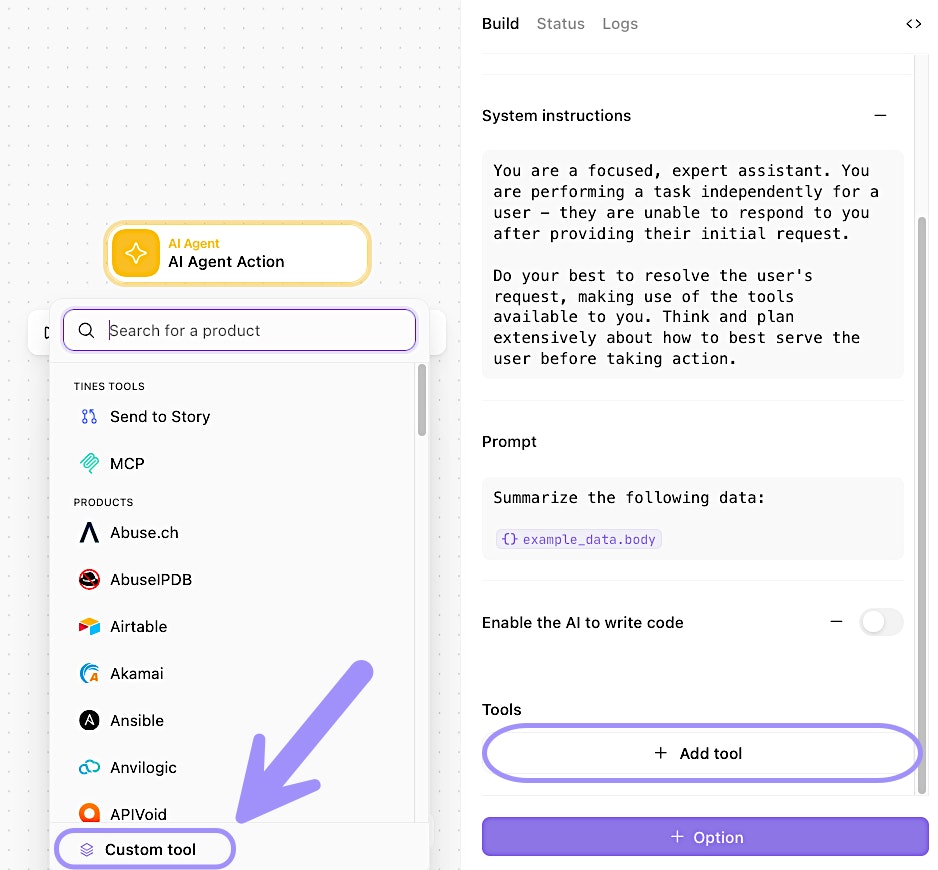
UI location to add a custom tool to an AI Agent action.
🪄Tip
Internal tools
The AI agent action has two built-in tools that don't require any configuration:
Think: A scratchpad where the AI can plan out its actions before taking them. This is based on research from Anthropic, which shows that allowing AI models to "think through" complex problems improves their performance.
Code Analysis: The ability to write and run Python code. This is useful for data analysis tasks, generating charts, or performing calculations that would be difficult to express in natural language.
You don't need to explicitly enable these tools. They're available to the AI whenever they might be useful.
Tool descriptions
We’ve talked about system instructions and prompts, but you can also utilize each tool’s Description field to add more details (just like a regular action).
Each tool you attach should have a clear, descriptive name and description. The AI uses these to decide when and how to use the tool.
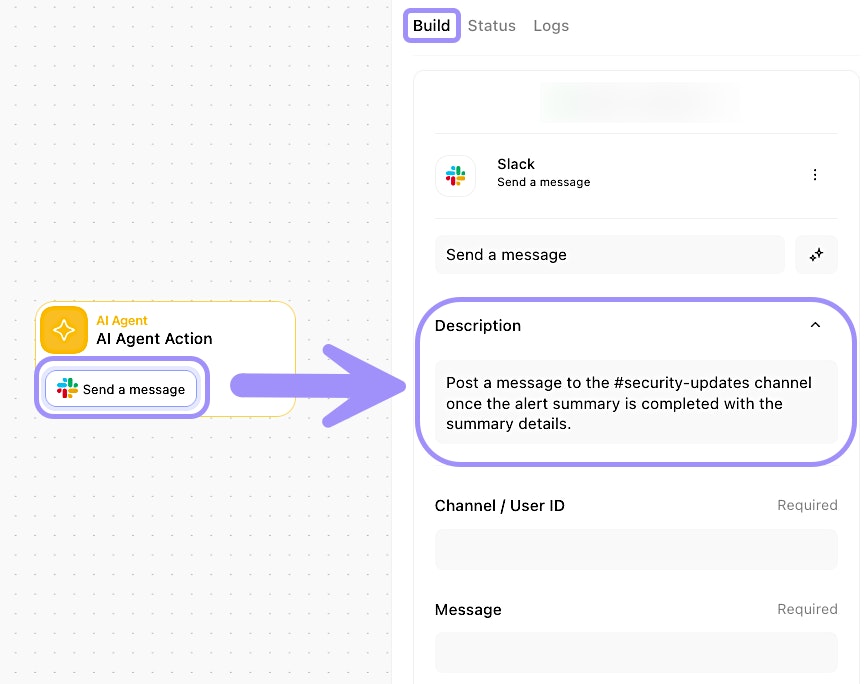
Example of a tool description within an AI Agent action.
Notice how the tool’s specific description explains:
What the tool does
What it returns
When to use it
🪄Tip
MCP server
Tines also supports connecting to remote Model Context Protocol (MCP) servers. This allows your AI Agent action to use tools exposed by external systems that implement the MCP specification.
For example, you might connect to an MCP server that provides tools for querying databases, accessing specialized APIs, or interacting with third party AI applications. Once connected, those tools appear alongside your other configured tools, and the AI can invoke them just like any other tool.
We'll explore MCP servers in detail in the next module, including how to build your own MCP servers in Tines.
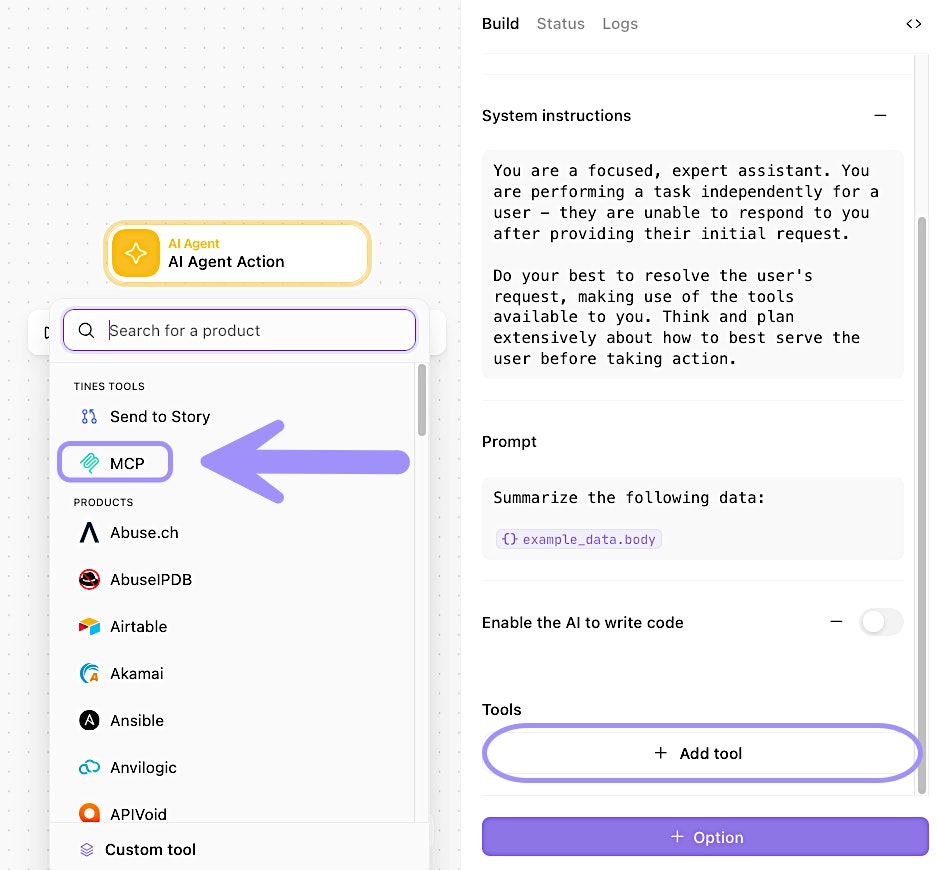
UI location to add an MCP server to an AI Agent action.